Networks Editor allows you to create relationships between existing features to represent how network assets are associated with one another. The available relationship types depend on the relationship classes and rules configured for the selected features. For example, if you want to relate damages, documents, or metadata to features and structures, you can create a non-spatial link using relationships.
To create a relationship with identified features:
1.Go to Edit > Relationships.
In the left side panel, the Relationships tab opens.
2.Select or query the features or structures you want to create a relationship with.
You can create a relationship only with selected features from a feature class that has a relationship class with the active feature. The selection must contain at least one feature of the required class, see Configure Relationships.
3.Click Filter at the bottom right-side of the Relationships panel to filter the selection results. You can filter out system-relevant relationships used for annotations or external documents.
4.Create a new relationship by clicking the Action menu next to the target feature, then click Create relationship to identified feature.
5.Choose the feature you want to create the relationship with and click on it in the loaded map.
Your new relationship is created.
6.You can perform some actions on your created relationships by clicking the Action menu, the following functions appear:
Button |
Description |
|---|---|
|
Zoom to the related feature on the map. |
|
Pan to the related feature on the map. |
|
Briefly highlight this feature on the map. |
|
Show the attributes of the selected feature in a read only mode. |
|
Show the definition of the relationship class for this feature. You cannot edit the relationship class definition for this feature from this window, you can only view them here. The menu item shows related layers, cardinality, and information about whether it is an attributed or a composite relationship class. |
|
Create a new relationship between the identified feature and the current active feature. |
|
Create a new relationship between preselected features and the current active feature. |
|
Create a new feature and a relationship between it and the current active feature. |
|
Delete the relationship(s) to the current active feature. |
|
Delete both the relationship and the feature that is related to the current active feature. |


To create a relationship with selected features:
1.Go to Select > Query Builder.
2.Search for and select the desired features (e.g., documents).
3.Go to Edit > Relationships.
4.Select the features or structures you want to create a relationship with.
5.Open the context menu for the target feature.
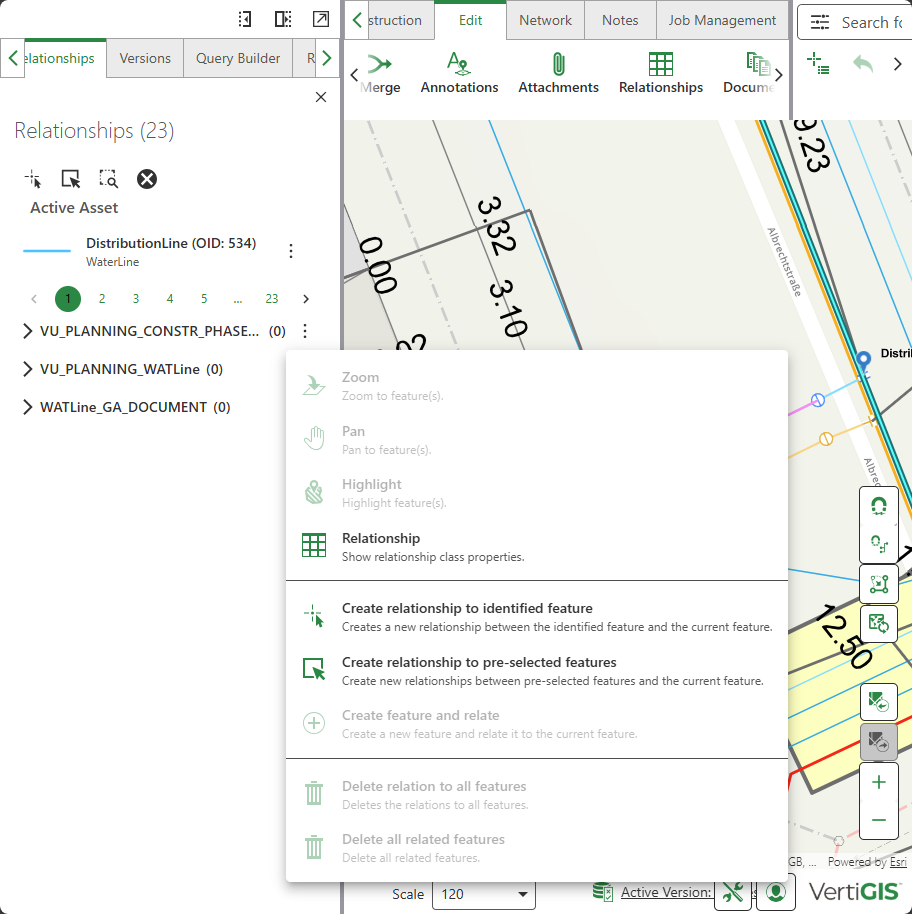
6.Select Create relationships to preselected features.
The system checks the selected features that can be related to the current class and creates the relationships.
Create relationships to preselected features works with both spatial and non-spatial features and supports multiple selections at once.
To create a non-spatial relationship:
1.Go to Edit > Relationships.
In the left side panel, the Relationships tab opens.
2.Select or query the features or structures you want to create a relationship with.
3.Click Filter at the bottom right-side of the Relationships panel to filter the selection results. You can show or hide annotation relationships and external documents relationships.
4.Create a new relationship by clicking the Action menu next to the target feature, then click Create feature and relate.
A new feature form is opened.
5.Fill in the fields in the form, then click Submit.
You have now created a non-spatial feature that is related to your current structure.
See Edit Relationships.