This topic outlines how to add, edit, and delete customized dashboards on VertiGIS FM dashboards.
Click here for instructions about how to add, edit, and delete data objects on any of the dashboards you create.
Only users assigned user roles that have the Manage Dashboards permission in the Platform Permissions section enabled can manage dashboard content.
Create a New Custom Dashboard
To create a custom dashboard, navigate to the legacy dashboard for the VertiGIS FM product whose dashboard you want to customize and click the  icon. The icon is located next to the dashboard title or in the top-right corner of the page.
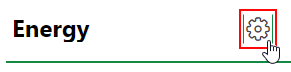
Gear Icon on Legacy Dashboard
If a customized dashboard has already been created for the product or module and you want to create a new one, click the Add ( ) icon in the top-right corner.
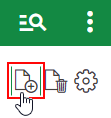
Add Additional Dashboard
A screen showing a blank grid opens.
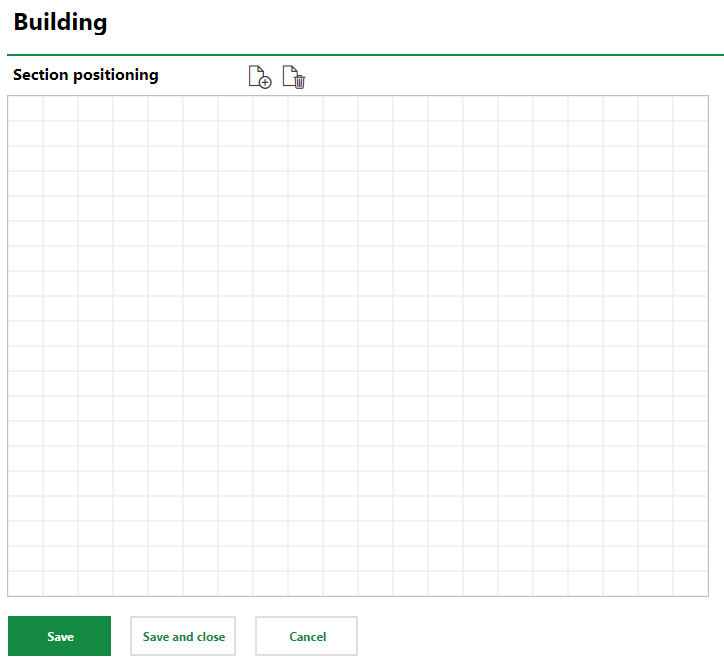
Blank Dashboard
Click the Add () icon.
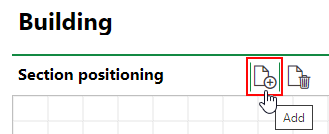
Add Icon
This opens the Dashboards and Section Settings sections to the right of the grid.
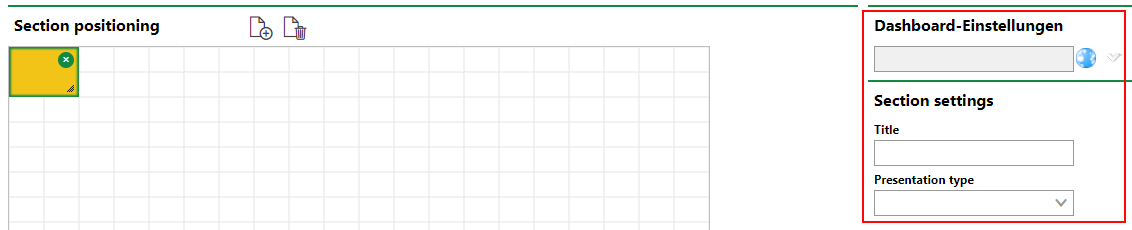
Dashboards and Section Settings Sections
You can now name the dashboard and add dashboard objects to it.
Name the Dashboard
Enter a name for the customized dashboard in the Dashboard Settings section in the top-right corner.
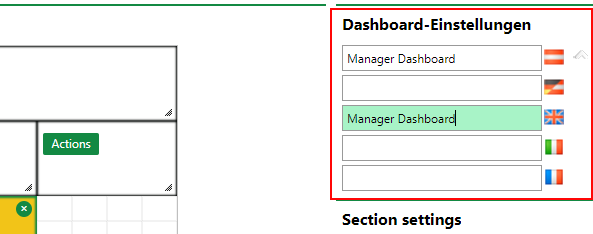
Entering Dashboard Name
Click Save to save the new dashboard. You can now add dashboard objects to it.
Navigate Between Dashboards
You can create multiple custom dashboards for a product or module's dashboard if users in different roles should see different information.
If a user's role is assigned permissions to see more than one dashboard for a product or module, the names of the dashboards are shown at the top-center of the dashboard.
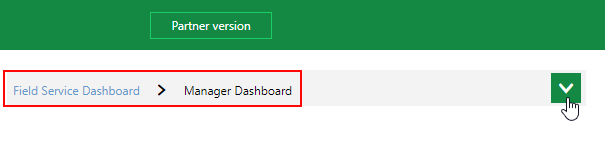
Multiple Dashboards on Dashboard
The dashboard you are viewing is shown in blue text. You can navigate to another dashboard in the section by clicking its name. Alternatively, you can click the drop-down menu and then click the dashboard you want to see.
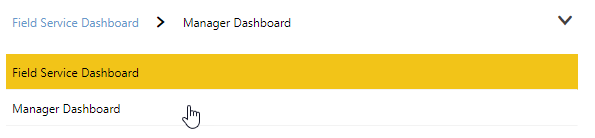
Multiple Dashboards for User Role
Refer to Role Administration and User Management for more information.
Edit a Custom Dashboard
To edit a custom dashboard that has already been created for a product or module, click the icon in the top-right corner of the dashboard.
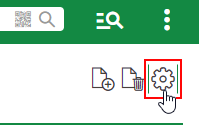
Gear Icon on Customized Dashboard
You can now edit and re-arrange data objects on the dashboard.
Multiple Dashboards
If the product or module has multiple dashboards customized and assigned to your user role, click the down-arrow button at the top of the dashboard.

Expand Dashboard Dashboards
Select the dashboard you want to edit and click the icon.

Edit Selected Dashboard
As an administrator, you can only edit dashboards assigned to your user role. Dashboards not assigned to your user role do not appear in the section shown in the screen captures above.
Refer to Dashboard Administration for more information.
Delete a Dashboard
To delete a customized dashboard for a product or module, navigate to it and click the Delete ( ) icon in the top-right corner.
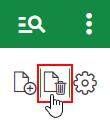
Delete Custom Dashboard Icon
If the custom dashboard you delete is the only dashboard your user role had permission to view for that product or module, VertiGIS FM restores its legacy dashboard.
Multiple Dashboards
If the dashboard has multiple dashboards customized and assigned to your user role, click the down-arrow button at the top of the dashboard.
Expand Dashboards
Select the dashboard you want to delete and click the Delete () icon.

Deleting One of Multiple Dashboards
As an administrator, you can only delete dashboards assigned to your user role. Dashboards not assigned to your user role do not appear in the section shown in the screen captures above.
Refer to Dashboard Administration for more information.
If a product or module has had more than one dashboard created for it, and the role assigned to your user is granted permissions to see them, the names of the customized dashboards appear at the top of the dashboard page. You can navigate between them by clicking on the dashboard you want to see.
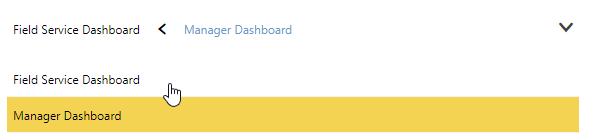
Multiple Dashboards