The Users tab shows everyone with access to Job Management. Membership comes from the portal groups registered with Job Management, so you add and remove users by editing group membership in ArcGIS Portal, not in Job Management.
How Membership Stays in Sync
Job Management does not detect portal changes automatically.
To sync users:
1.Open Job Management tab from the toolbar.
2.Select Groups.
3.Click Sync.
After sync, a notification lists any users added or removed by the sync.
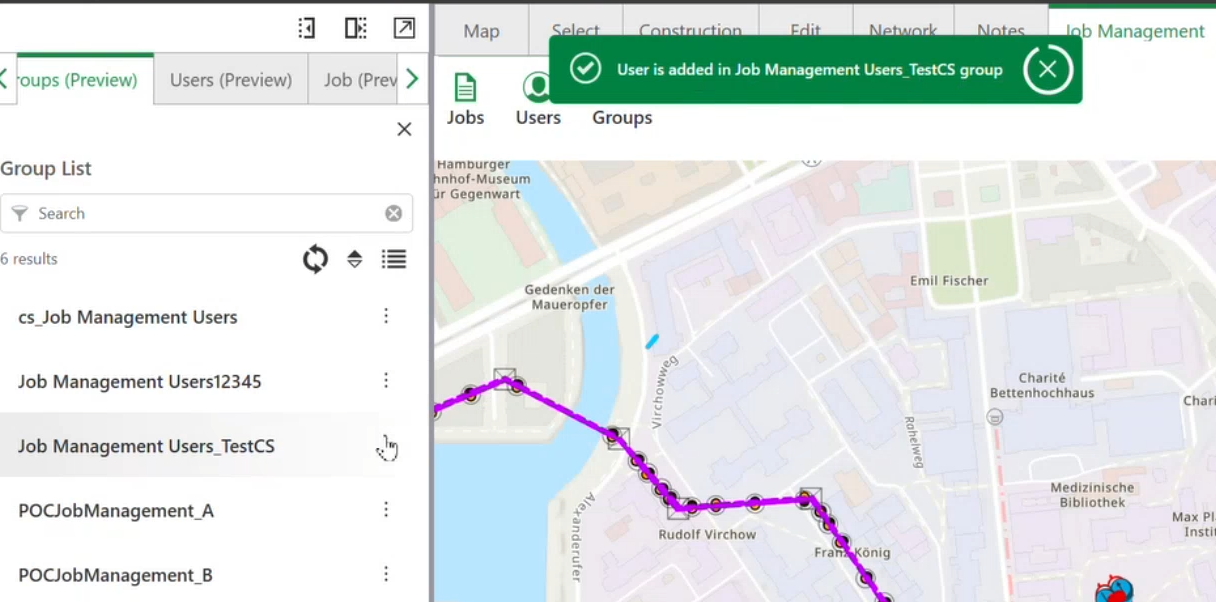
The Sync operation behaves differently on the Groups and Users tabs.
•Users Sync: This operation has limited functionality. It simply refreshes user information from the Users table and does not synchronize additional data.
•Groups Sync: This operation synchronizes the latest Job Management group data from the Portal, ensuring that group memberships and related information are up to date.
Add Users
To add users:
•Either add them to a group registered with the Job Management system, OR
•Register a group that the user belongs to with the Job Management System.
To reflect the changes, either use the sync option or reload the page.
When a user is added to a registered portal group in ArcGIS Portal and a sync is performed, the system enrolls them in Job Management. As part of enrollment, the system checks the user's existing permissions and assigns a default role accordingly.
Remove Users
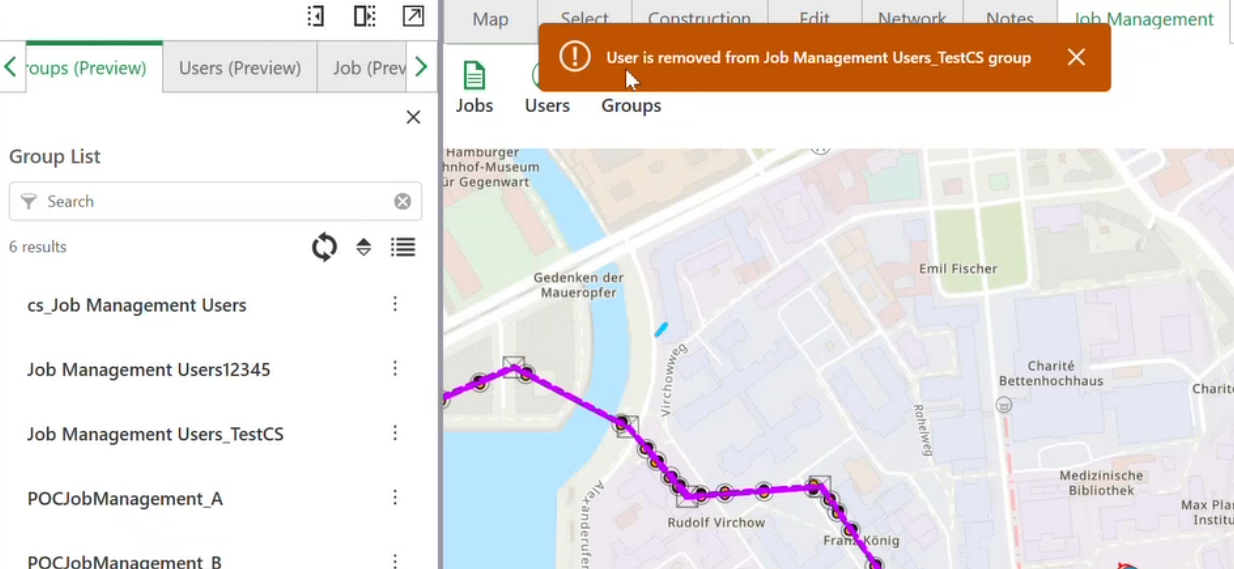
To remove users, remove them from the portal group registered with the Job Management system, then sync Job Management to reflect those changes.
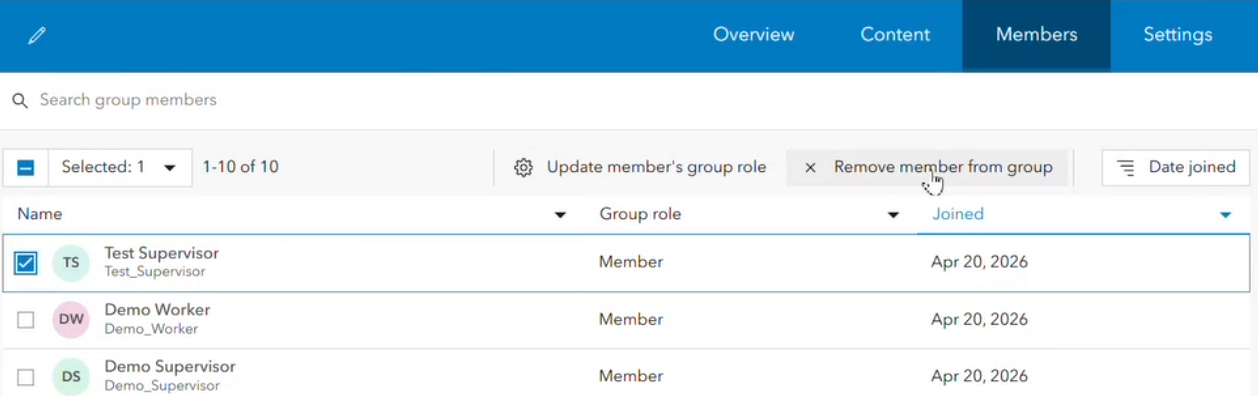
The effect of removing a user varies based on the following scenarios:
•User removed from one portal group but still a member of another portal group registered with Job Management: The user is removed from the affected group in Job Management. Any jobs assigned to the user in that group are set to unassigned. Their access through the other group is unaffected.
•User removed from all Job Management groups or deleted from the portal entirely: The user is removed from all Job Management groups. All jobs assigned to the user across every group are set to unassigned.
The branch versions of the jobs assigned to the removed user are removed from the system. The jobs are set to unassigned.
You can reassign the affected jobs to another user.
View Users
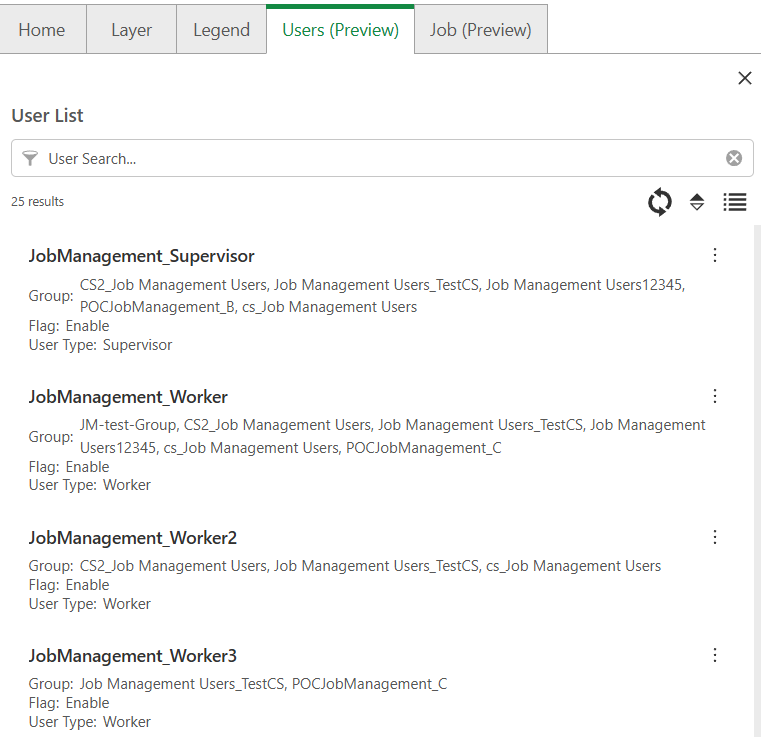
The Users tab lists all users currently enrolled in Job Management. For each user, you can see:
•Their name
•Their user type (Supervisor or Worker role)
•The groups they belong to
•Whether they are currently active or inactive
Edit Users
Active status of a user can be configured within Job Management independently of portal group membership.
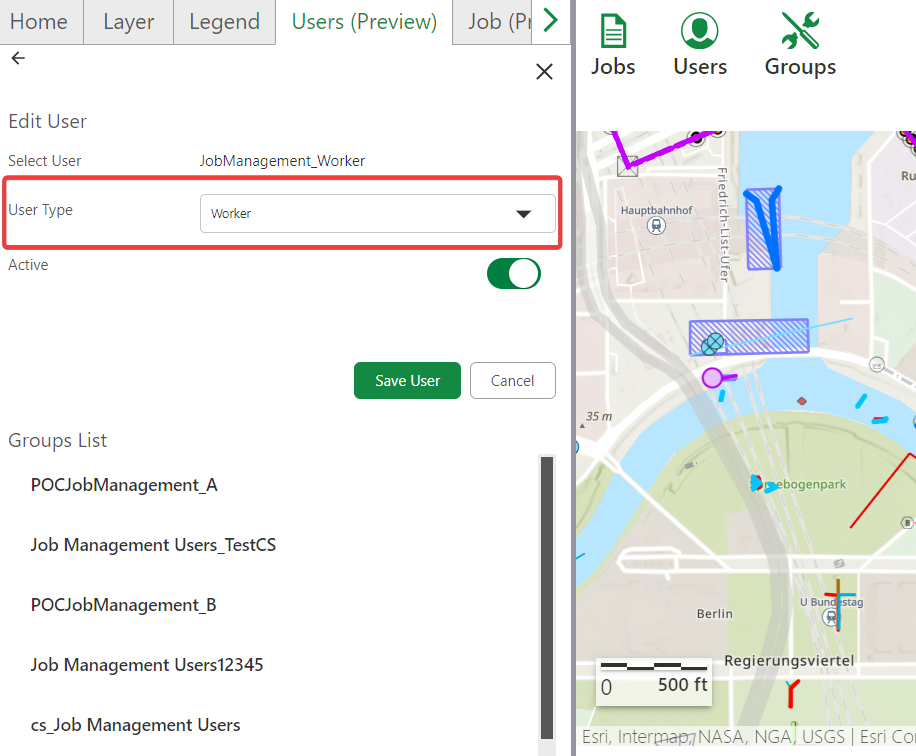
To edit a user:
1.Open Job Management from the toolbar, then select Users.
2.Open the context menu for the user and select Edit.
3.Set the user's status to Active or Inactive as needed.
4.Click Save User.
Setting a user to Inactive prevents access to Job Management features without removing the user from the portal group.
You can also review the groups a user belongs to from within the Edit panel.