Only the owner of a job can reassign the job to another user.
When a job is reassigned, ownership of all branch versions linked to that job is automatically transferred to the new job owner. If a job is un-assigned, ownership of its branch versions is transferred to the user who performed the unassign action.
To view the current job owner, open the Jobs tab and select the Details view.
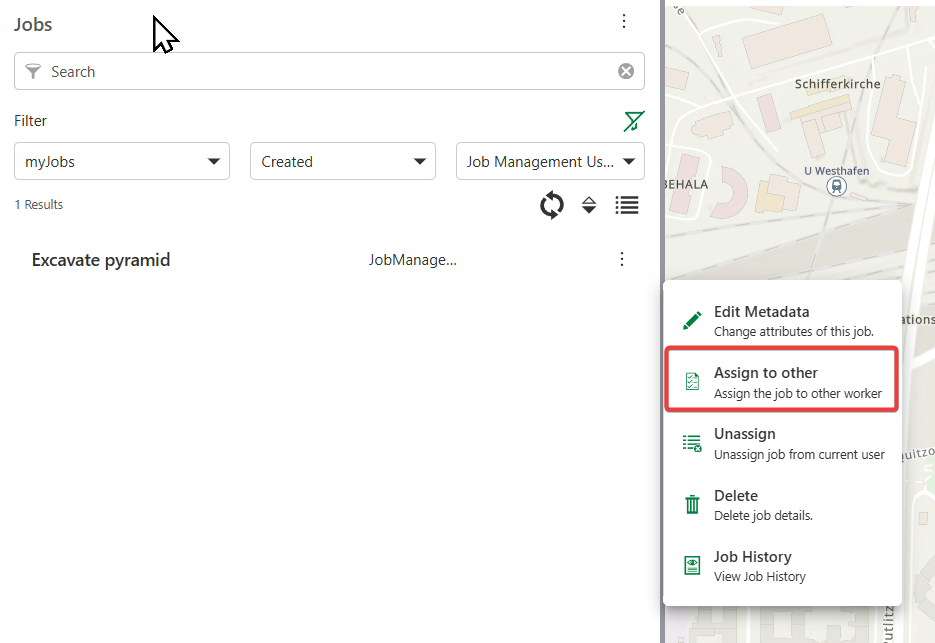
To reassign jobs, you've two primary options:
•Assign to Me
•Assign to Other
Assign to Me
To assign a job to yourself:
1.Locate the job on the job list.
2.Select the job to view available options.
3.Select Assign to Me to assign the job to yourself.
The job will appear when filtering by All My Jobs, and you can begin working on it immediately.
Assign to Other
When using this option, you can change both the assigned worker and the supervisor:
•If you're in a single portal group registered with the Job Management system, you see only the users in your group
•If you're in 2+ portal groups registered with the Job Management system, you can select only from users that are part of the group to which the job was assigned
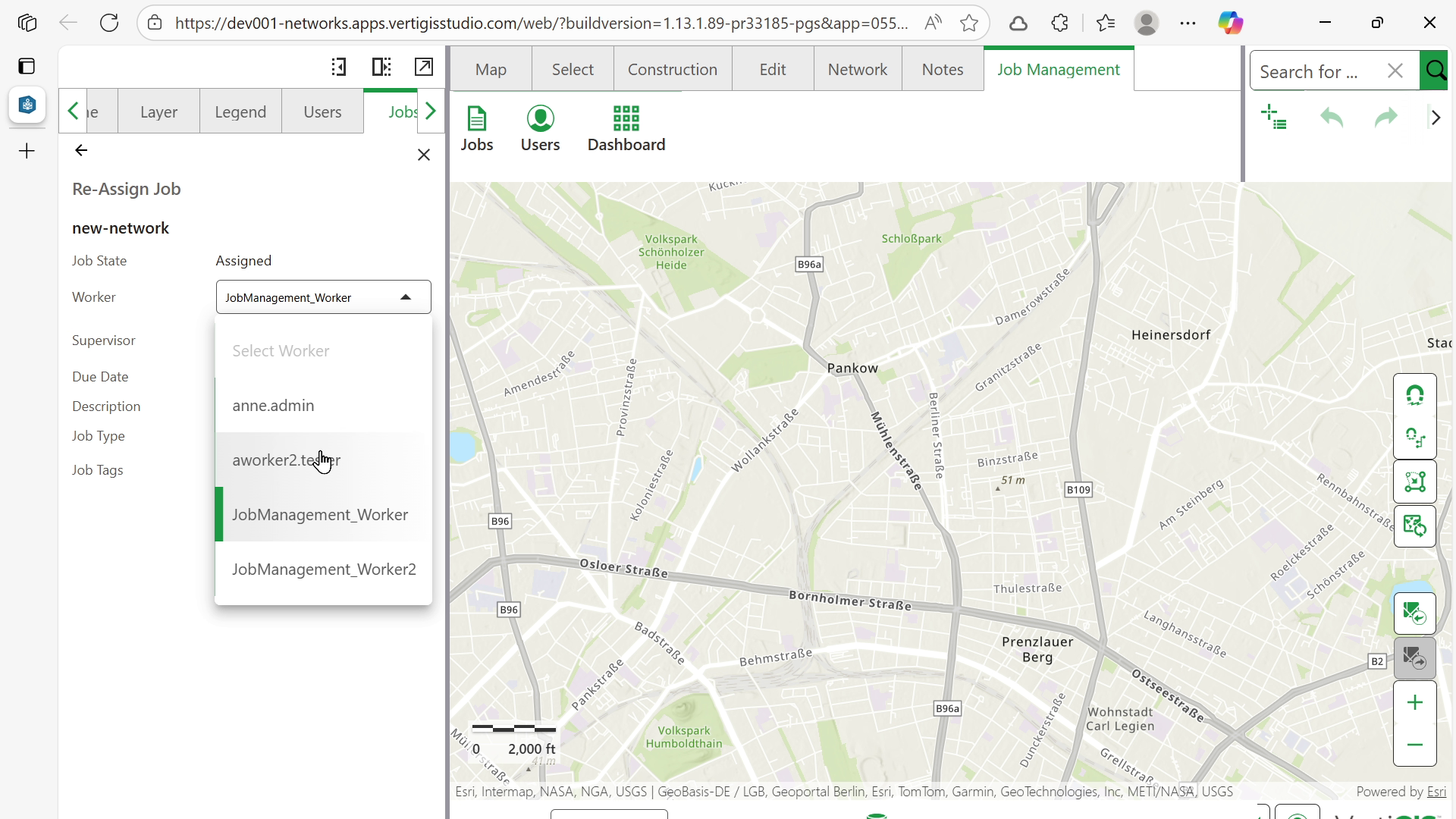
Comment field is available only if Job History was enabled during installation of the Job Management system
Saving Changes
After modifying job metadata or reassignments, click Update Job to save all changes.
Batch Re-assign Jobs
Jobs can be batch re-assigned only if filtered jobs belong to the same group. Otherwise, the button to re-assign the jobs stays inactive.
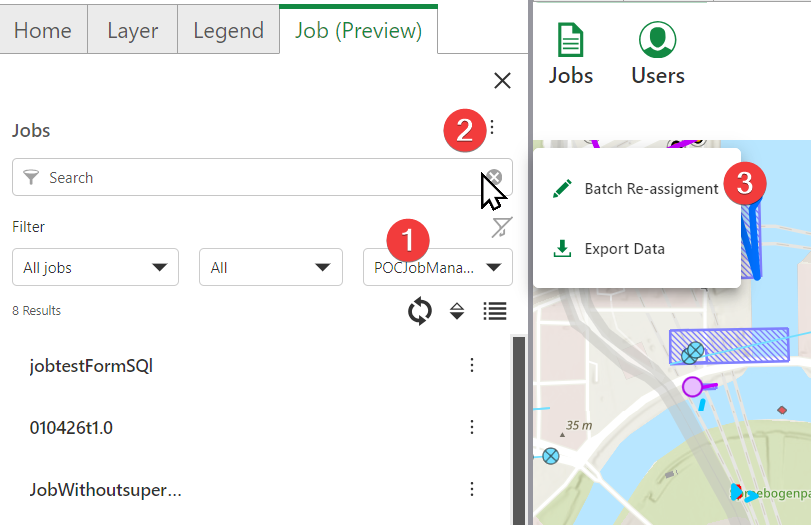
To reassign multiple jobs at once:
1.Go to the Job Management tab.
2.Select Jobs.
3.Follow this process in order:
a.Filter job by one specific group.
b.Click on options from the Jobs Panel.
c.Select Batch Reassignment.
4.Mark the jobs that you want to reassign.
5.Select Reassignment.
6.Select the new Supervisor.
7.Select the new Worker.
8.Select Reassign.