Installing a component refers to the act of registering a specific part (or a component object), a specific instance of a component in the Component Structure) from the component inventory as being in-use for a device in the Device and Systems Structure.
Installing a component in a device is different from adding a component type to an installing structure. Component types are added to an installing structure at the type level to log which specific components (or objects) can be installed in devices that use the type's installing structure. When that process has been completed, specific objects associated with the type can be installed in the device.
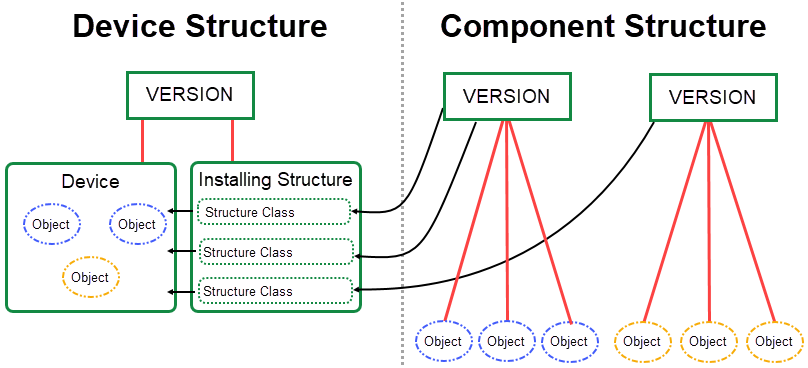
Diagram Demonstrating How Objects in the Component Structure Are Installed in Devices in the Device and Systems Structure
Any elements that are a part of a type's installing structure can be installed on the type's devices.
Install Components in a Device
The process for installing components in devices varies depending on whether components were added to the type as part of an extended installing structure or a simple installing structure.
You can install components in a device on the device's details page. Regardless of whether you created an extended installing structure or a simple installing structure on the type details page for the device, when you navigate to the device's details page, the elements that were added to the installing structure on the type details page are shown in the Installation Structure (extended installing structure) or Components (simple installing structure) section. All the rows should be blank under the Installed Component column, indicating that none of the structure classes have had a specific component installed yet.
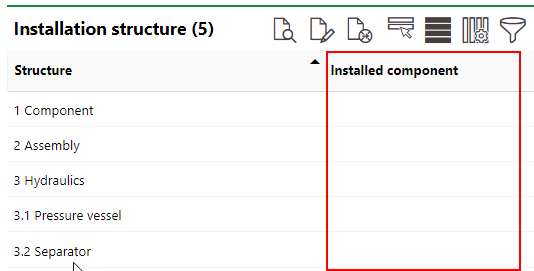
Installed Components Column in the Device's Installation Structure
Install Components in a Device with an Extended Installing Structure
As a prerequisite for installing components from an extended installing structure in a device, you must have created an extended installing structure on the device's type details page. When you add a new device to the type, the component types that were added to the extended installing structure are automatically shown in the device's Installation Structure section and can be installed.
To Install Components in a Device with an Extended Installing Structure
1.Navigate to the details page for the type that is associated with the device and its extended installing structure.
2.Expand the Devices section and double-click the device on which you want to install the component(s). Alternatively, select the device and click the View Details ( ) icon.
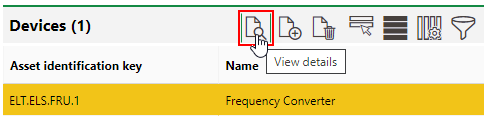
3.On the device details page, expand the Installation Structure section and select the element you want to install the component on.
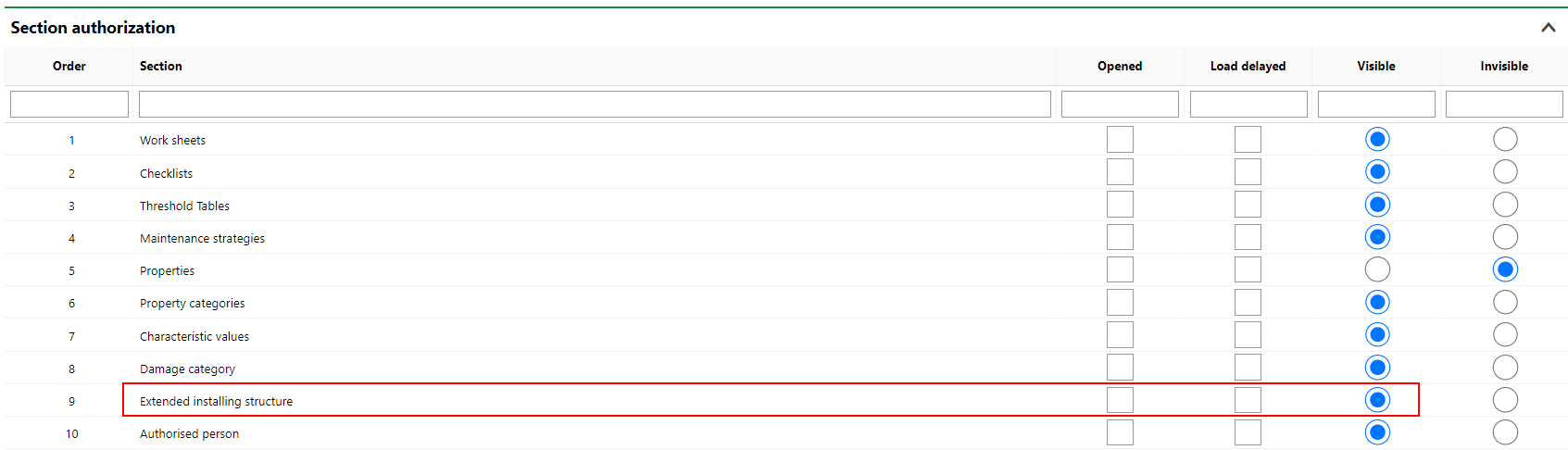
The Installation Structure section may not be visible on the device details page. If you cannot see it, follow the instructions here.
4.Click the Edit ( ) icon.

5.Under Assign Component, click the arrow ( ) in the Component box.
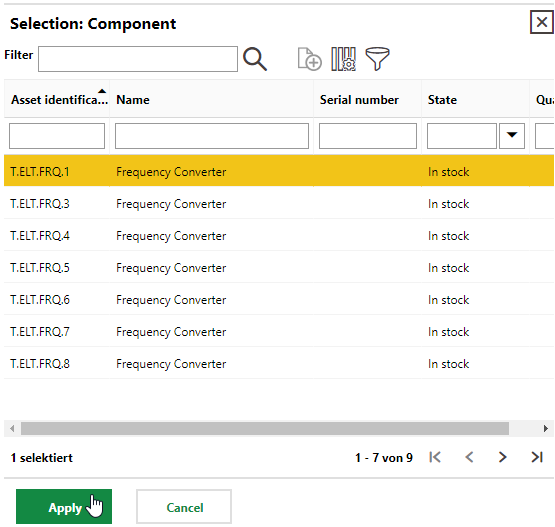
6.In the Selection: Component table, select an item from the list of available objects from the component type. The objects in the table are associated with the Component Structure type that was specified when the device's installing structure was created.
The table only shows objects from the Component Structure type that have a status of In Stock and are not installed on another device.
7.Click Apply.
8.In the Mount Date box, click the calendar icon ( ) to specify a Mount Date. This date should reflect the date the component is physically installed and could therefore be a date in the future. A datte in the past cannot be selected.
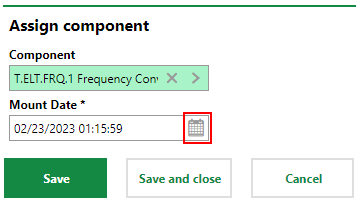
9.Click Save and Close.
The Installed Component column in the Installation Structure section of the device details page now indicates the component has been installed on the device.

Installed Component in Installation Structure Section of the Device Details Page
Install Components in a Device with a Simple Installing Structure
As a prerequisite for installing components from a simple installing structure in a device, you must have created a simple installing structure on the type details page. This means that the Extended Installing Structure field on the type details page should be set to No when you create the installing structure. When you add a device to the type in the Device and Systems Structure, the Components section on the device details page will be empty. This means no individual components from the inventory have been installed yet, even though component types have been added to the structure.
If a type has a simple installing structure set up on the type details page, its associated devices will have a Components section instead of an Installation Structure section.
To Install Components in a Device with a Simple Installing Structure
1.Navigate to the type details page for the type that is associated with the device and its installation structure.
2.Expand the Devices section and double-click the device on which you want to install the component(s). Alternatively, select the device and click the View Details () icon.
3.On the device details page, expand the Components section and click the Add ( ) icon.

4.Under Installed component, click the Add () icon.
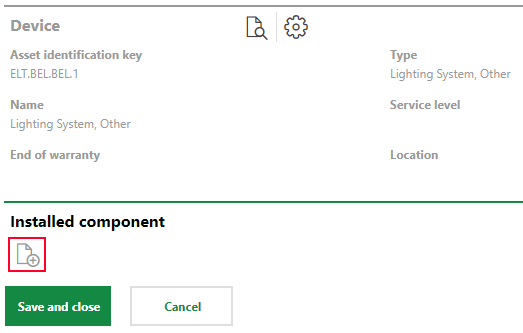
5.In the Selection: Component dialog, select a component from the list of in-stock objects for the Component Structure type specified in the installing structure and then click Apply.
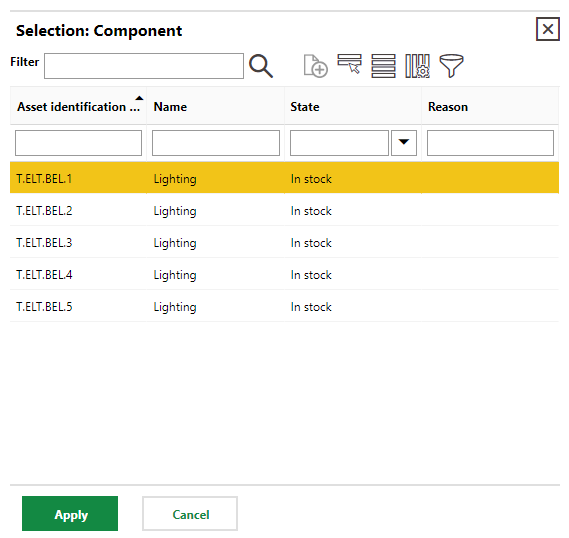
If no type was specified in the installing structure, the table displays all in-stock objects from all types in the Component Structure.
6.Click Save and Close.
The Components section now lists the component that was added.
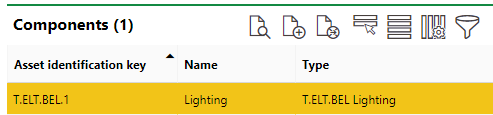
Component Installed on a Device with a Simple Installing Structure
View Components Installed on a Device
When a component has been installed on a device, it can be viewed on the device details page,
•in the Installation Structure section (Extended Installing Structures) or the Components section (Simple Installing Structures); or
•in the Navigation tree on the device details page, when the device is expanded.
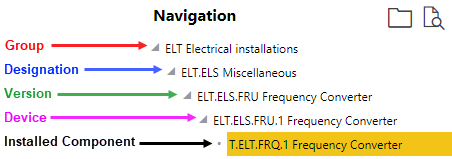
Installed Component in the Navigation Tree on the Device Details Page
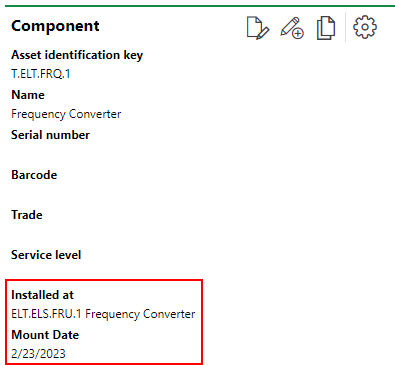
The installation can also be viewed in the Component Structure,
•in the Installed At column in the Objects table on the type details page; or

•in the Component section on the component details page, which is accessed by double-clicking the item in the objects table on the type details page.
Deactivate Structure Classes
To deactivate a structure class is to remove it from an installing structure. When you deactivate a structure class, the object from the component type becomes available to be installed in other devices.
It is not possible to uninstall a component from a device without deactivating the structure class.
To Deactivate a Structure Class
1.In the Installation Structure section on the device details page, select the component you want to deactivate and click the Edit () button.

2.Click the × symbol in the Component box. If no component has been installed for the structure class you are deactivating, skip this step and proceed to step 3.
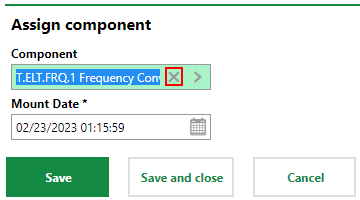
3.Under Installation Structure, select the Deactivated check box.
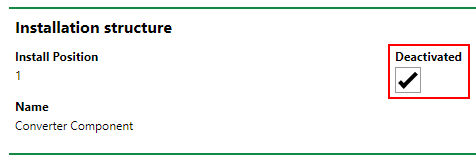
4.Click Save and Close.
Show and Hide Deactivated Components
By default, the Installation Structure section no longer lists the component that was deactivated. Click the Show/hide deactivated structures ( ) icon to show the deactivated components.
Remove Components from Installation Structure
You can remove components from an installation structure on the details page of the structure's associated device by selecting the component and clicking the Remove ( ) icon.
Show Installation Structure Section on Device Details Page
The Installation Structure or Extended Installing Structure section may be hidden from the device details page. If you cannot see this section, follow the Show Hidden Sections procedure.
Show Hidden Section
