This topic includes procedures to add, edit, and delete a component subgroup.
This topic outlines how to manually add individual component designations in VertiGIS FM. You can alternatively import your own internal record of component designations into the VertiGIS FM database using a CSV or XML file. This option is ideal for adding large quantities of component designations simultaneously (for example, to establish an initial record of component designations in the VertiGIS FM database).
Add a Component Subgroup
New component subgroups are added to groups. You can add a new component subgroup on the details page of the group to which you want to add the subgroup.
To Add a Component Subgroup
1.Navigate to the details page for the component group to which you want to add a new component subgroup.
2.Expand the Names section and click the Add ( ) icon.
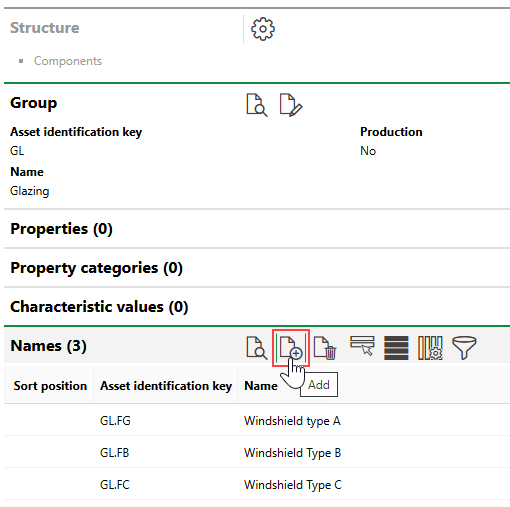
3.Enter an identification key and name for the component subgroup. Refer to Component Subgroup Details for field descriptions.
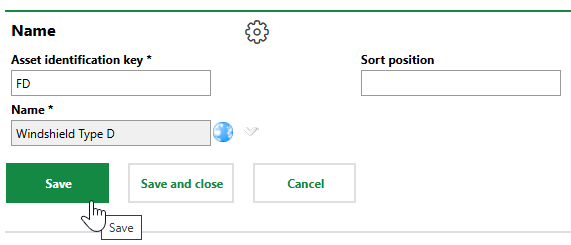
4.Click Save or Save and Close.
The Names section on the component group's details page now reflects the new subgroup.
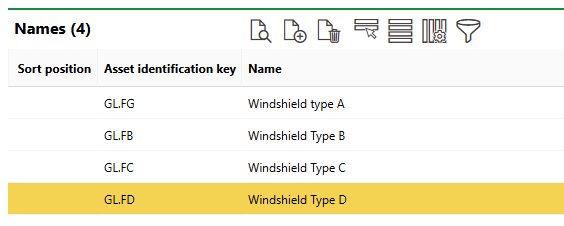
New Component Subgroup on the Group Details Page
The new subgroup's asset identification key reflects its own code as well as its parent group's identifier before the decimal.
Edit a Component Subgroup's Details
You can edit a component on the component subgroup's details page.
To Edit a Component Subgroup
1.Navigate to the details page for the component subgroup you want to edit.
2.Click the Edit ( ) icon.
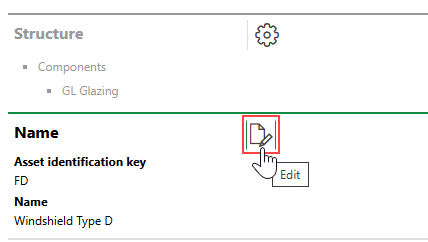
3.Edit the subgroup's details as required.
4.Click Save and Close.
Delete a Component Subgroup
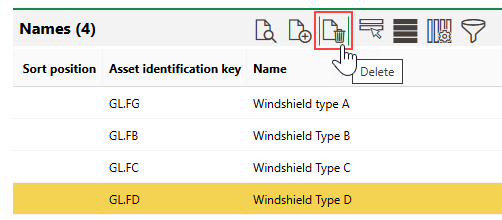
You can delete component subgroups in the Names section on its component group's details page.
To Delete a Component Subgroup
1.Navigate to the details page for the component group that contains the component subgroup you want to delete.
2.In the Names table, select the subgroup you want to delete.
3.Click the Delete ( ) icon and then click OK.