The Copy tool allows you to duplicate any set of features, spatial or non-spatial, to a new location on the map. For our example in the procedure below, we copy a Network Station, along with all of its annotations and associations, to a new location on the map.
Copying features copies only their geometry and attributes. Relationships and attachments are not copied.
To copy features:
1.Go to Edit > Copy.
In the left side panel, the Copy panel opens.
2.Select the network features to copy. In our example, we copy the Network Station and all of its components.
3.If you select more features that are not related to the Network Station, you can remove them either by clicking the minus button next to the layer name, or by removing each component individually.
Toggle the Add to selected features in the current list to incrementally add features to your current selection, then use one of the selection methods in step 2.
4.Click Copy Annotations to select and copy all available annotations.
All selected annotations will be visible on the Copy List panel.
To copy annotations, check Copy Annotations before you select the features and annotations to copy.
5.Click Copy Associations to copy all the Network Station features with their existing associations.
•Containment Associations: If both assets are selected to be copied, the containment association is copied along with both assets to the new location. If only one asset is selected, the asset is copied and the association is kept to the original asset.
•Connectivity Associations: If both assets are selected to be copied, the connectivity association is copied along with both assets to the new location. If only one asset is selected, no association is created to the copied asset.
•Structural Attachment Associations: If both assets are selected to be copied, the structural attachment association is copied along with both assets to the new location. If only one asset is selected, the asset is copied and the association is kept to the original asset.
6.Optional: Click Change Anchor Point to move the current anchor to a different location, this is especially helpful when snapping the copied features more precisely while placing them in their new location.
The anchor point is marked by a yellow square and is placed at the center of the loaded features by default. This is updated every time the feature list in the copy panel is updated.
When copying features, snapping works independently of Utility Networks rules. Before changing the anchor point, make sure the new location is valid and positioned correctly.
7.Click Copy.
The selected features are copied and dragged by the mouse pointer and ready for placement.
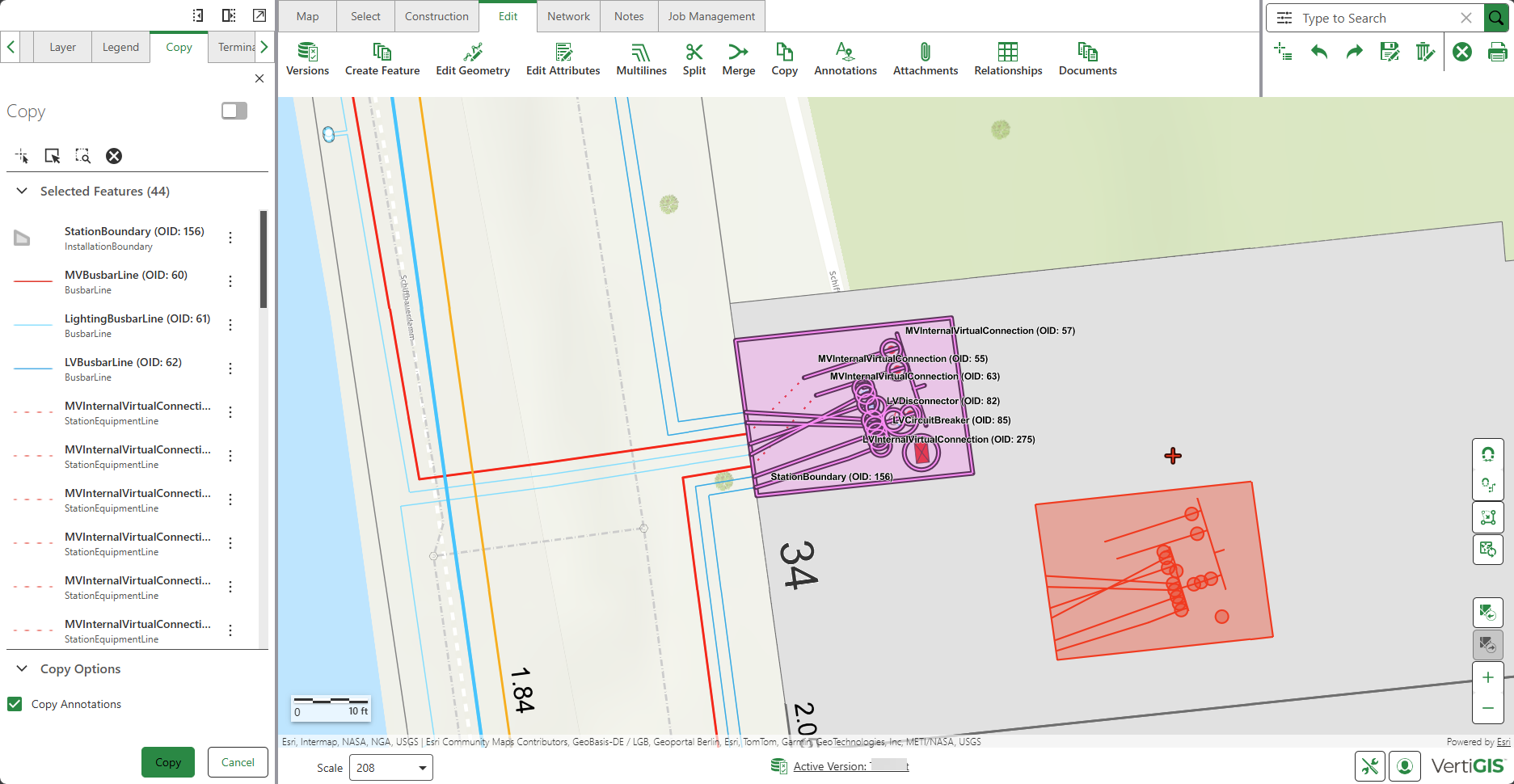
8.Click the desired location on the map to paste the copied Network Station.
A copied version of the Network Station is now saved at its new location on the map.
You can paste the copied features multiple times just like a regular copy/paste feature.
9.You can also perform some actions on the selected features from their action menus using one of the following functions:
Button |
Description |
|---|---|
|
Zoom to the selected feature on the map. |
|
Pan to the selected feature on the map. |
|
Remove everything except the selected feature from your current selection. |