Closing a Completed Job
Once a job status shows as Completed, you can proceed to close it.
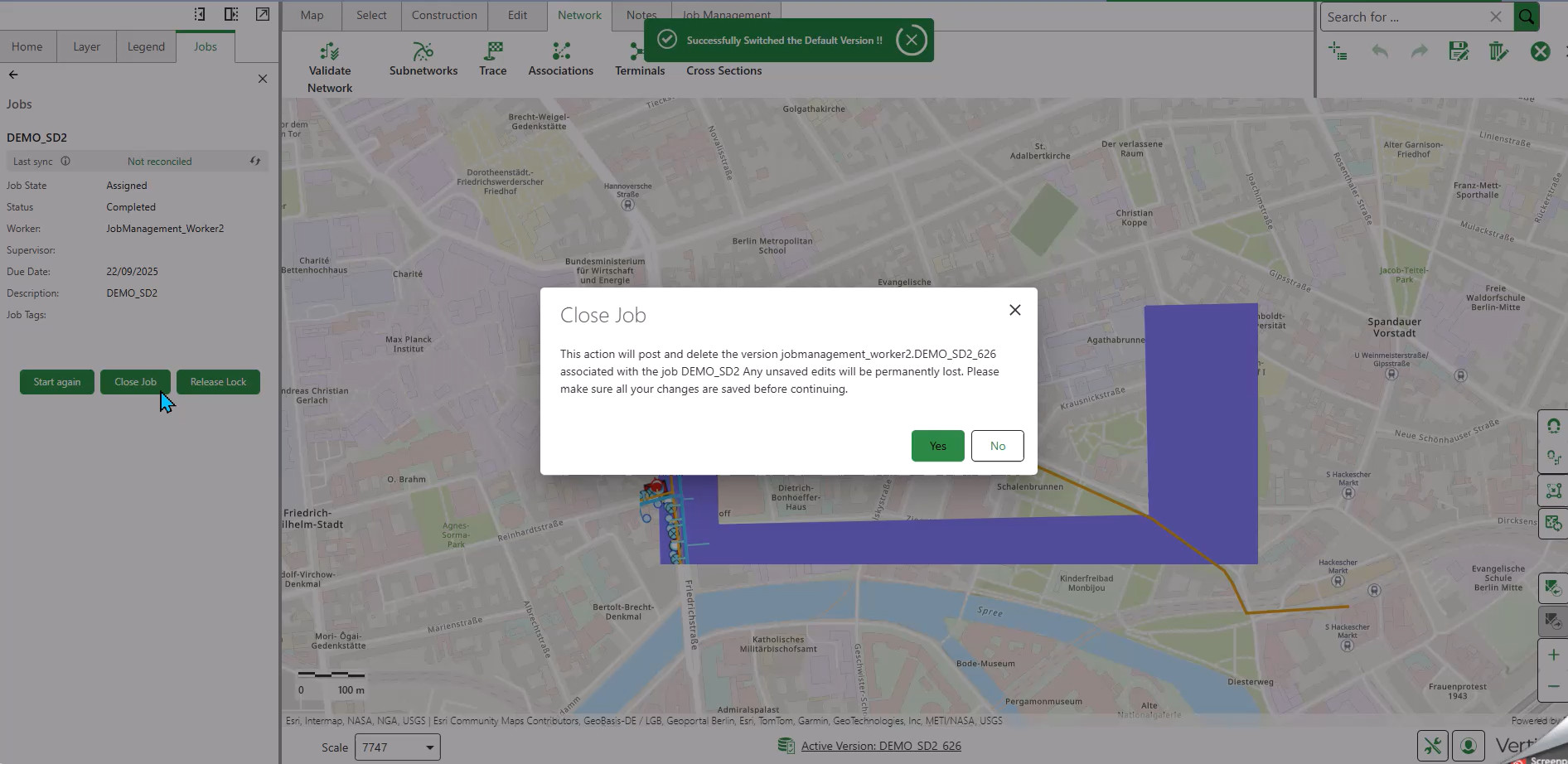
To close a completed job:
1.Select the completed job from the job list.
2.Click Close Job.
3.Review the warning dialogue that appears:
The action will post and delete the version created for the job. Any unsaved edits would be permanently lost. You need to make sure that you save all your changes before proceeding.
4.Ensure that all changes have been saved.
5.Click Confirm to proceed with closing the job.
Reconcile Job
When you close a job, the system performs several automated steps:
Step 1: Reconcile Version
The system reconciles the job version with the default version:
•All changes from the job version are brought into the default version
•If successful, you will see: "Reconciled version [version-name]"
•This message confirms there were no conflicts while reconciling the job
Step 2: Release Lock
Before deletion, the system releases the lock on the job version:
•A locked version cannot be modified or deleted
•The system automatically releases the lock after the reconcile operation succeeds
•You will receive confirmation when the lock is released
Once you release a lock, all unsaved edits of the version are lost.
Step 3: Delete Version
After reconciling the job and releasing the lock, the job version is deleted:
•The version created for the job is removed from the geodatabase
•You will receive confirmation: "Version was posted and the version was deleted"
•All edits are now permanently merged into the default version
Viewing Merged Changes
After successfully closing a job, view the merged changes:
1.Ensure you are in the Default version.
2.Refresh the map.
All changes made during the job are now visible in the default version.
Handling Conflicts
If the same feature was edited differently in both the default version and the job version, conflicts will occur when reconciling job.
When conflicts are detected:
1.A notification appears indicating that conflicts must be resolved.
2.A conflict resolution panel opens displaying the conflicting properties.
3.Resolve the conflicts using either automatic or manual resolution (depending on your organization's configuration).
4.Validate the resolved changes.
Once conflicts are resolved, the version is released and deleted as normal.
For detailed instructions on resolving conflicts, see Resolve Conflicts.
Hierarchy-Specific Permissions: In Hierarchy 1 organizations, workers can perform the entire workflow from job creation through closure. In Hierarchy 2 organizations, supervisors must review and close jobs after workers mark them as completed.