A worker performs the following actions/steps while working within the job.
All changes are automatically saved to the job-specific version and do not affect the default branch until the job is closed.
Reconcile Job
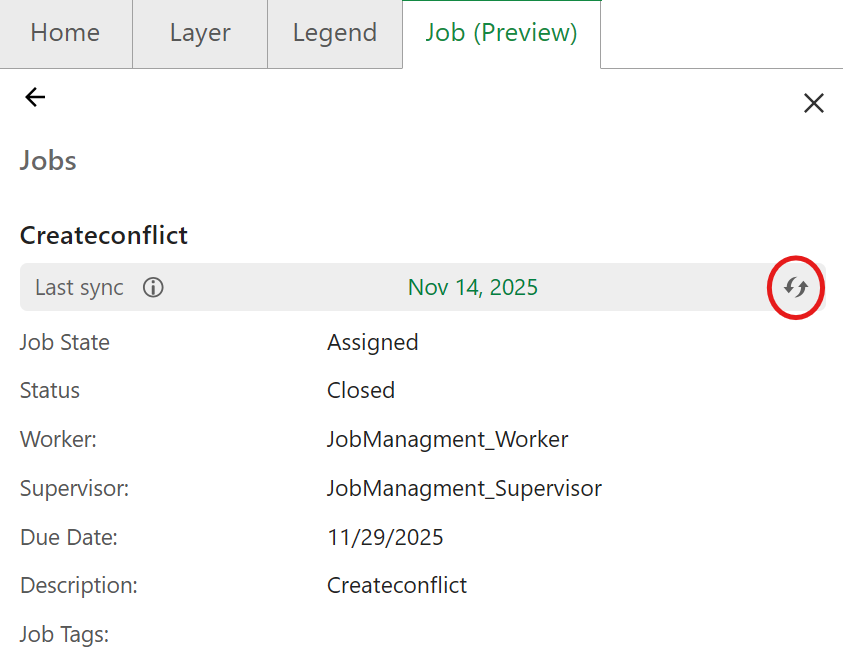
Each job automatically creates its own version (branch) to isolate your changes from the default branch.
The Lasy sync field shows the last date on which the changes from default version were merged with the job's version.
To sync the latest changes from the default version into your job version:
1.Select a job to view its details.
2.Click the refresh icon to reconcile.
The system brings all changes from the default version into your current job version. This ensures you're working with the most up-to-date data while keeping your edits isolated.
Handling Conflicts
If the same feature was edited differently in both your job version and the default version, then you need to resolve conflicts.
When conflicts are detected:
1.A notification appears indicating that conflicts must be resolved.
2.A conflict resolution panel opens displaying the conflicting properties.
3.Resolve conflicts using your organization's configured method (automatic or manual).
4.Validate the resolved changes before continuing work.
For detailed instructions on resolving conflicts, see Resolve Conflicts
Starting a Job
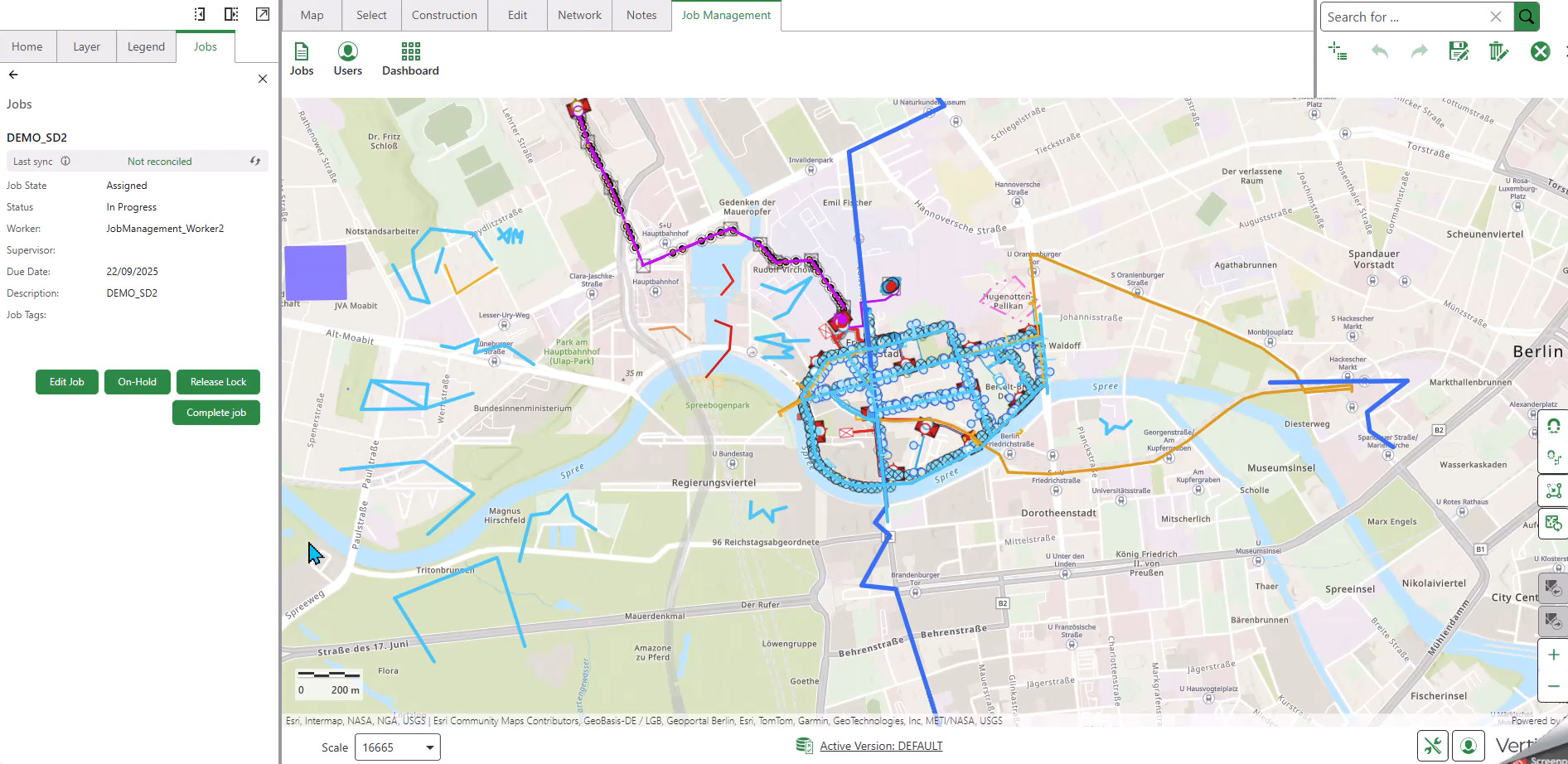
Before beginning work on a job, start it to enable editing.
To start a job:
1.Click Start Job to begin working.
The button changes to Stop Editing once started. The system automatically switches you to the job-specific version and loads the job-specific metadata and tools.
Alternatively, click On Hold if you cannot work on the job currently. This indicates the job is not a priority and may be reassigned to another worker.
Making Edits
Once you click Start Job, you can perform various operations using VertiGIS Networks Editor tools - operations including, but not limited to:
•Edit geometry of existing features (lines, pipes, poles)
•Add new features to the map
•Delete obsolete or incorrect features
•Modify feature attributes and properties
•Merge multiple features into one
•Create multi-line features
•Establish relationships between connected features
•Build complex network structures
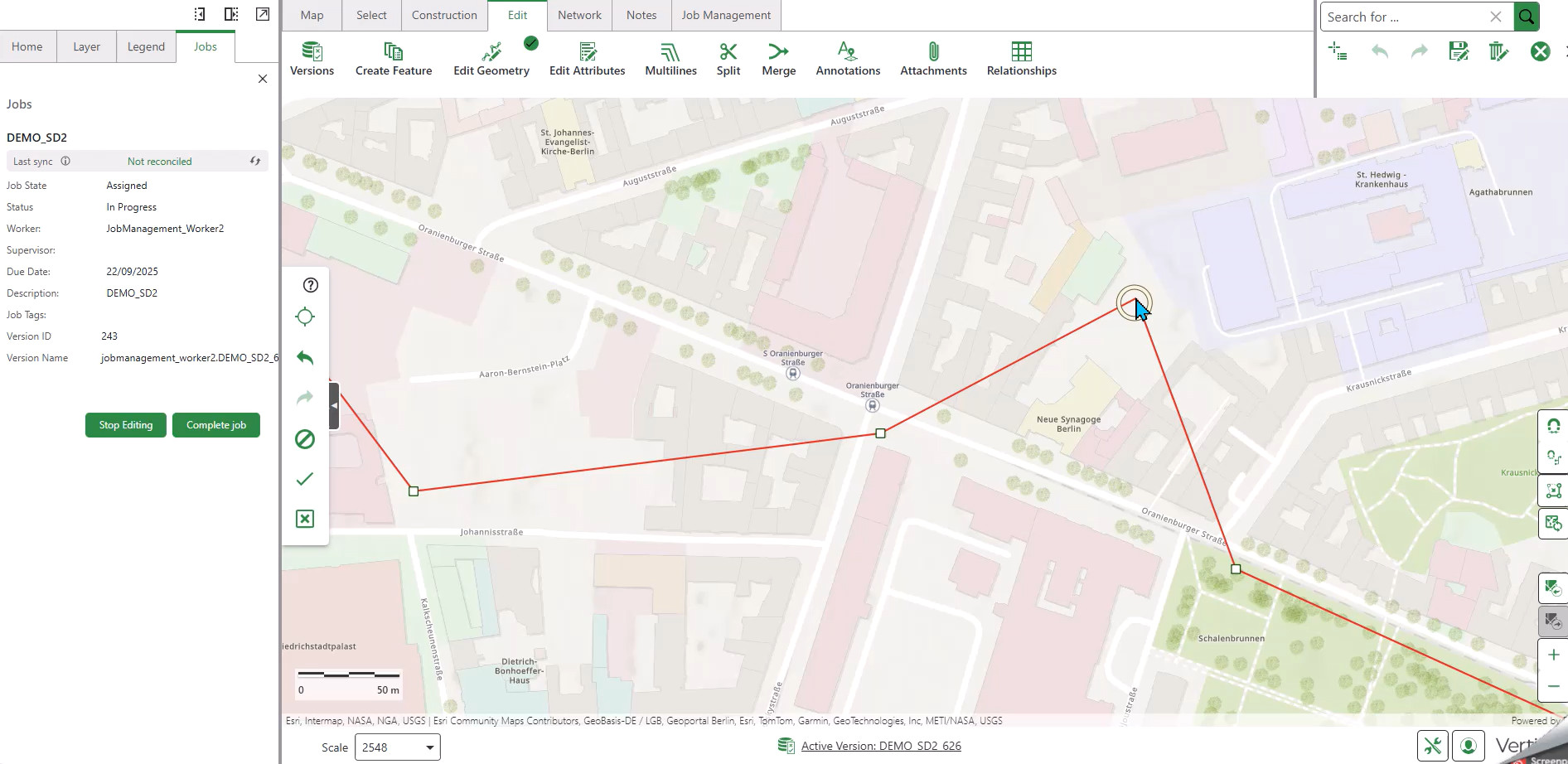
Pausing and Resuming Work
If you need to pause your work and return later:
1.Click the Save icon in the toolbar to save all changes.
2.Click Stop Editing to pause work on the job.
Your changes are preserved in the job version. When you return to the job later, click Edit Job to resume. The Edit Job option appears instead of Start Job for jobs you've already started.
Validating Your Edits
Before completing a job, validate changes to ensure data quality.
To validate your edits:
1.Navigate to the Network tab.
2.Click Validate Network.
3.Select the validation extent:
oExtent Only (recommended): Validates only the job area. The map automatically zooms to your assigned area for faster validation.
oAll: Validates the entire network.
4.Review the validation results.
5.Resolve any errors or warnings before proceeding.
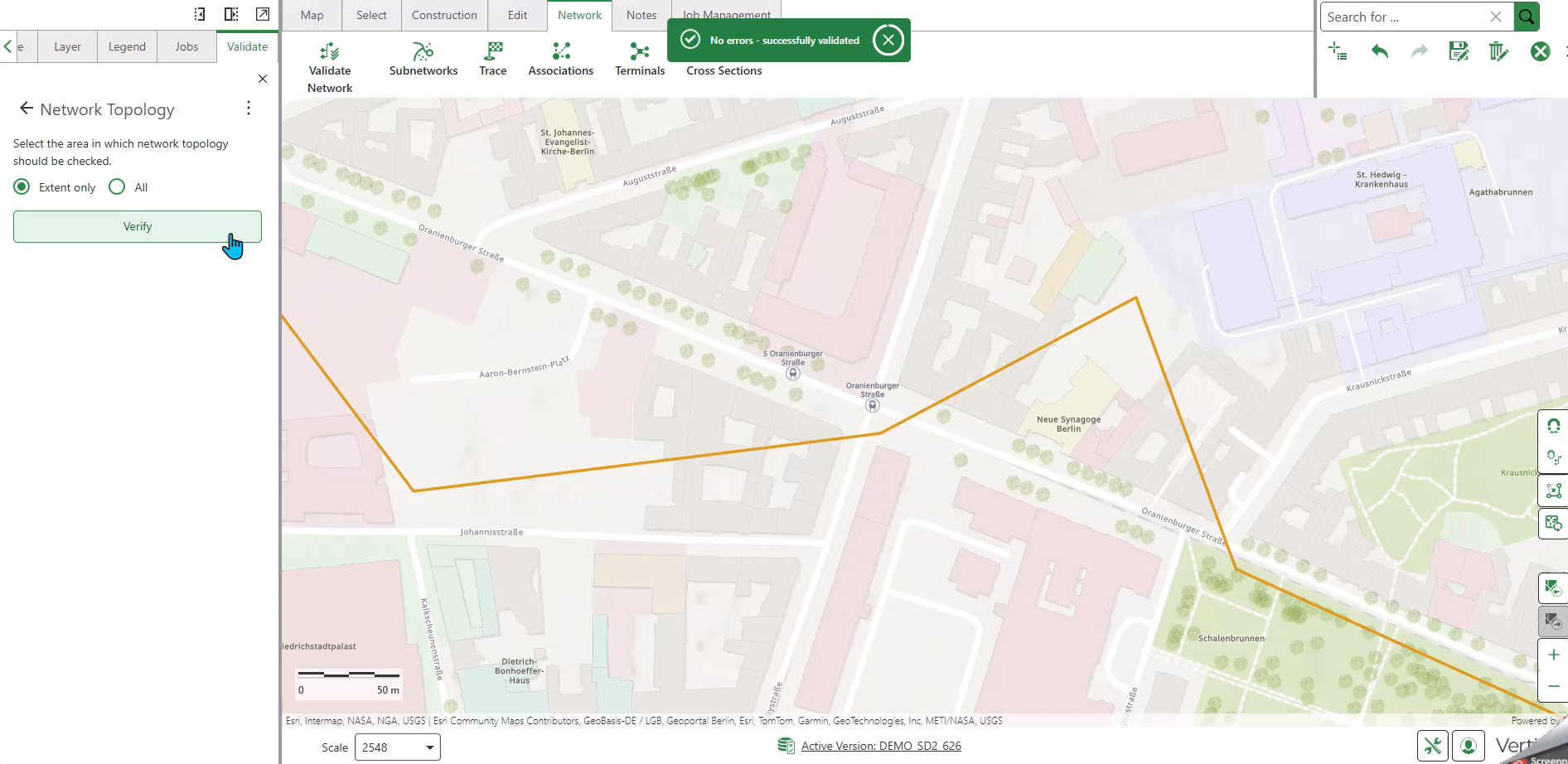
Successful Validation: When validation completes successfully, you will see the message "No errors - successfully validated".
Completing the Job
After finishing all edits and resolving validation errors, mark the job as complete.
To complete the job:
1.Click Complete Job.
2.Review the dialogue box message: "Save changes. If you have made any changes, please save them before switching to ensure your updates are not lost."
3.Click the Save icon in the toolbar if you haven't already saved.
4.Click Confirm to complete the job.
The notification "Job status changed successfully" appears. The job status changes to Completed and the system automatically switches you back to the default version.
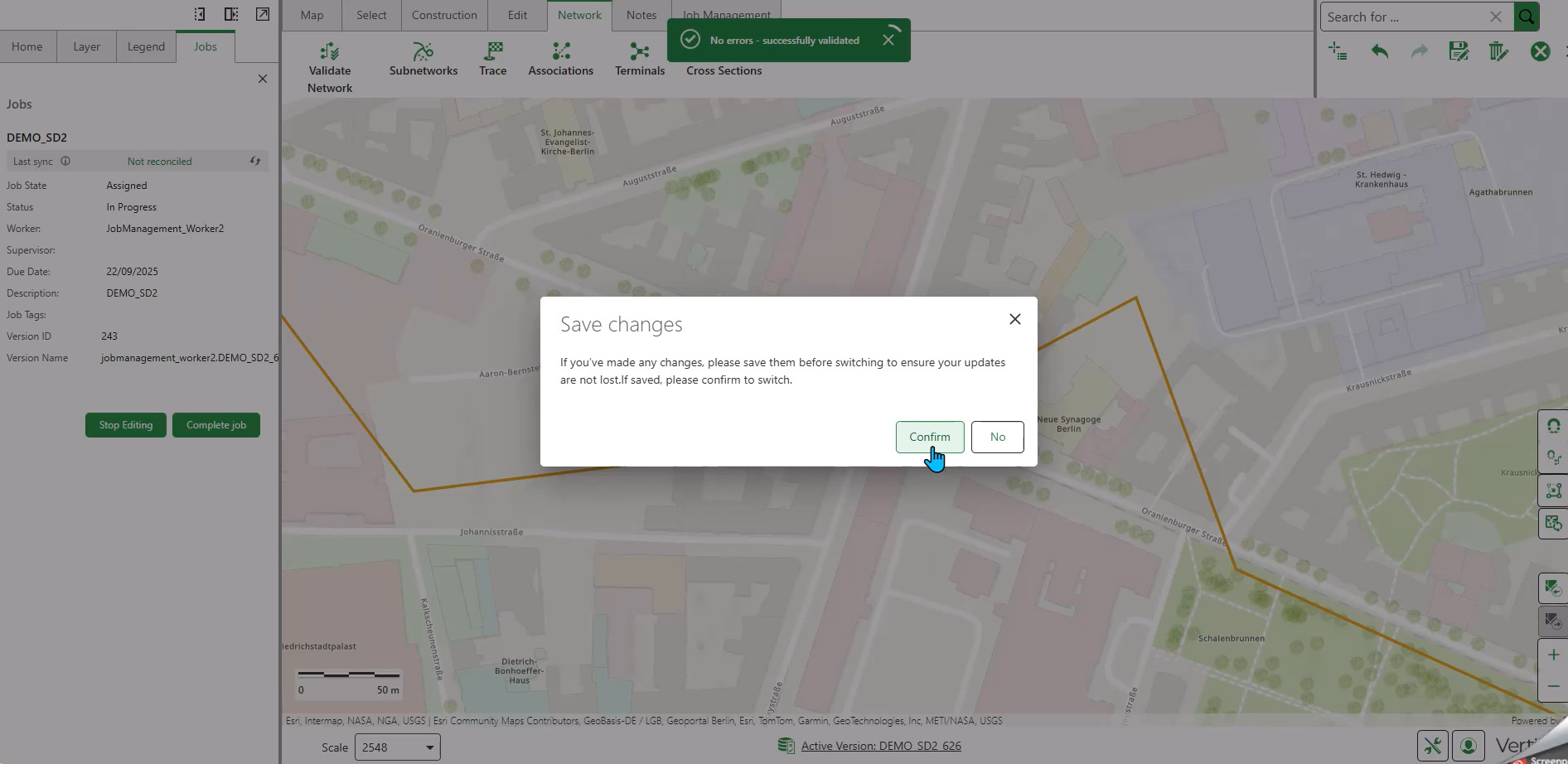
Save Before Completing: Always save your edits using the toolbar save icon before completing a job. Unsaved changes may be lost during the version switch.
Next: Close Jobs
Alternative Actions
Additional actions available during job processing:
•Request Reassignment: Click this option if you are unable to complete the job.
•Self-Assign: Use this option to assign unclaimed jobs to yourself (if permissions allow).
Version Management: When a worker switches versions, the map automatically zooms to the assigned area for focused work.