Job Management Options
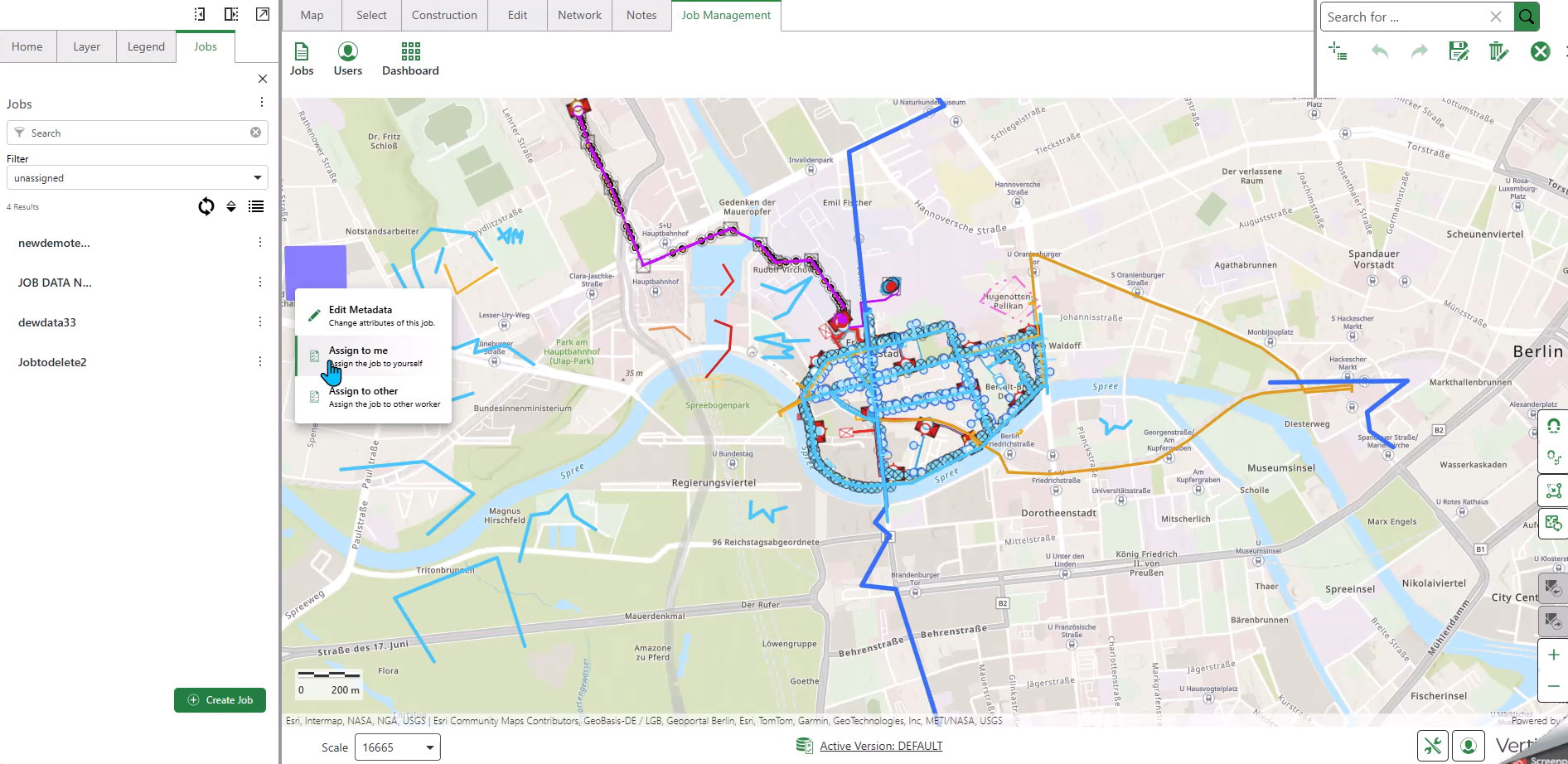
When you select a job, you have three main options:
1. Edit Metadata
Allows you to change the attributes of a particular job, including:
•Job name and description
•Tags
•Due date
•Job region
2. Assign to Me (Hierarchy 1)
In organizations with a single hierarchy (Hierarchy 1), workers function as both workers and supervisors. This workflow is particularly useful for independent workers who create and complete their own jobs.
To assign a job to yourself:
1.Locate the job on the job list.
2.Click on the job to view available options.
3.Select Assign to Me to assign the job to yourself.
The job will appear when filtering by All My Jobs, and you can begin working on it immediately.
3. Assign to Other (Hierarchy 2)
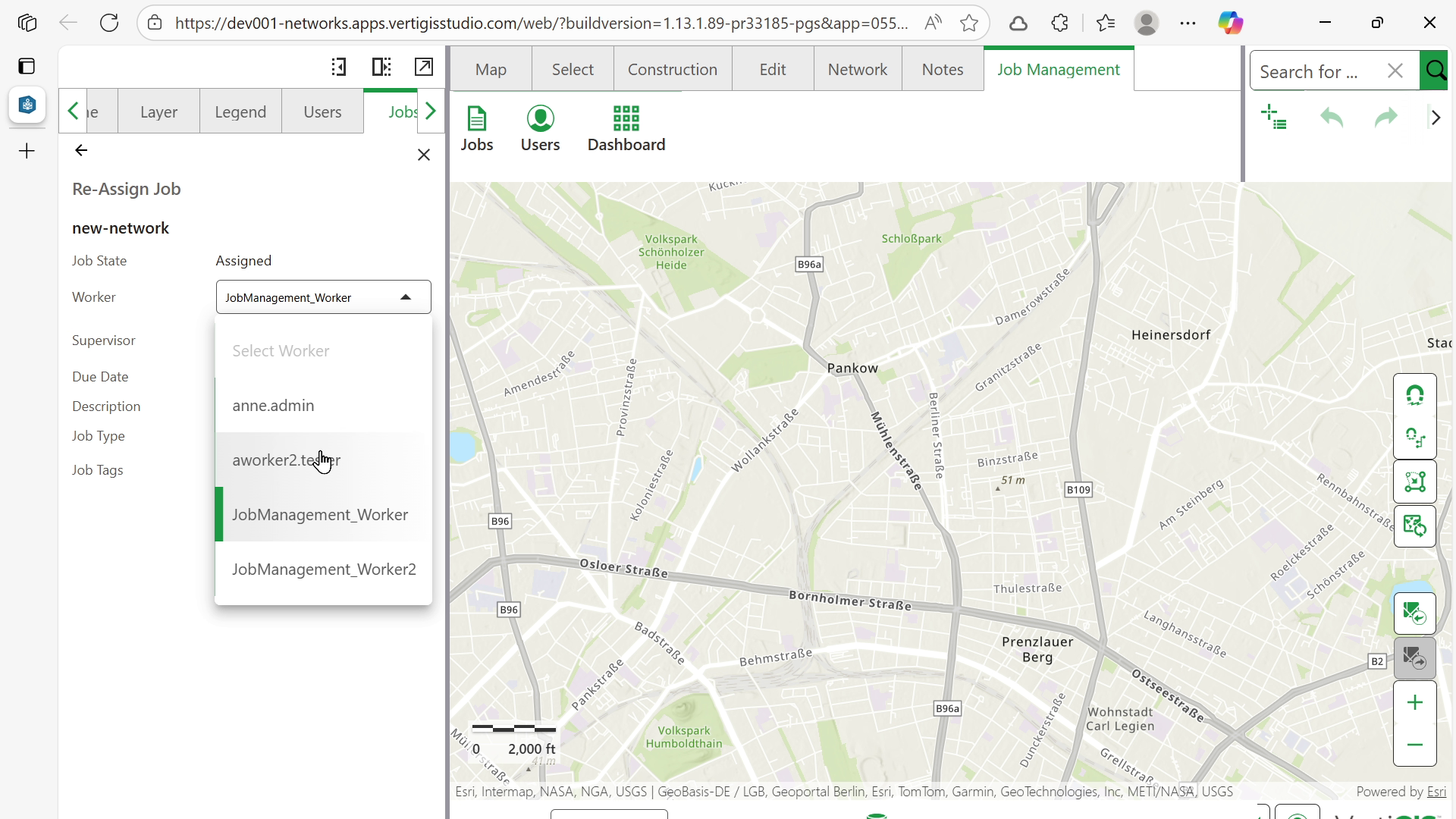
Reassigns the job to another worker. When using this option:
•You can change both the assigned worker and supervisor
•This option is typically used in Hierarchy 2 structures where supervisors assign jobs to workers
Saving Changes
After modifying job metadata or reassignments, click Update Job to save all changes.
Permission Requirements: You can only edit job assignments for jobs where you are the assigned supervisor. Jobs assigned to other users cannot be modified unless you have the appropriate permissions.
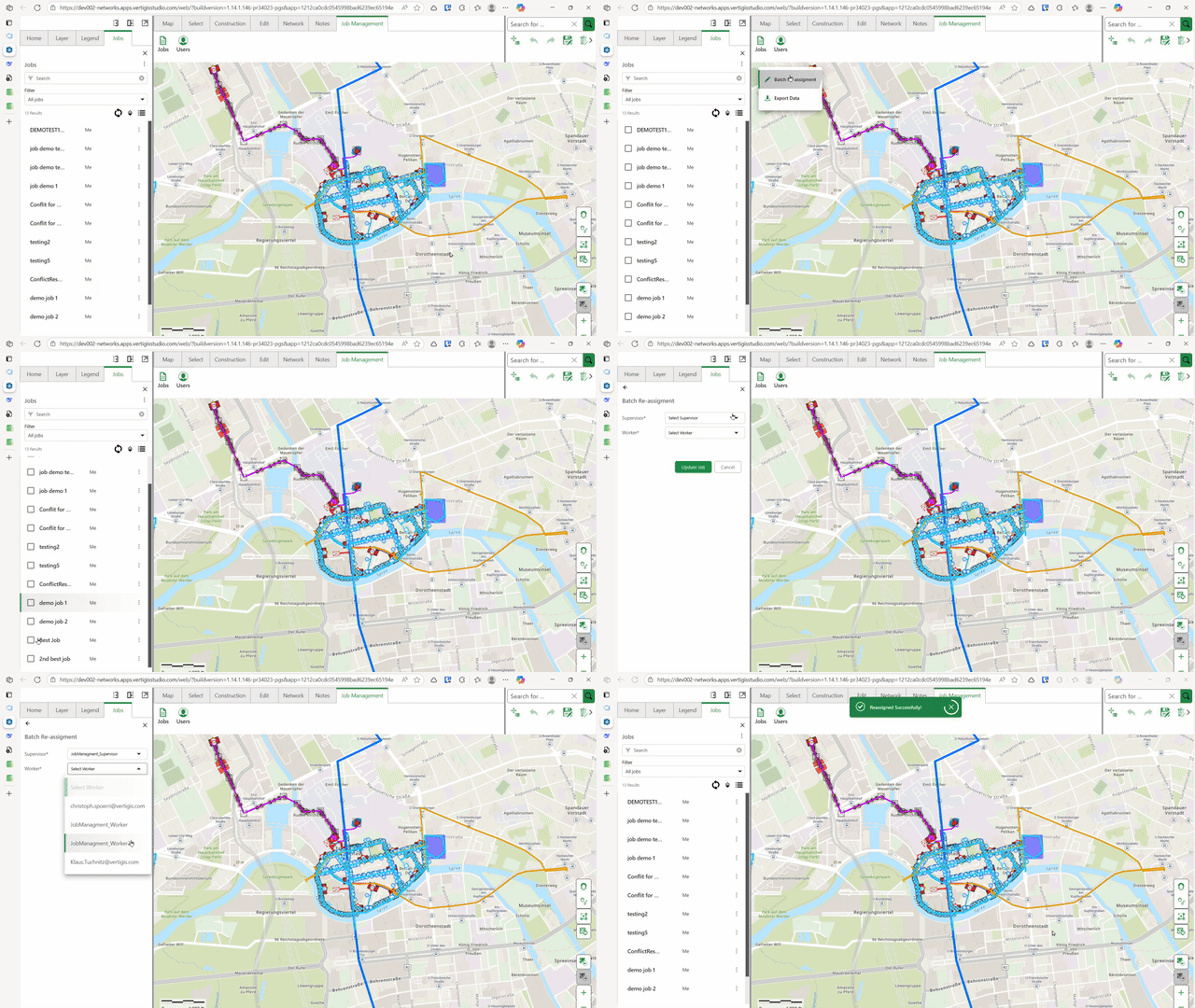
To reassign multiple jobs at once:
1.Log to the Job Management tab.
2.Select Jobs.
3.Click on options from the Jobs Panel.
4.Select Batch Reassignment.
5.Mark the jobs that you want to reassign.
6.Select Reassignment.
7.Select the new Supervisor.
8.Select the new Worker.
9.Select Reassign.