The invoice extraction tool automates the process of manually entering invoice information in VertiGIS FM by uploading a PDF invoice file instead. VertiGIS FM extracts data from the file and maps information in the invoice to the appropriate data fields in the system.
You can leverage the invoice extraction feature in the Costs and Budget module.
Add an Invoice Using AI
You can add invoices to the system with just a PDF if AI is enabled in your system and for your user.
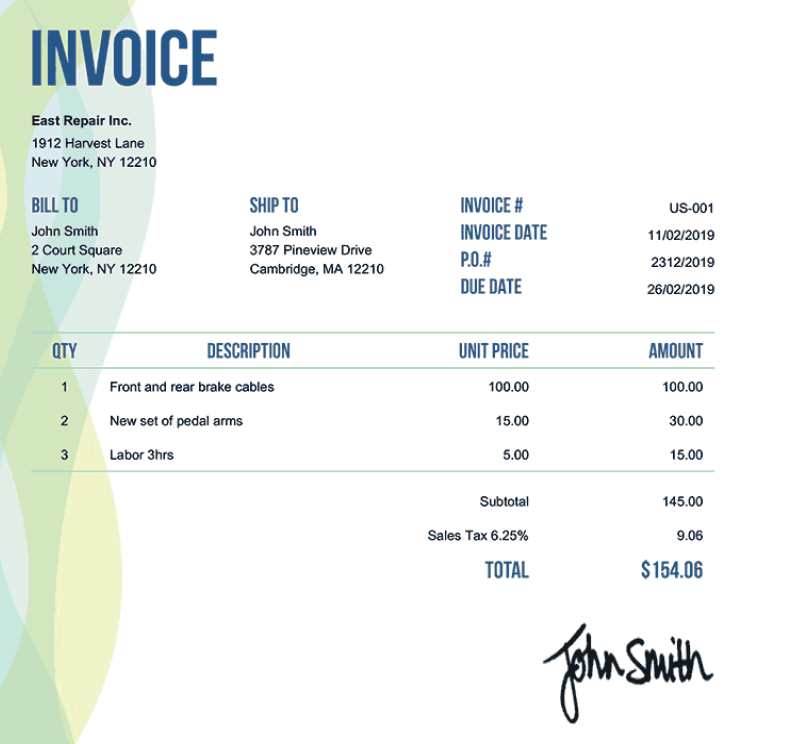
PDF Invoice
Currently, you can only access the AI-assisted invoice extraction workflow in the Costs and Budget module.
To Add an Invoice Using AI
1.Navigate to the Costs and Budget dashboard.
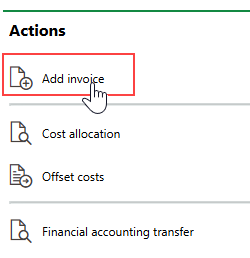
2.Under Actions, click Add Invoice.
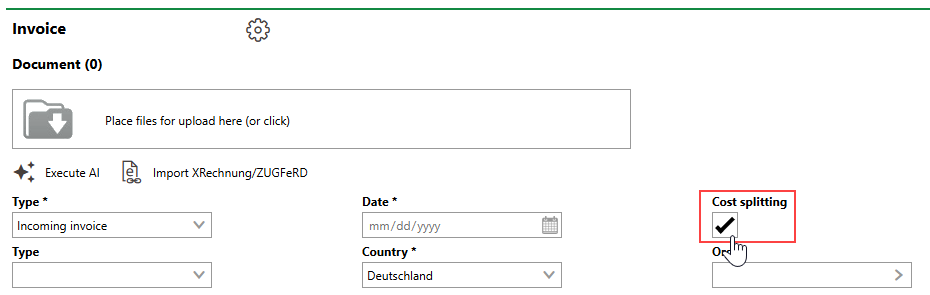
3.Select the Cost Splitting check box.
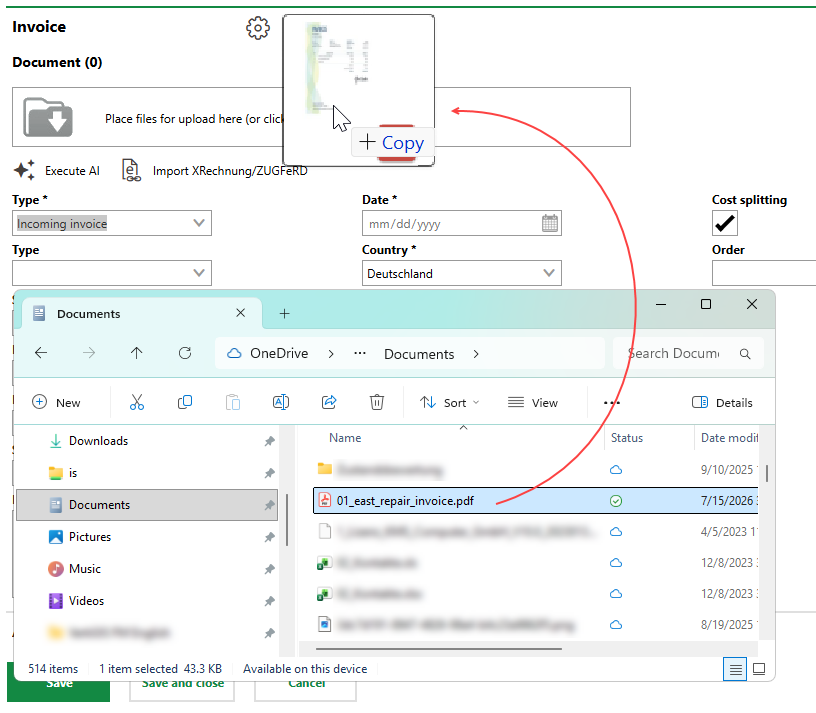
4.Drag the invoice file from a Windows Explorer folder into the Place files for upload here (or click) text box. Alternatively, click in the box and double-click the file in Windows Explorer.
5.Click Execute AI ( ).
).
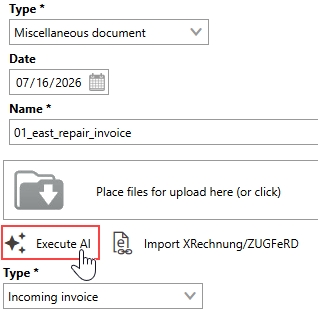
The system may take several seconds to extract the invoice's contents.
6.Review the invoice's information fields to ensure the system has populated the form correctly. AI can make mistakes or omit information.
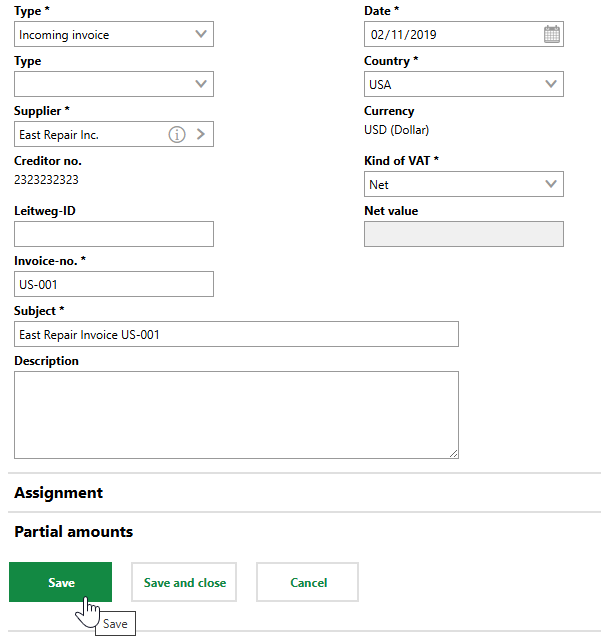
Review the form for missing inputs in mandatory fields in the invoice form. Notably, you will likely need to specify the ledger account associated with each line item in the Partial Amounts section.
Refer to Invoice Details for descriptions of all invoice form fields.
7.Click Save.
In the example above, VertiGIS FM extracted high-level information from the invoice file and entered it in the appropriate data fields in VertiGIS FM. Additionally, it created three line items (which you can see in the Partial Amounts section after you save the invoice) using the line items in the invoice.
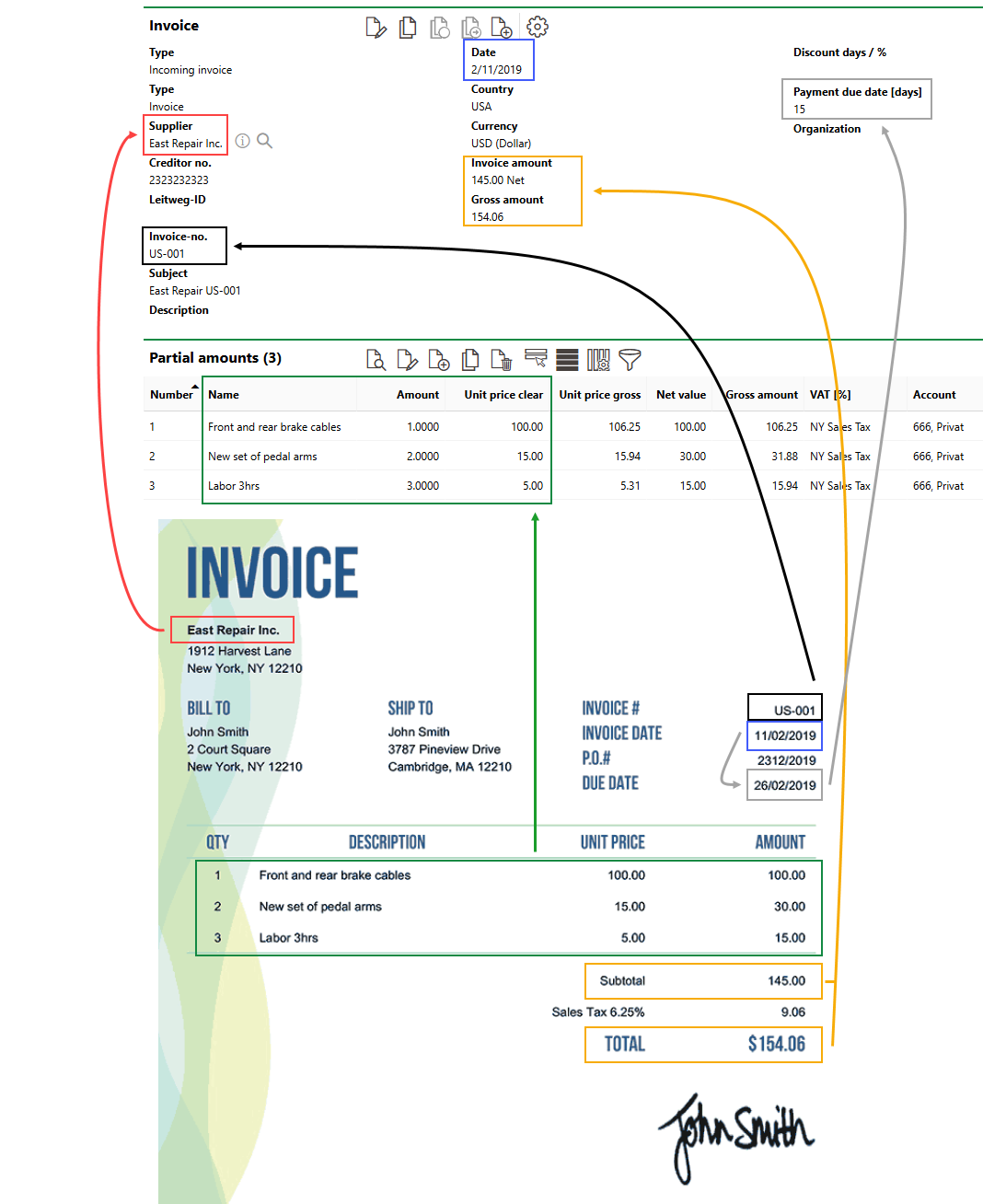
Invoice in VertiGIS FM with AI-Extracted Elements from PDF
Improve Invoice Extraction Results
Consider the tips below to increase the amount of data the LLM specified in your AI profile is able to extract from an invoice:
•ensure all suppliers and customers exist in the VertiGIS FM database as contacts or companies, that they are assigned the appropriate contact types, and that their contact information is accurate. You can add contacts and companies in the Contact Management module.
•ensure the country in which the customer and supplier operate exists in the Country Management section of the VertiGIS FM administration, and that an entry for the tax rate shown on the invoice exists in the VAT section of the country's details page.