The checklist item generation tool populates a new checklist with suggested items (tasks or conditions) based on the name you enter for the checklist. You can use this tool whenever you add items to a checklist.
To use the checklist item generation tool, simply click the  icon after you enter a name for the checklist. Refer below for a step-by-step procedure.
Refer to Checklists for more information.
Generate Checklist Items Using AI
The checklist item generation tool is available when you add items to order checklists or asset checklists. To quickly add AI-generated items to a checklist, create a new checklist (order checklist or asset checklist) for any checklist-associated VertiGIS FM product, module, or asset. Refer to Create a Checklist. Ensure the checklist name you enter includes context about the type of asset and type of maintenance, work, or inspection so that the LLM can generate relevant checklist items.
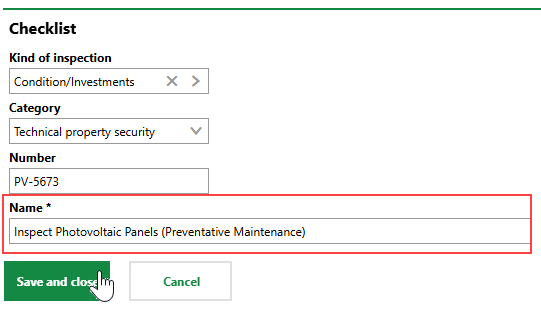
New Checklist
After you click Save and Close, click the icon in the Items section.
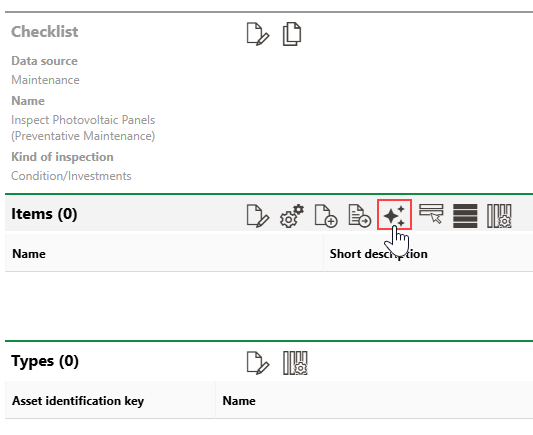
Generating AI Checklist Items (1/2)
Review the name, description, Required setting, and notes for each checklist item generated by the LLM. Edit items or manually add other items to the checklist, as required.
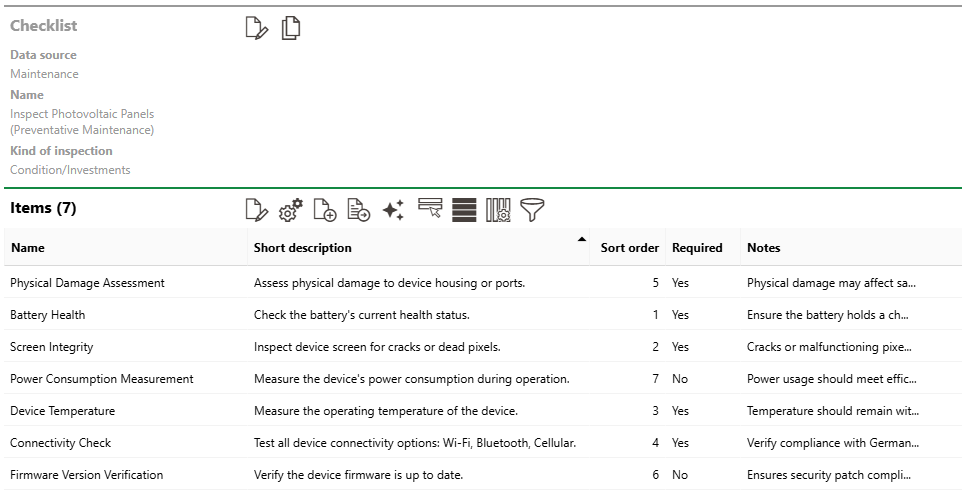
Generating AI Checklist Items (2/2)