This topic outlines how to add, edit, and delete a central lock in VertiGIS FM.
All central locks must exist within a locking system.
This topic outlines how to manually add individual central locks in VertiGIS FM. You can alternatively import your own internal record of central locks into the VertiGIS FM database using a CSV or XML file. This option is ideal for adding large quantities of central locks simultaneously (for example, to establish an initial record of central locks in the VertiGIS FM database).
To Add a Central Lock to a Locking System
You can add a central lock to a locking system on the locking system's details page.
To Add a Central Lock to a Locking System
1.Navigate to the details page for the locking system you want to add a central lock to.
2.Expand the Central Locks section and click the Add ( ) icon.
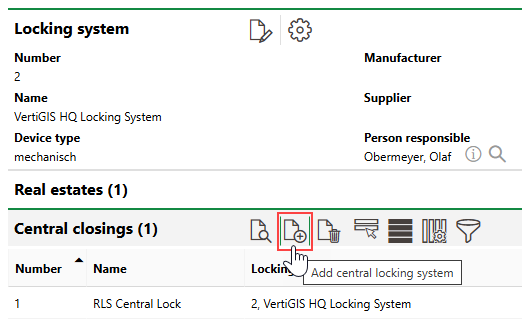
3.Enter a Name for the new central lock and a Number to identify it by.
4.Click Save or Save and Close.
Edit a Central Lock
You can edit a central lock on its details page.
To Edit a Central Lock
1.Navigate to the details page for the locking system that contains the central lock you want to edit.
2.Click the Edit ( ) icon.
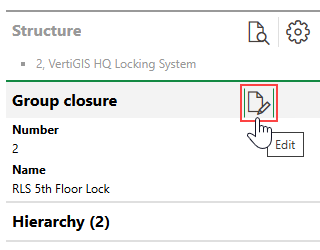
3.Edit the central lock's details as required.
4.Click Save or Save and Close.
Delete a Central Lock
You can delete a central lock on the details page for its locking system.
To Delete a Central Lock
1.Navigate to the details page for the locking system whose central lock you want to delete.
2.Expand the Central Locks section.
3.Select the central lock you want to delete and click the Delete ( ) icon.
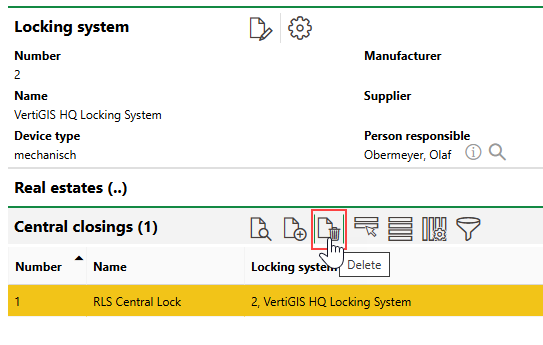
4.Click OK.
You cannot delete a central lock that has a key assigned.