A schema describes the attribute form for one layer. Only one schema per layer is supported. A layer schema contains multiple groups with fields (layer attributes). Groups cannot contain subgroups.
Sublevels
Sublevels allow different attribute forms based on feature type. Similar to Esri subtypes, sublevels display specific fields and groups when a feature's sublevel key attribute matches a defined value.
For example, a "Roads" layer might show different fields based on road type:
•Highway (sublevel): Speed Limit,Number of Lanes, Median Type
•LocalStreet (sublevel): Parking Allowed, Speed Limit, Sidewalk
When generating from a web map, the sublevels are created as per the following logic:
•Sublevels are created only if the map contains a Subtype-Group layer with Subtype-Sub layers.
•Each sublayer becomes a sublevel entry.
•The map doesn’t need to include all subtypes defined at the database level- some may be missing after generation.
To configure sublevels:
1.In the schema properties, specify a Sublevel Key (must be a layer attribute).
2.Select the + button on the top line to add sublevel values.
3.Define the schema for each sublevel value.
The attribute form uses the matching sublevel configuration when the feature's sublevel key attribute equals a defined value. Otherwise, it uses the top-level schema.
You can create nested sublevels (up to the layer attribute count).
To add nested sublevels:
1.Select an existing sublevel.
2.Specify another Sublevel Key attribute.
3.Add values below the current sublevel.
No schema extends from top level to sublevel. Each level must specify the complete schema.
Preview Form
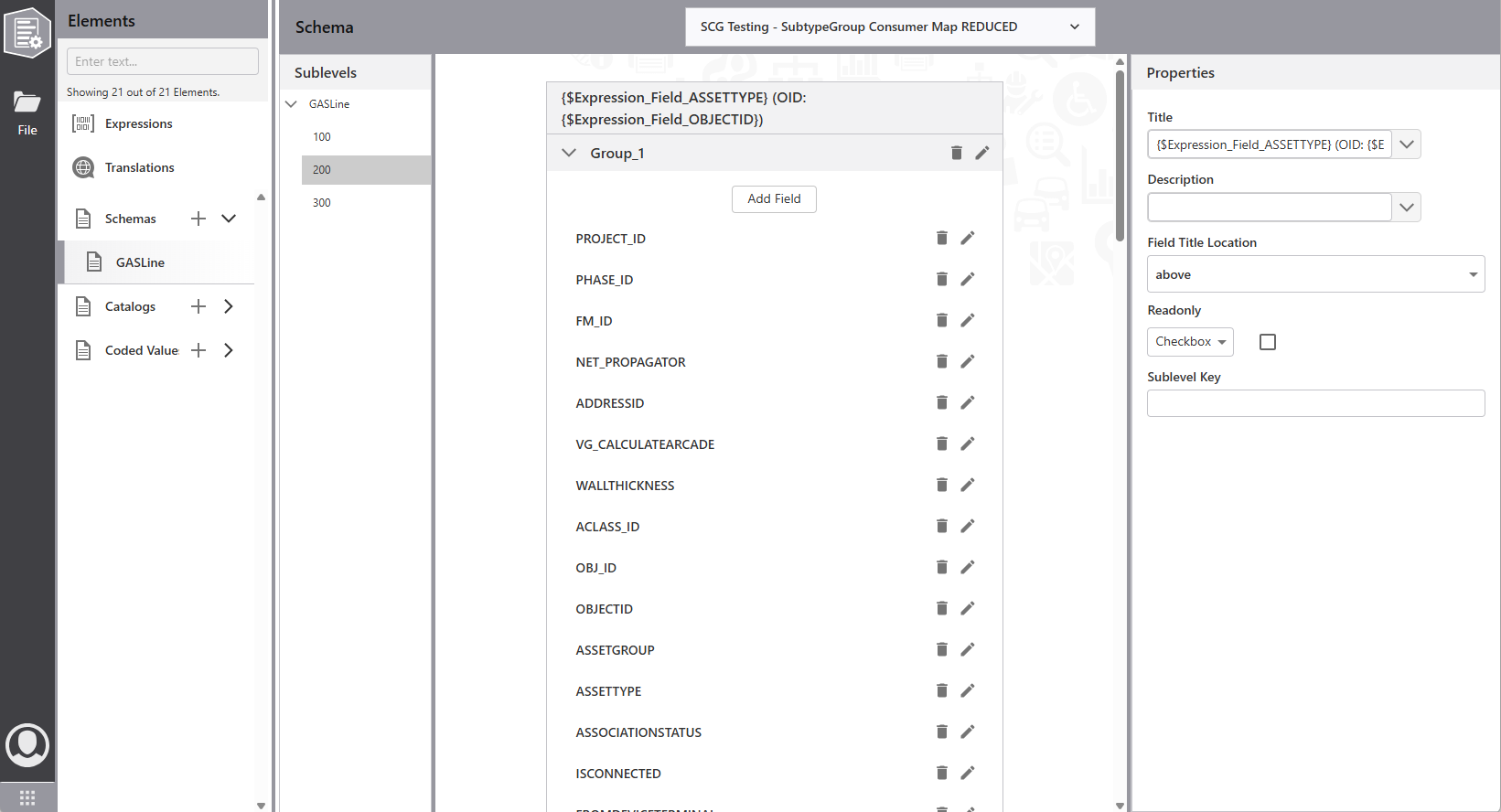
The middle of the screen previews the attribute form. It doesn't show a 1:1 visualization, but groups and fields appear in the same order.
To build the form:
1.Select Add Group to create a new group.
2.Select Add Field to add fields to groups.
To interact with the preview:
•Click a group or field region to display its properties on the right
•Click the pen icon to edit group properties
•Click the group name or empty area to expand or collapse the group
Properties
The right view shows properties for the selected element.
To configure main schema properties:
1.Select any sublevel to display schema properties.
2.Specify title, description, control label placement, and read-only status.
3.Specify sublevel attribute if needed (see Sublevels).
To configure group properties:
1.Click the pen icon on a group to display its properties.
2.Specify name, collapsed state, description, and format (look and feel).
3.Define Collapsed, Readonly, and Visible properties using a Boolean value, Arcade expression, or global expression reference (see Expressions).
To configure field properties:
1.Click a field or the pen icon to display its properties.
2.Specify name (feature attribute name), title, tooltip, and control type.
3.Define Enabled, Required, Visible, and Readonly using a Boolean value, Arcade expression, or global expression reference (see Expressions).
Additional properties - validation options, sizes, formatting - display based on the control type.