When attributes have value combinations, a catalog lets users select a combination from a list, defining all feature attributes at once.
For example, a "Cables" layer catalog might offer combinations like:
•Type A Cable:Voltage=120V, Conductor=Copper, Gauge=12 AWG
•Type B Cable:Voltage=240V, Conductor=Aluminum, Gauge=10 AWG
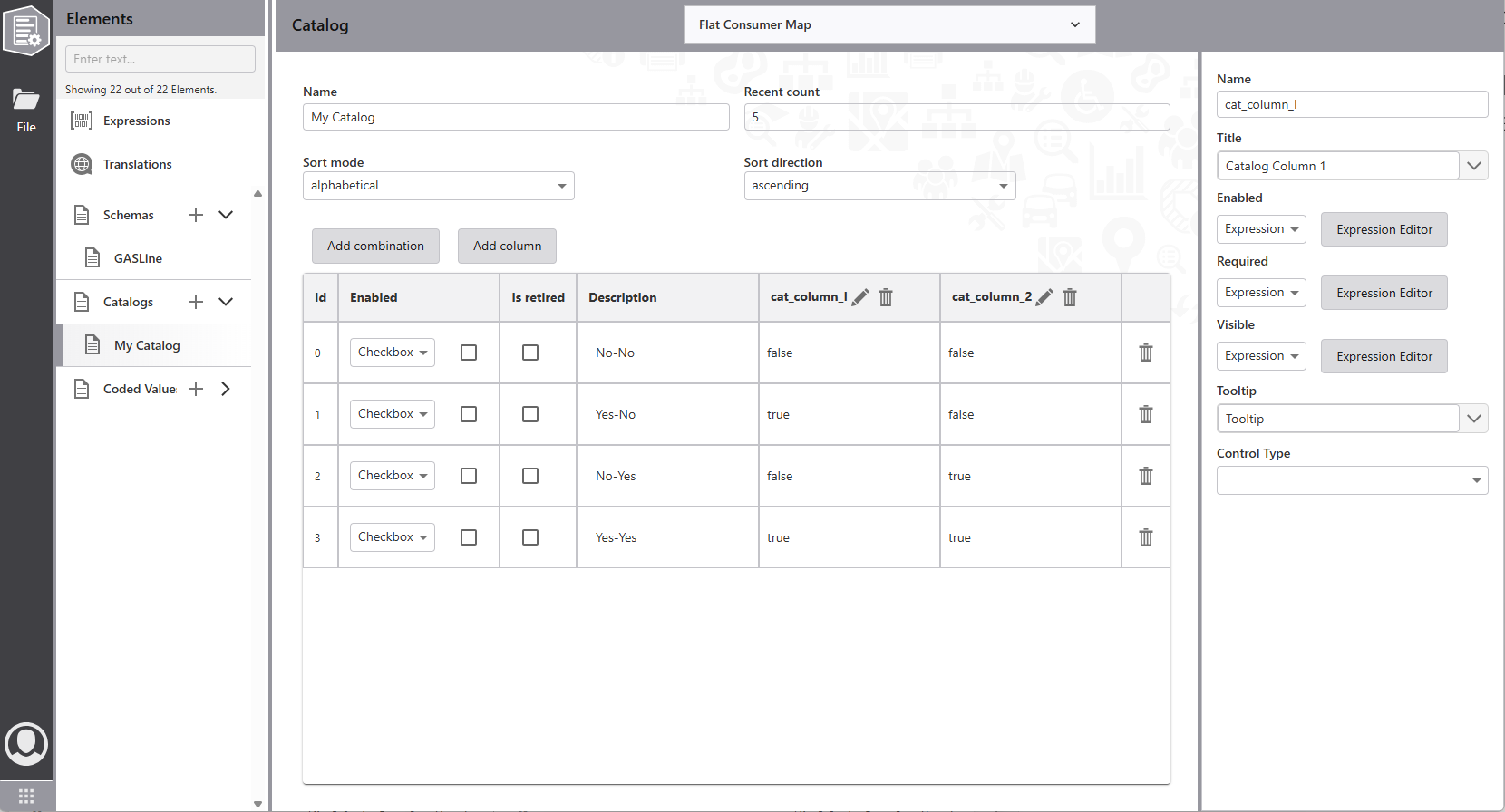
The catalog editor has two parts:
•Left: Catalog properties, attributes, and value combinations
•Right: Property dialog based on the selection
Create New Catalog
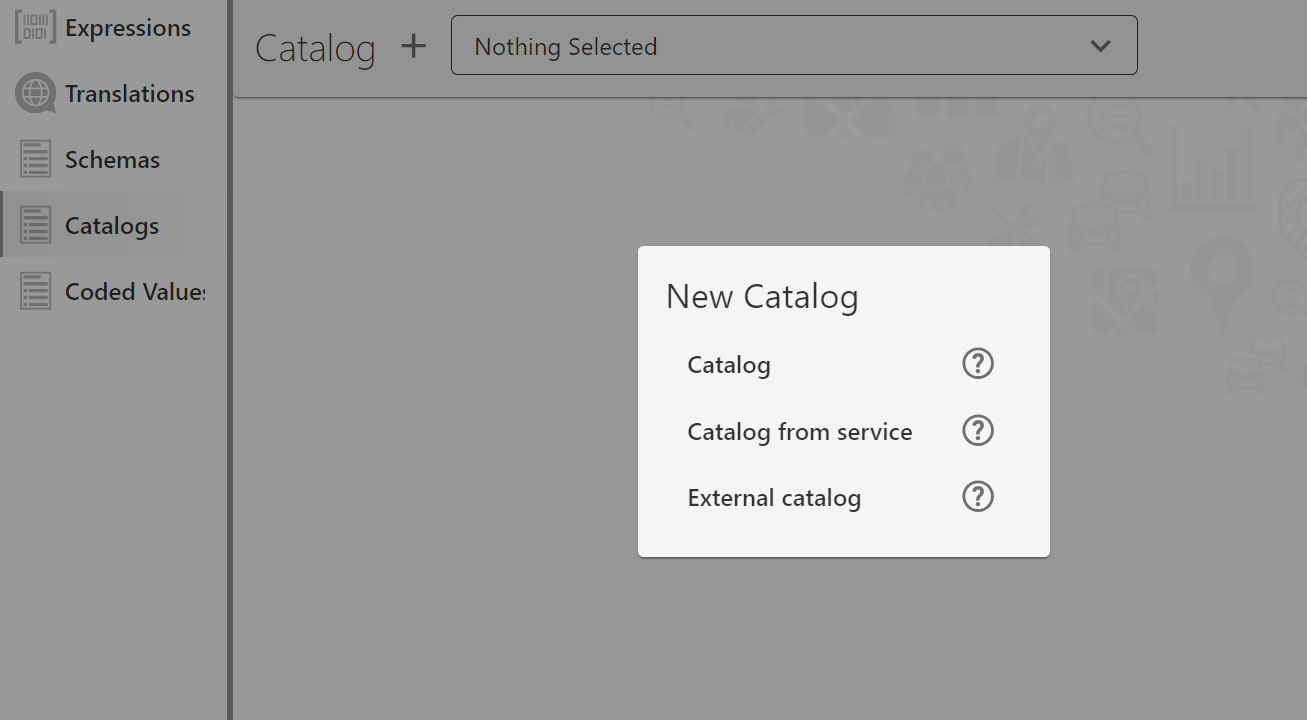
To create a new catalog:
1.Click the + icon.
2.Select a catalog type based on which the editor restricts available parameters and data to those matching the selected type:
a.Catalog: Catalog structure (settings and columns) as well as all available combinations are completely saved within the current configuration.
b.Catalog from service: Catalog structure (settings and columns) is saved in this configuration. The combinations are retrieved from the defined feature layer.
c.External catalog: A catalog which is saved seperately in the portal and is imported for editing.
Catalog from Service
Service-based catalogs do not allow modification of the combination table, as the data is read from a feature service layer. The layer URL is configured in an additional text field. Four additional text fields define the field names for:
•ID (id-field-name)
•Description (description-field-name)
•Enabled state (enable-field-name)
•Retired state (isretired-field-name)
Additional columns can be added, but their names must match attributes from the feature service layer.
External Catalogs
A catalog can live in its own portal item instead of being embedded in the configuration. This is useful when several configurations share the same catalog, when a different team maintains it, or when it's large enough to manage on its own. An external catalog item is a standalone configuration without a schemas section - it can carry its own expressions, translations, and coded values along with the catalog.
Set up an external catalog
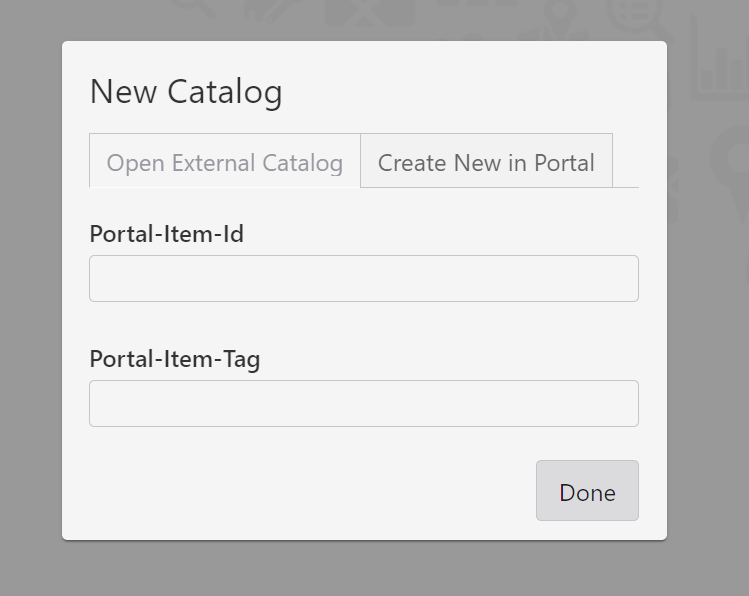
To open an external catalog:
1.In the catalog properties, specify either a portal item ID or a portal item tag. One of the two is required; do not set both.
2.Select Done.
3.After making edits to the external catalog, select Save Catalog to save changes to the portal item.
To create an external catalog in portal:
1.Enter the name for the Catalog.
2.Select Create.
3.Add combinations and columns to the Catalog
4.Select Save to store the catalog as a standalone item in the portal.
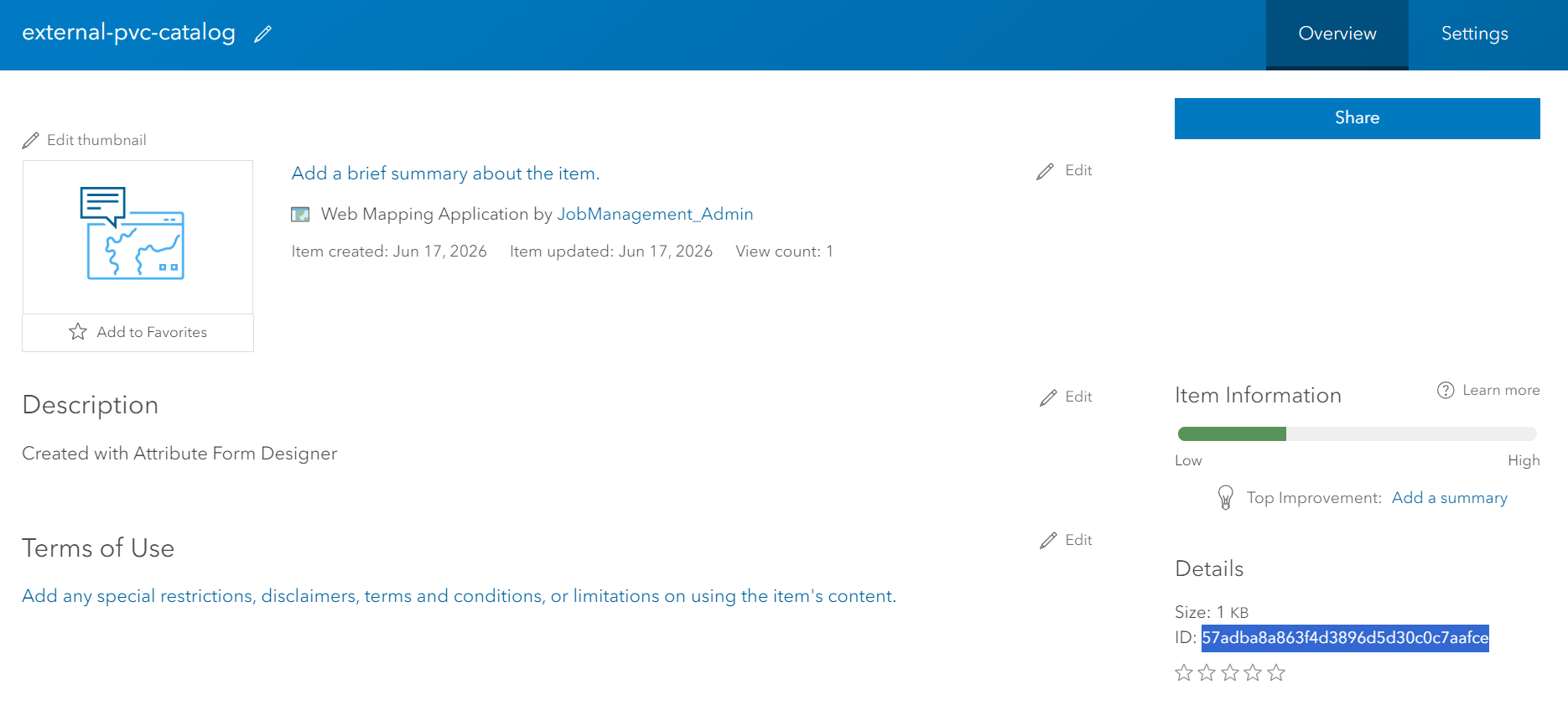
How the Designer handles external catalogs
You always work with a single, merged view. The split between the two portal items happens automatically:
•When you open a configuration that references an external catalog, the Designer pulls the external item from the portal and merges its catalog, expressions, translations, and coded values into the configuration you're editing.
•When you save, the Designer extracts the external catalog and its dependencies back into the separate portal item, and stores both items. Your main configuration keeps only the reference (id or tag) and the feature-attribute mapping. Dependencies (translations, coded values, expressions) that belong to the external catalog are moved into the external item; any that are still referenced elsewhere in your configuration remain in place.
After saving, the information is merged again so you can continue editing seamlessly.
Catalog Properties, Columns, and Combinations
Define catalog properties:
•Name: Catalog name (referenced in schema definition)
•Recent count: Number of last selected entries listed at the top for fast access
•Sort Mode: Combination sort method
•Sort direction: Sorted combination direction
To add and manage columns:
1.Select Add Column to add a catalog column (appears at the right end).
2.Click the pen icon to open column properties.
3.Click the trash icon to delete a column.
To add and manage combinations:
1.Select Add Combination to create a new combination.
2.Specify column values, Enabled status, retired status, and description.
3.Click the trash icon in the last column to delete a combination.
Column Properties
Selecting a column displays its properties.
A column is a layer attribute. Properties match field properties in the schema editor. The name should match a layer attribute. Specify properties to define the catalog column appearance.
Users can set a value for a column directly (independently of picking a combination), and any value entered there filters the main combination list to show only matching entries.