Job History provides a complete audit trail of all actions performed on a job, from creation through closure. It records who performed each action, when it occurred, and any relevant context, giving organizations full visibility into a job's lifecycle.
This feature is optional and must be enabled during the installation of the Job Management system. Once enabled, the setting cannot be changed.
View Job History
Job History is accessible from the job context menu in the Job Management panel. It is available to portal administrators.
To view the history of a job:
1.Open the Job Management tab in VertiGIS Networks Editor.
2.Locate the job in the job list, then open its context menu.
3.Select Job History to open the Job History panel.
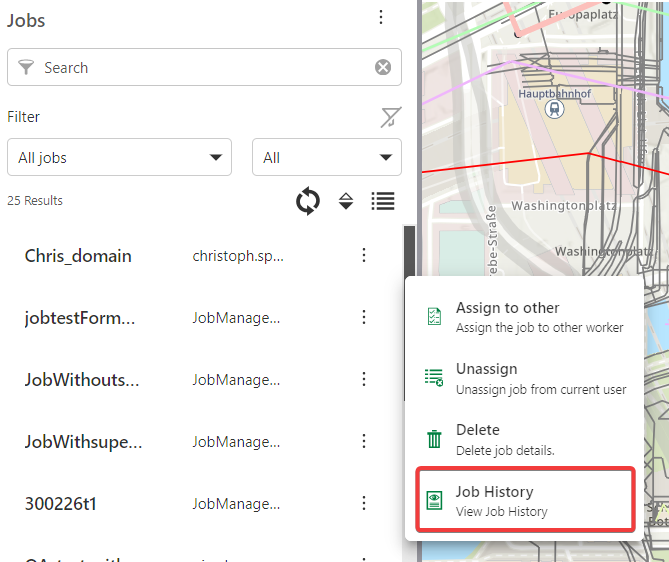
Job History Panel
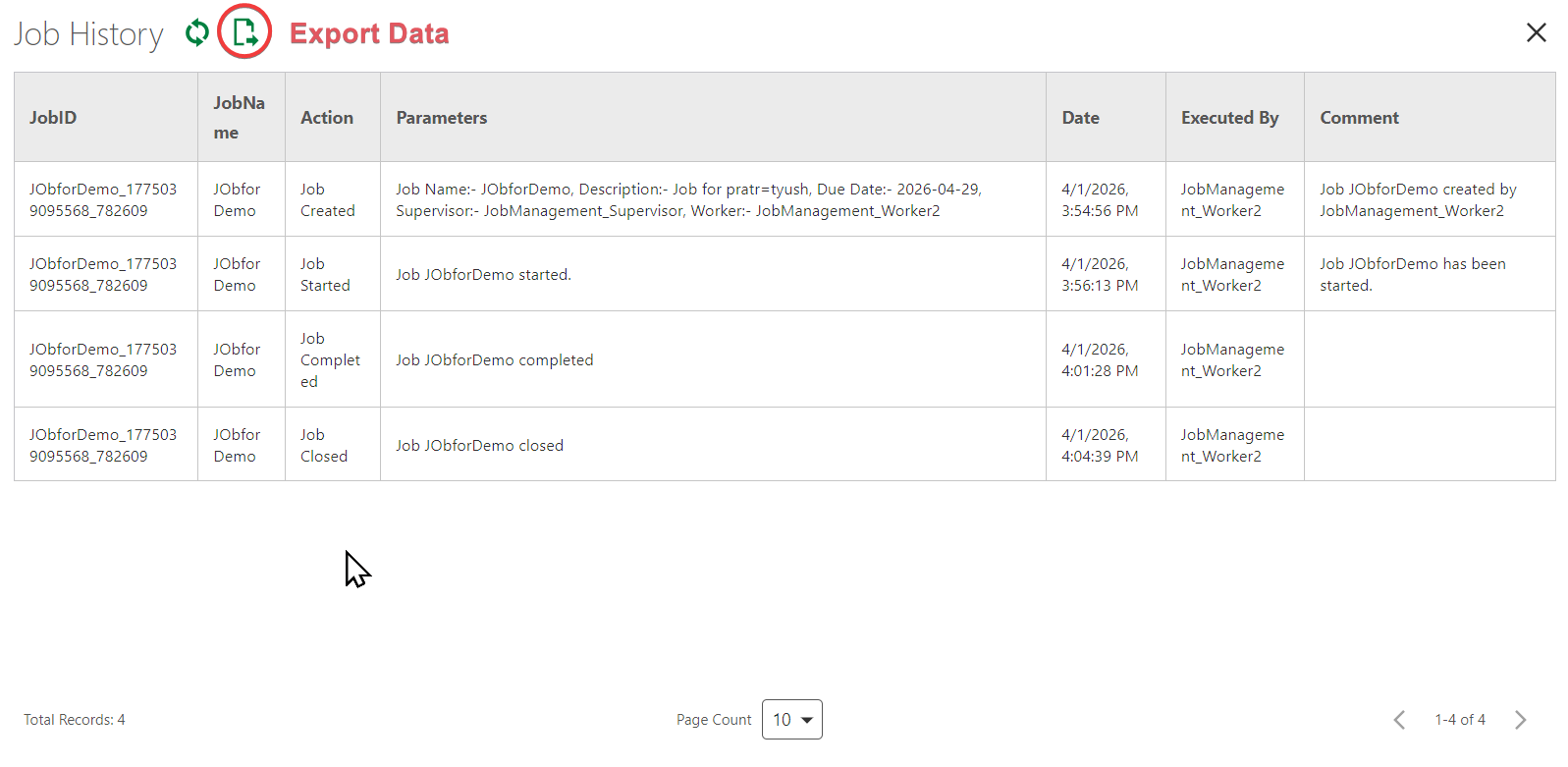
The Job History panel displays a table listing all recorded actions for the selected job. Each row represents a single logged event.
Column |
Description |
|---|---|
JobID |
The unique system identifier for the job |
JobName |
The display name of the job |
Action |
The action that was performed (e.g., Job Created, Job Closed) |
Parameters |
Additional details associated with the action, such as assignment targets or job attributes |
Date |
The timestamp of when the action occurred |
Executed By |
The user who performed the action |
Comment |
Any contextual note provided at the time of the action |
Panel Controls
•Refresh - Reloads the table to display the latest logged actions.
•Export Data - Exports the job history to a file for reporting or archival purposes.
•Page Count: Adjust the number of records on a single page
Batch reassignment actions are logged as a single entry with all affected jobs referenced in the Parameters column.