The job_service_creator.py script provisions all required Job Management components in your ArcGIS Portal. Once complete, the portal administrator can access Job Management features in VertiGIS Networks Editor and begin registering portal groups.
Prerequisites
Before running the script, ensure the following:
•The account used to run the script must be a portal administrator or publisher (org_admin, org_publisher, or equivalent publisher privileges).
•Python is installed with the ArcGIS API for Python (arcgis package).
•The Portal URL used must be the full URL including the web adaptor (for example, https://yourserver/portal).
Download and Version Compatibility
The latest version of the Job Management scripts (along with previous versions) can be downloaded from the official VertiGIS Networks Utilities GitHub repository
Please ensure you download the correct script version compatible with your specific VertiGIS Networks installation.
The script functionality is designed to work with particular releases of VertiGIS Networks, and using an incompatible version may result in errors or unexpected behavior. Check the script documentation or release notes in the repository for version compatibility information before downloading.
Run the Script
The script can be run interactively or with command-line arguments.
Interactive Mode
To run the script interactively:
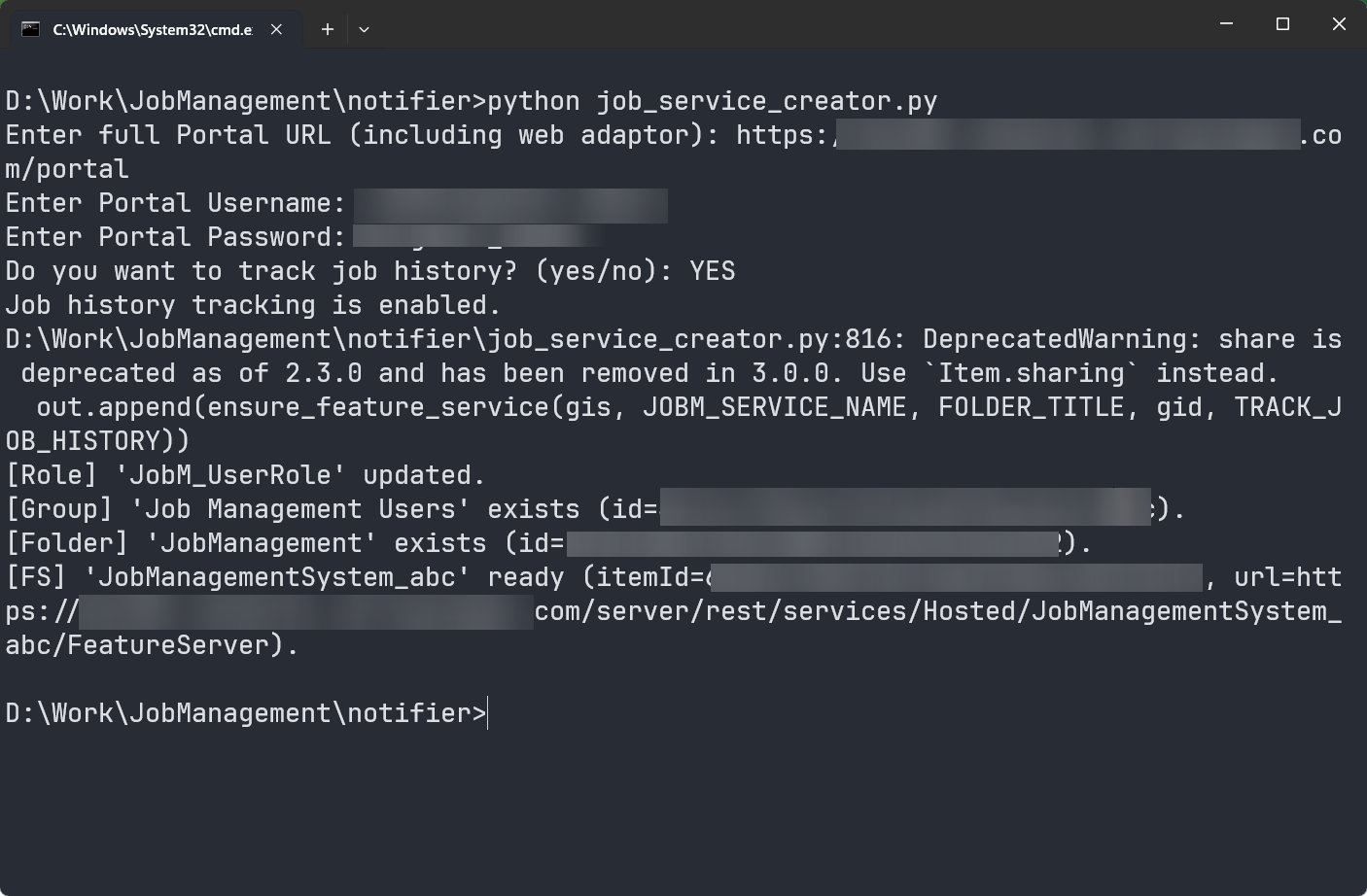
1.Open a command prompt, navigate to the folder containing job_service_creator.py, and run:
python job_service_creator.py
2.Enter the full Portal URL including the web adaptor when prompted.
3.Enter the Portal Username of a portal administrator or publisher.
4.Enter the Portal Password.
5.When prompted with "Do you want to track job history? (yes/no)", enter yes to enable job history tracking or no to skip it.
Command-Line Mode
All inputs can also be passed as arguments to skip the interactive prompts:
python job_service_creator.py --host https://yourserver/portal --username admin --password yourpassword --track-job-history
To explicitly disable job history tracking:
python job_service_creator.py --host https://yourserver/portal --username admin --password yourpassword --no-track-job-history
If your Portal uses a self-signed or internally signed certificate, set VERIFY_CERT = False in the script before running to bypass certificate validation.
What the Script Creates
The script provisions the following components in the Portal:
•JobM_UserRole: A custom portal role assigned to all Job Management users. It grants the following privileges:
oView organization users, items, and groups
oJoin groups
oGeocoding and network analysis
oFeature editing (standard and full)
oBranch version management
•Job Management Users: A portal group scoped to the organization. Administrators can add users directly to this group to grant them access to Job Management.
•JobManagement: A content folder in the portal where the feature service is stored.
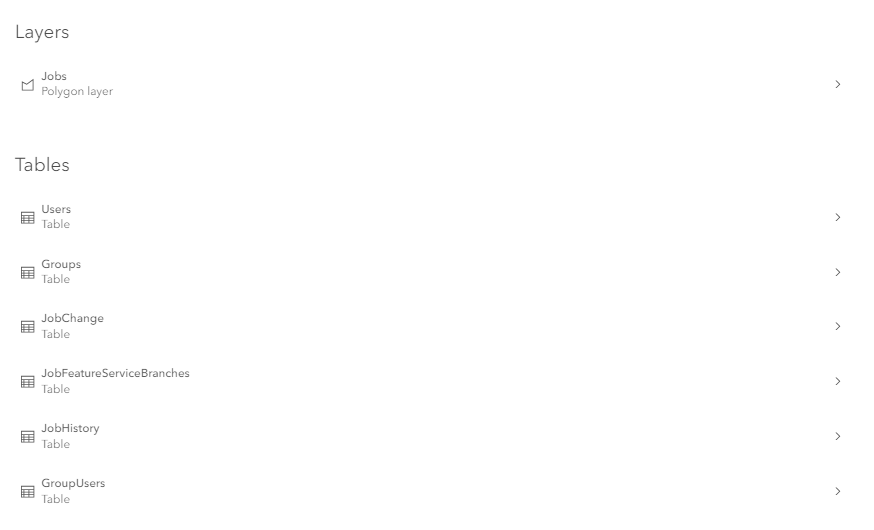
•JobManagementSystem: A hosted feature service containing the following:
Component |
Type |
Description |
|---|---|---|
Jobs |
Feature Layer (Polygon) |
Stores job records and spatial extents |
Users |
Table |
Tracks portal users and their roles |
Groups |
Table |
Stores registered group configuration |
JobChange |
Table |
Logs changes made to jobs |
JobFeatureServiceBranches |
Table |
Links jobs to their branch versions across feature services |
GroupUsers |
Table |
Tracks group membership |
JobHistory |
Table |
Logs job lifecycle history (created only if job history tracking is enabled) |
JobManagementSettings |
Table |
Stores worker permissions set via VertiGIS Studio Web Designer |
Re-run the Script
The script is safe to re-run. If any component already exists, it is adopted and updated rather than duplicated. If the feature service exists but is missing schema elements, the script will attempt to add them.
If a naming conflict is detected for the feature service, the script will identify the blocking item (title, owner, item ID, and URL) and prompt you to delete or rename it before re-running.