The Review Job panel lets you inspect all edits made within a job before closing or approving it. The panel displays added, modified, and deleted features alongside an interactive map, allowing you to zoom to and highlight individual changes.
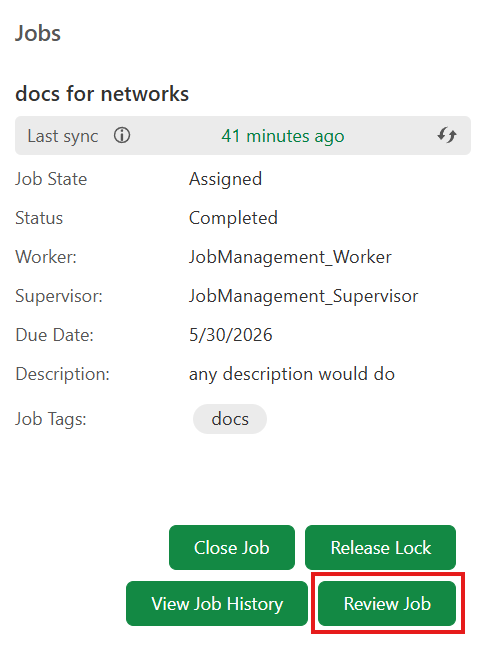
To open the review panel for a job:
1.Open the Job Management tab, then select Jobs.
2.Select the job you want to review.
3.If the versions associated with the job are locked, select Release Lock.
Job Review feature does not work if the versions related to the job are either locked or deleted.
4.Select Review Job.
The review panel opens and the map switches to the branch version associated with the job. All features that were added, modified, or deleted within the job are displayed on the map and listed in the panel.
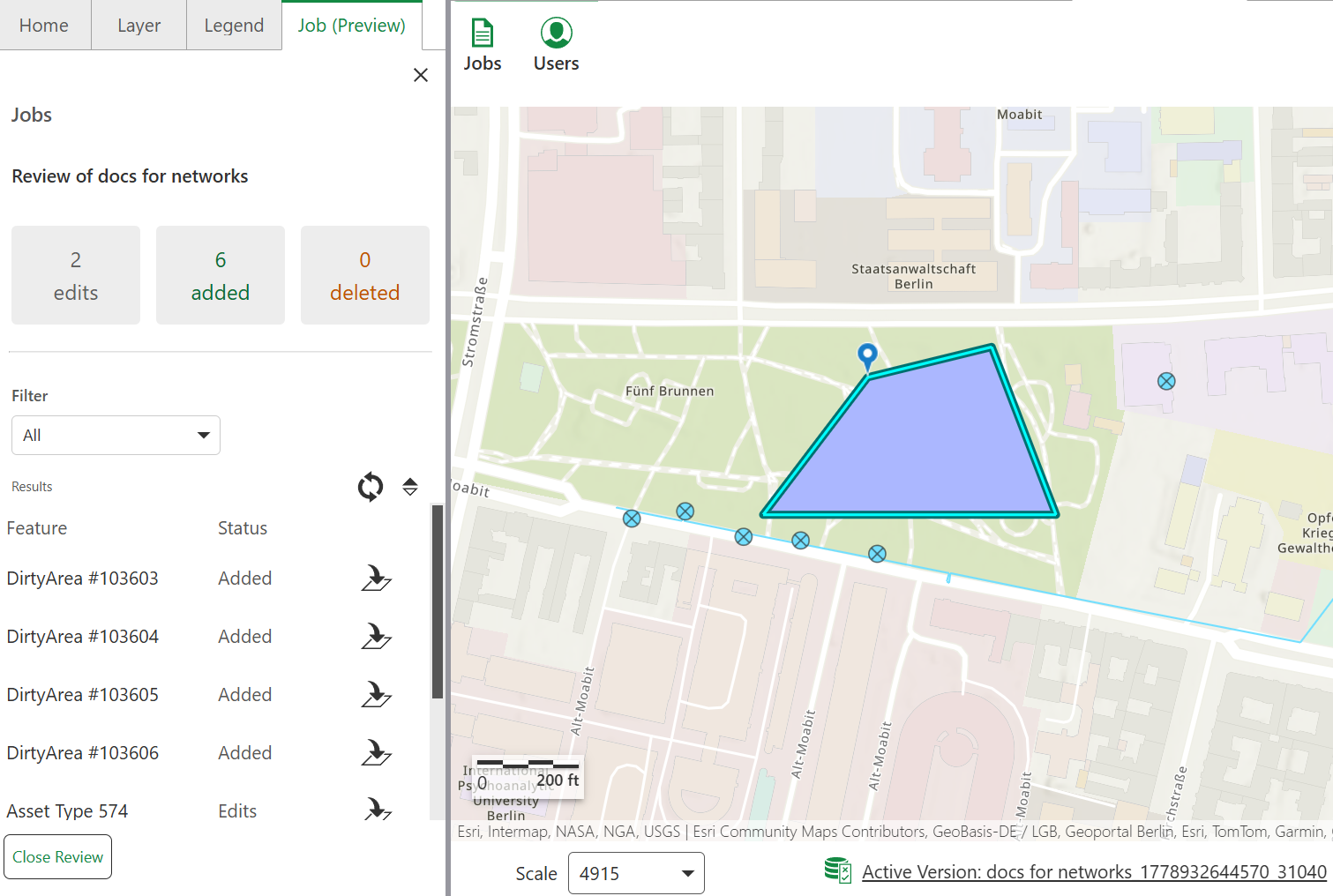
The panel shows a summary of changes at the top:
•Edits: The number of features that were modified.
•Added: The number of features that were added.
•Deleted: The number of features that were deleted.
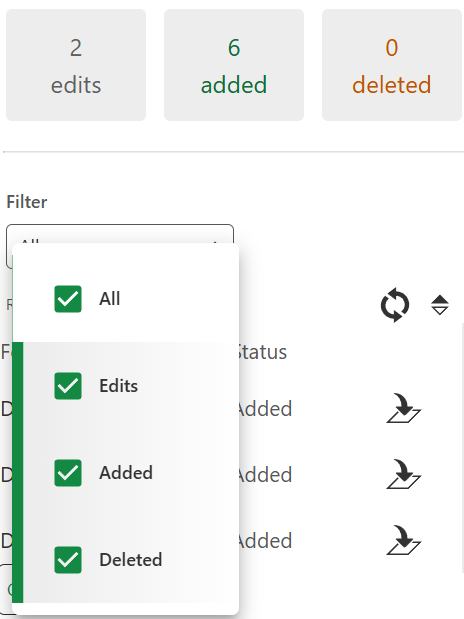
Below the summary, the Results list shows each changed feature along with its status: Added, Edits, or Deleted. Use the Filter dropdown to narrow the list by status type.
For each feature in the results list, you can:
•Zoom: Click the zoom icon next to a feature to center the map on it.
For deleted features, the map zooms to the geometry of the corresponding feature in the default version. Click the red dot that represents the deleted feature to view its properties.
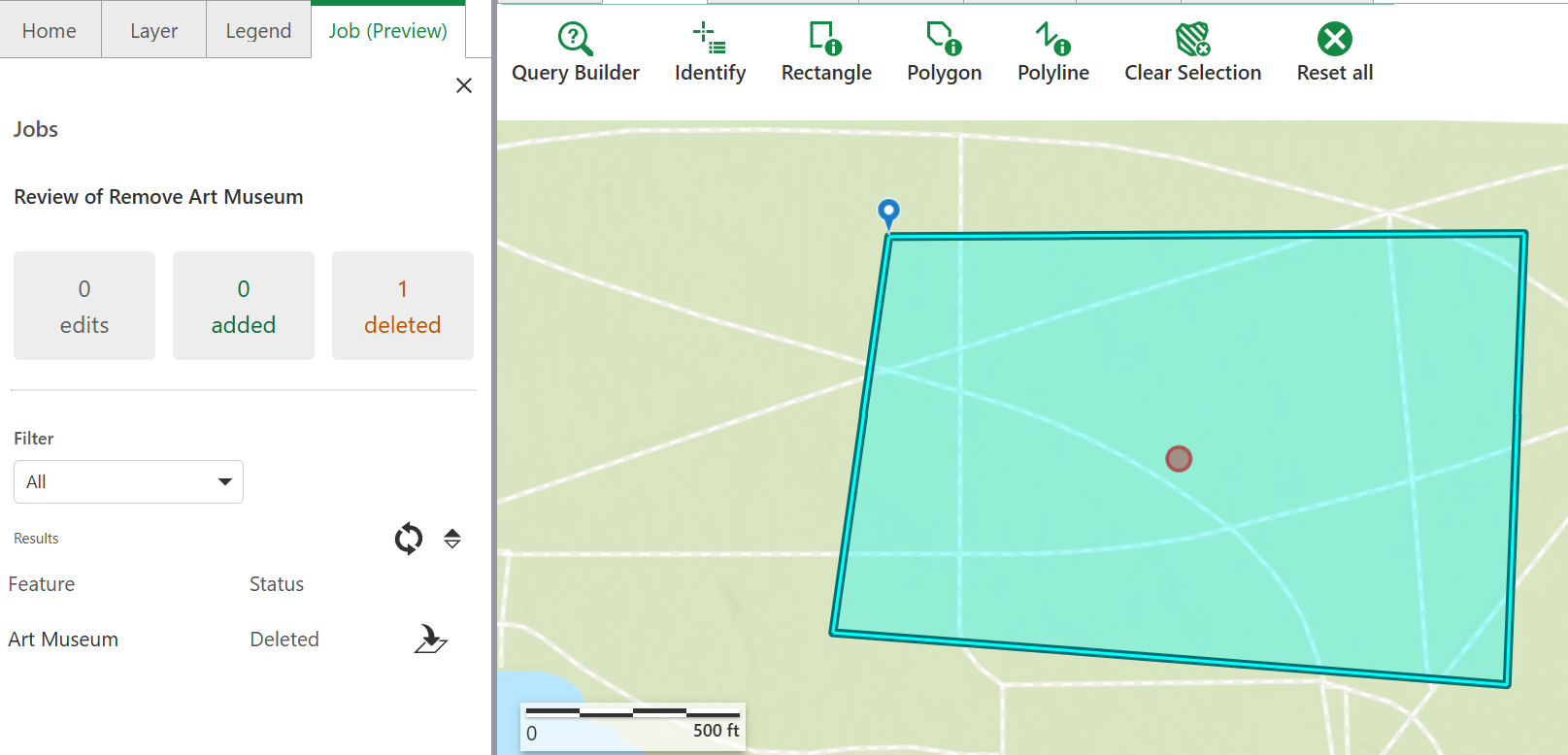
•Highlight: The feature is highlighted on the map when selected, making it easy to locate within the job area.
Access the attribute details of a deleted feature by clicking on its associated red dot.