A conflict occurs when the same feature in a feature service has been edited in both the default version and the job's branch version, resulting in competing values for one or more properties - including attribute fields or geometry.
Conflicts are detected during reconcile and must be resolved before the operation can complete. Resolution is done property by property, with the user or the system choosing which version's value to retain for each conflicting property.
Types of layers for which conflict resolution is supported:
•Regular layers
•Dimension layers
•Annotation layers
Table: Types of conflicts when reconciling or completing jobs
Conflict Type |
Default Version |
Job Version |
Description |
|---|---|---|---|
Update-Update |
Updated |
Updated |
The same feature has been edited differently in both versions |
Update-Delete |
Updated |
Deleted |
Feature was modified in default but removed in job |
Delete-Update |
Deleted |
Updated |
Feature was removed in default but modified in job |
When do Conflicts Occur
Conflicts are detected in two scenarios:
For Workers
When a worker synchronizes versions to bring the latest changes from the default version into their job version:
•The same feature was edited in both the default and job versions
•The worker must resolve conflicts before continuing work
For Supervisors
When a supervisor reconciles before closing a job:
•The same feature was edited in both the default and job versions
•The supervisor must resolve conflicts before the job can be posted
Conflict Notification
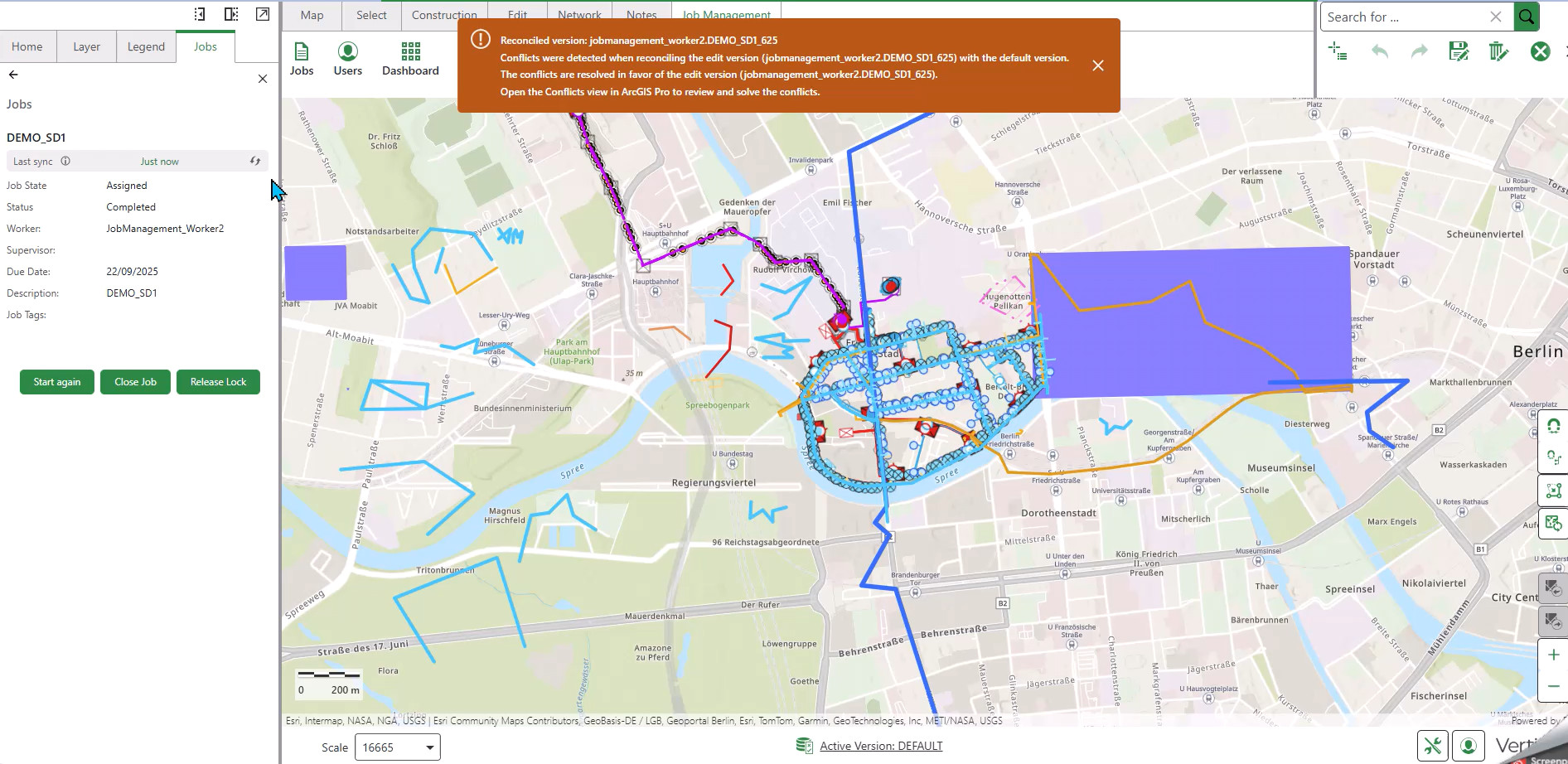
When you select Reconcile (refresh icon) and a conflict exists, you will receive a notification that conflicts must be resolved before proceeding. For details on how reconcile works across multiple feature services, including error handling and lock management, see Reconcile Job Versions.
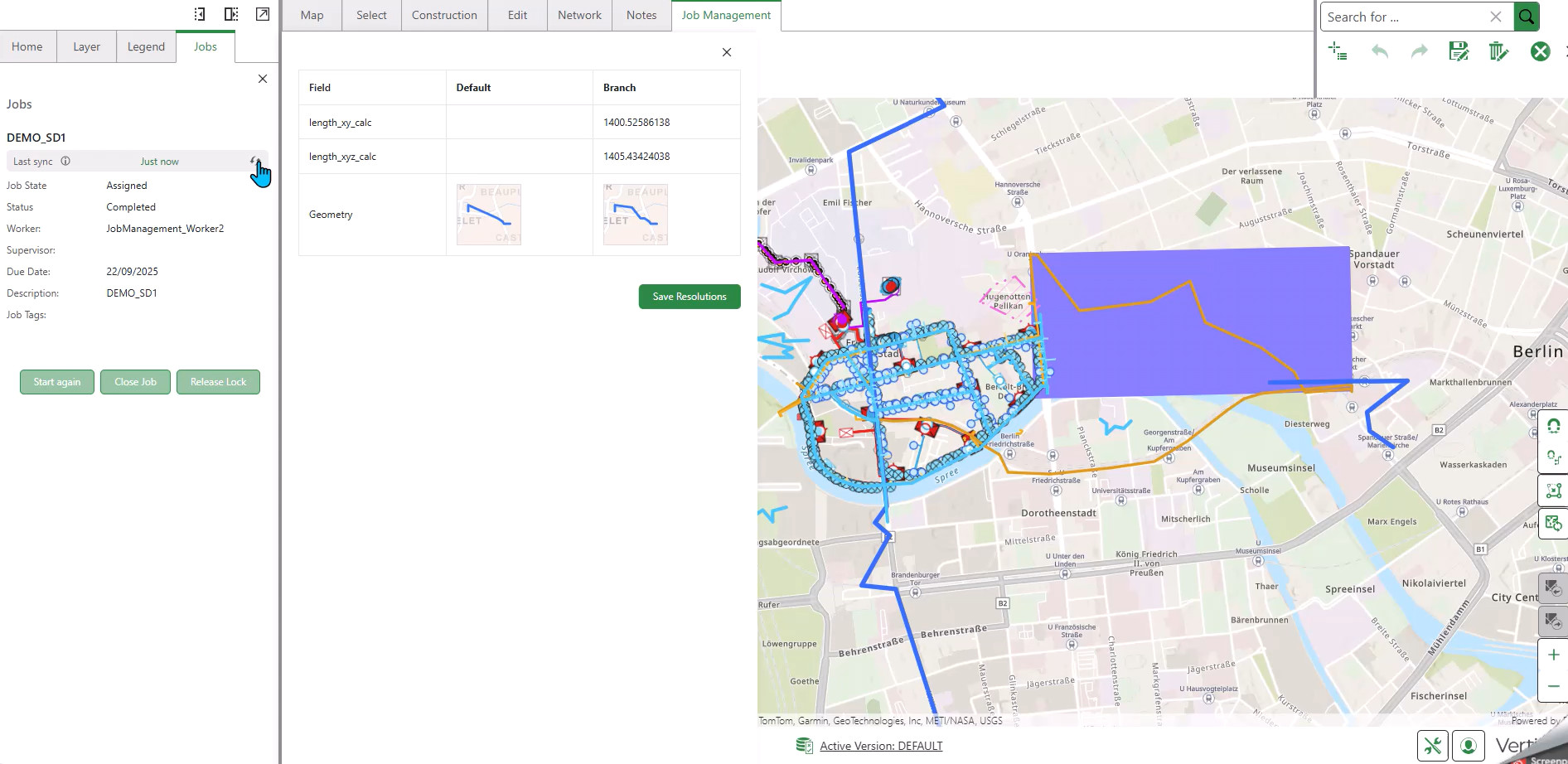
When conflicts are detected, a panel opens displaying a tabular view of the conflicting properties:
•Default version: Shows the feature state in the default version
•Branch version: Shows the feature state in the job version
•Field values: Displays all fields and their values in both versions
•Visual representation: The geometry row shows a graphical representation of the feature in both versions, allowing you to visually compare the differences
Resolution Mode Configuration: Your organization's administrator configures whether conflict resolution is automatic or manual. This setting applies to all reconcile operations in your system.
Automatic Resolution
If your organization is configured for automatic conflict resolution:
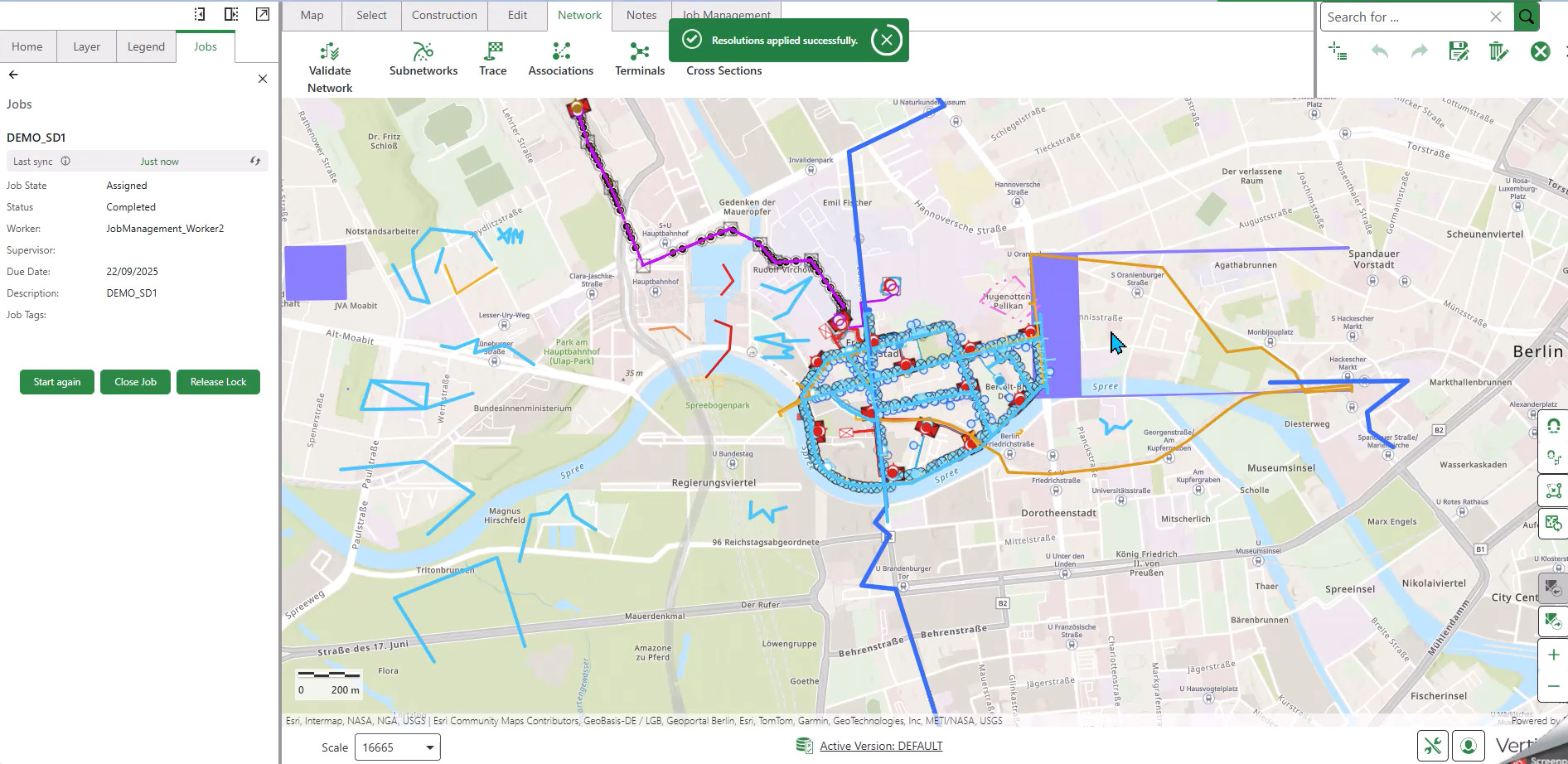
1.You will receive the message: "Resolutions applied successfully"
2.The conflict interface displays the tabular view of conflicts
3.No checkboxes appear for selecting between versions
4.The system automatically determines which version to retain
5.Click Save Resolution to apply the automatic resolution
6.The feature on the map updates to display the applied changes
Manual Resolution
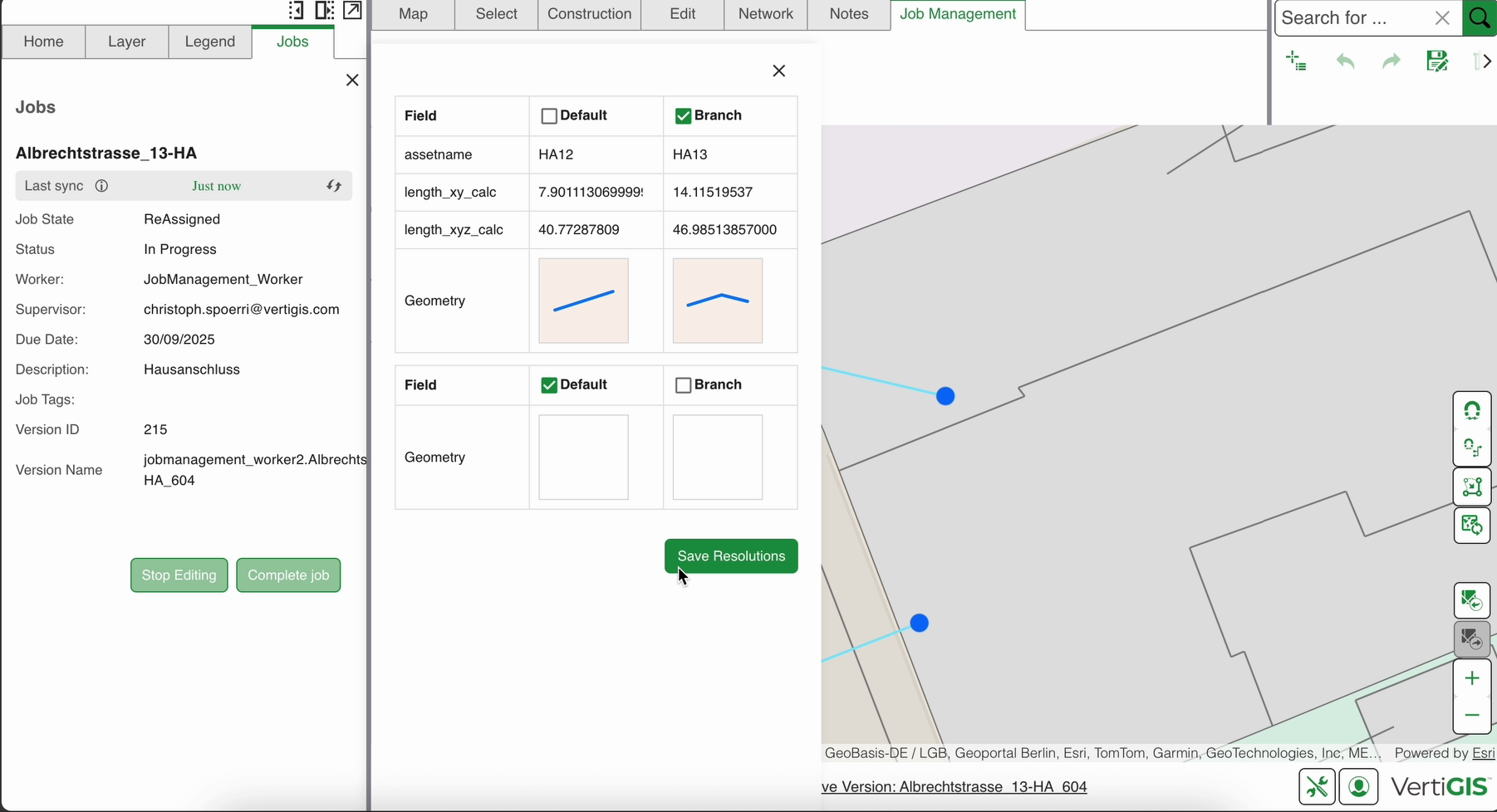
If your organization is configured for manual conflict resolution:
1.The conflict interface displays the tabular view with checkboxes and bulk resolution options
2.Choose how to resolve the conflicts:
oIndividual Resolution: For each conflicting property, check either Default to retain the default version's value, or Branch to retain the job version's value
oBulk Resolution: To resolve all conflicts at once, click All to Branch or All to Default
3.Review each conflict carefully
4.Make your selections for which versions to keep
The unselected version will be discarded
Use the visual geometry representation to help decide which version to retain
5.Click Save Resolutions after making all selections
6.You will receive the message: "Resolutions applied successfully"
7.The feature on the map updates to display the applied changes
Manual resolution gives you complete control over which changes to keep for each conflicting property, allowing you to make informed decisions based on your knowledge of the work.
Once the conflict resolution panel appears, the user must resolve all the conflicts before closing the panel.
Validation After Resolution
After successfully resolving conflicts, validate your data to ensure integrity.
To validate the resolved data:
1.Navigate to the Network tab.
2.Click Validate Network.
3.Select Extent Only as the validation option.
4.Click Verify.
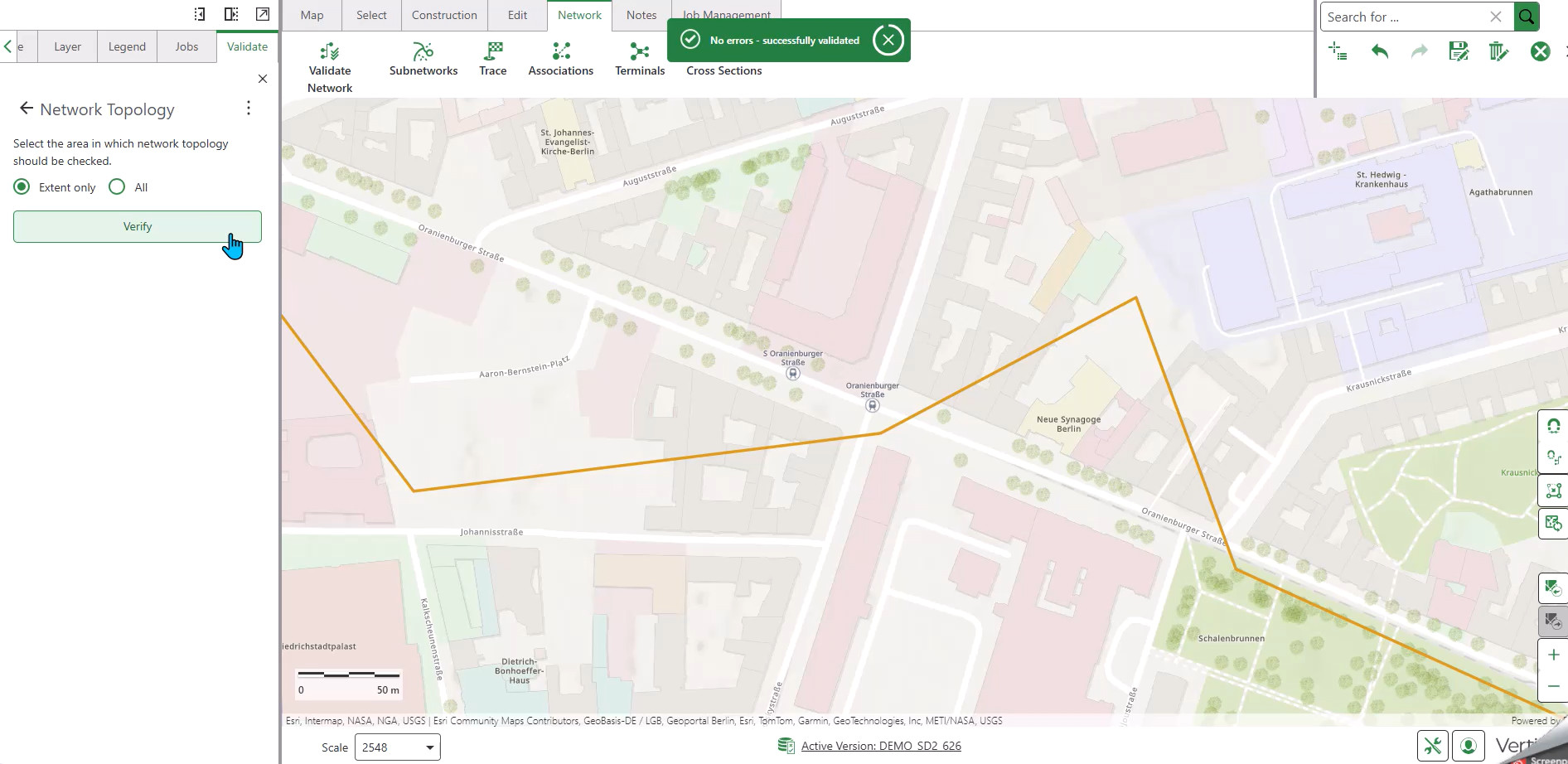
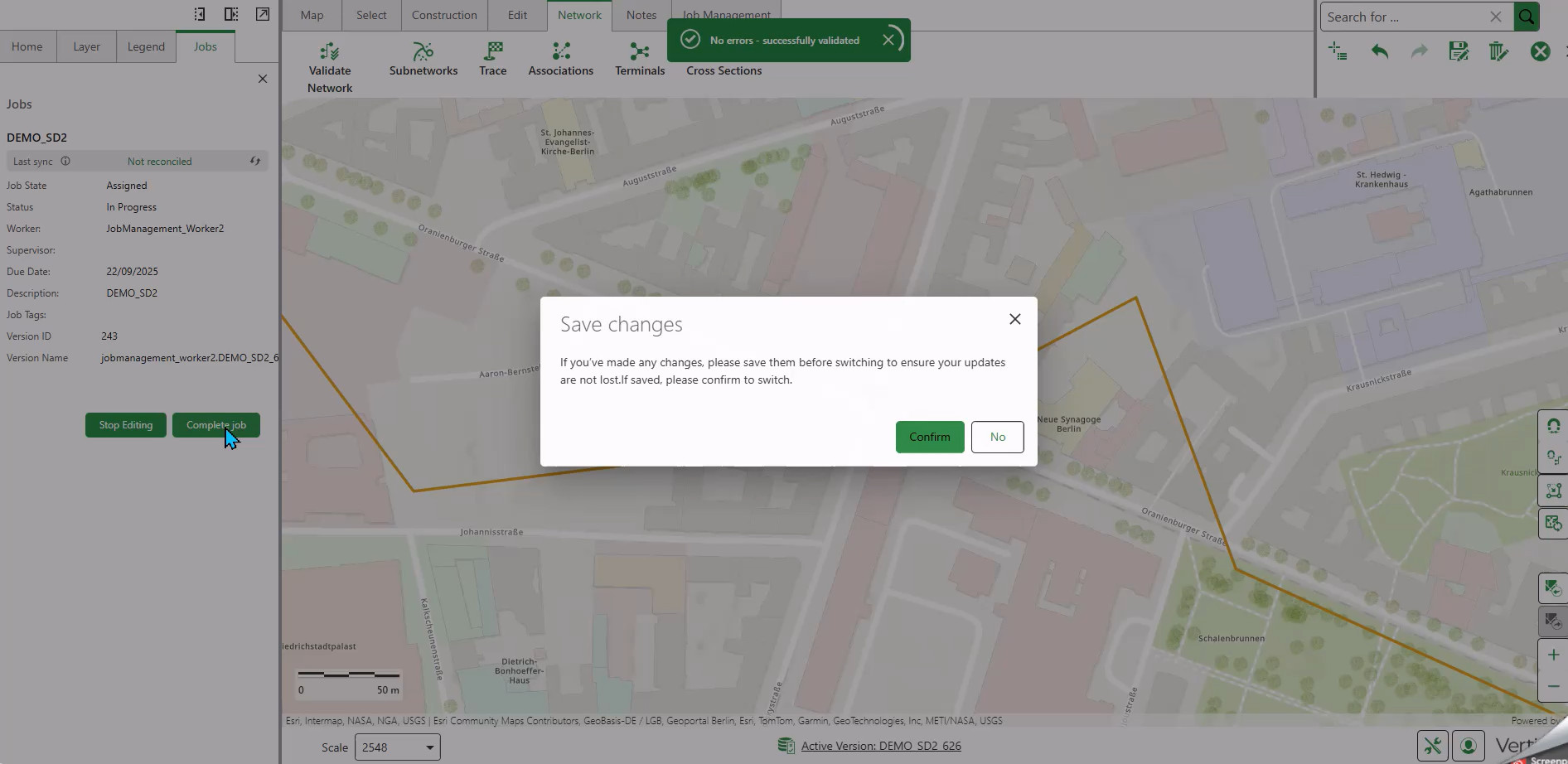
If validation succeeds, the message "No errors - successfully validated" appears.