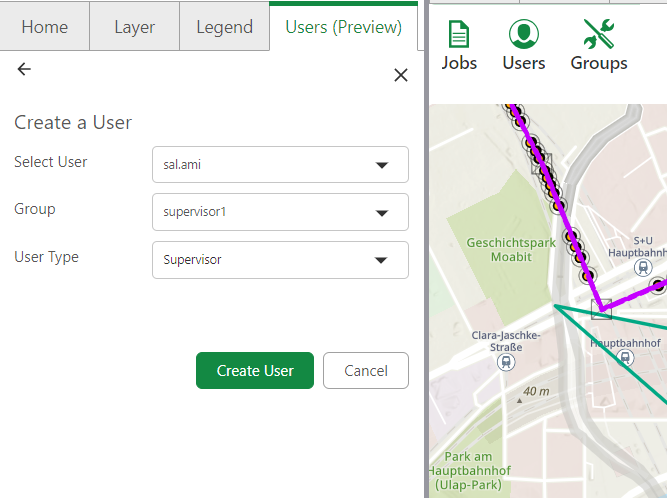
To assign a user to a group:
1.From the Job Management tab, select Users from the navigation menu.
2.Click Create User or Assign User button.
3.Select a user from the Select a User dropdown (displays all users created in ArcGIS Portal).
4.Select the group from the Group dropdown.
5.Set the User Type:
oFor Hierarchy 2 groups: Choose Worker - executes jobs, posts data to default version/production data - or Supervisor - manages, assigns, and reconciles jobs.
oFor Hierarchy 1 groups: Worker is automatically selected (has combined supervisor and worker permissions).
6.Click Create User or Assign to finalize the assignment.
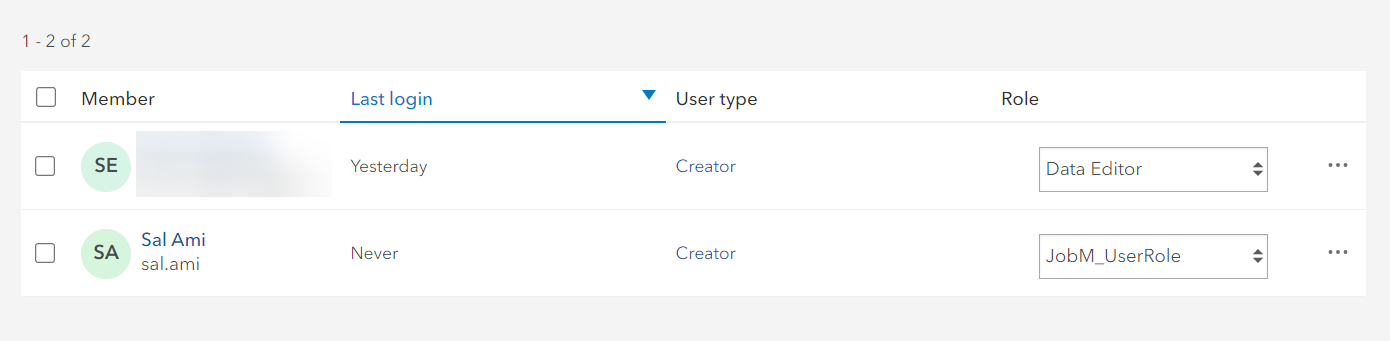
When a user is added to Job Management, the system automatically checks and assigns the appropriate role:
•Users with version management rights: Retain their existing role. No additional role assignment is needed since they already have the necessary permissions.
•Users without version management rights: Are automatically assigned to the JobM_UserRole custom role to grant them the required permissions for Job Management.
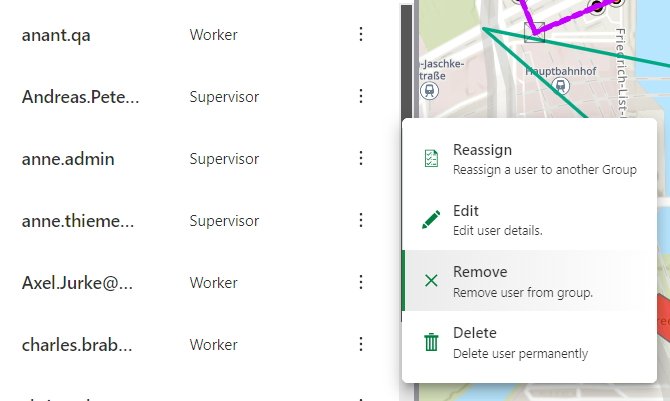
The user also appears in the Users tab. The context menu for the user enables you to:
•Reassign the user to another group
•Edit the user details
•Remove the user from group
•Delete user permanenetly
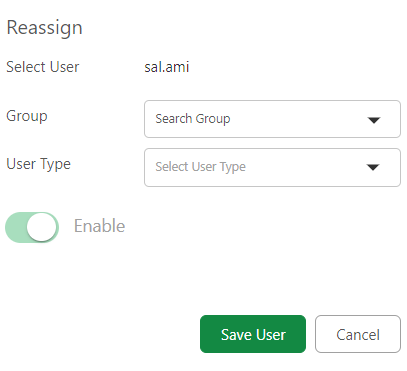
To reassign users to another group:
1.Select Reassign from contenxt menu for the user.
2.Select a different group from the dropdown.
3.Change user type if required
4.Enable or disable user based on preference.
5.Click Save User.
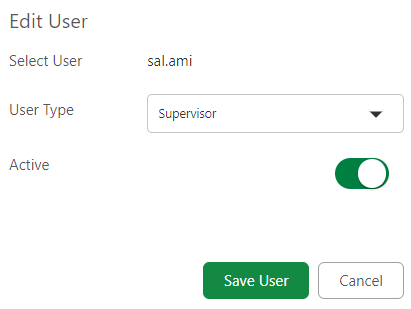
To edit user details:
1.Select Edit from the context menu for the user.
2.Update the user type.
3.Toggle to set user as active or inactive.
4.Click Save User.
To remove the user from group:
1.Open the context menu for the user.
2.Click Remove.
Removing the user from group neither removes the user from Job Management system nor updates the portal role for the user. To remove the Job management role, delete the user from the Job Management System.
To delete a user from the Job Management system:
1.Open the context menu for the user.
2.Click Delete.
When a user is removed from the Job Management system, the system automatically handles role reassignment. If the user was assigned the JobM_UserRole, they are reassigned to the Date Editor role.