This manual covers day-to-day workflows and integral procedures in detail; however, additional navigational elements are helpful when reviewing documented work in VertiGIS FM, browsing it for information, and understanding hierarchical relationships between assets and other types of entities.
Consider the tips and shortcuts below when navigating VertiGIS FM.
Navigation Trees
Navigation trees are available on the details pages for assets managed hierarchically and part of a functional taxonomy, including
•devices and systems in the Device and Systems Structure.
•components in the Component Structure.
•inventory items in the Inventory Management Structure.
•vehicles in the Vehicle Structure.
•building locations in the Buildings Hierarchy.
The example below shows the details page for a boiler system that exists in the VertiGIS FM database as a device in the Device and Systems Structure.
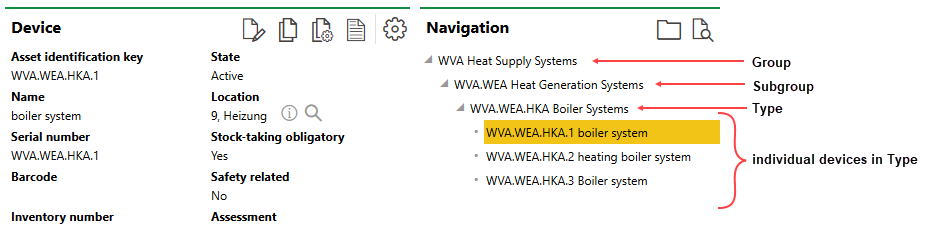
Sample Navigation Tree
Navigation trees provide a snapshot of the asset's place in its hierarchy. You can click the arrows next to the nodes to expand or collapse sections of the tree as desired, or double-click an entity in the tree to navigate to its details page. For example, you could double-click the highest node the in tree to navigate to the details page for the boiler's group node, where some of the boiler's properties are set.
Navigation trees are only available when you are viewing the details page for an individual asset, not on the details pages for nodes like groups and types.
Greyed-Out Banners
VertiGIS FM indicates relationships between entities by showing a grey banner on the details page for an asset or object whose relationship to the one shown in the banner is superior.
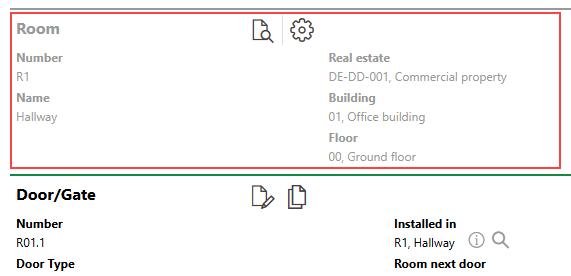
Grey Banner Showing Room That Door Is Installed In
The banner typically reflects the entity's high-level details. You can navigate to its won details page by clicking the View Details ( ) icon.
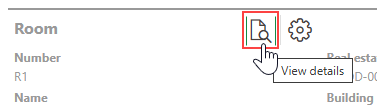
Quick Link to Room Associated with Door
These banners do not reflect parent-child relationships in a hierarchical management system, as outlined in Navigation Trees, but rather between two different kinds of entities. In the example above, a grey banner indicates the room that the door or gate whose details page you are viewing is installed in. Other examples of greyed out banners in VertiGIS FM include
•for an asset, on the details page for an order, inspection, or investigation created it;
•for an asset or an order, inspection, or investigation, on the details page for a defect;
•for an account or cost center, on the details page for a budget created for it;
•for an investment plan, on the details page for an item added to it;
•for a contract or invoice, on the details page for a payment or line item;
•and other entities, on the details pages for entities with a child relationship to them.
In some cases, an entity like an order can have two grey banners on its details page: one for the asset the order targets, and one for the maintenance strategy that generated the order.
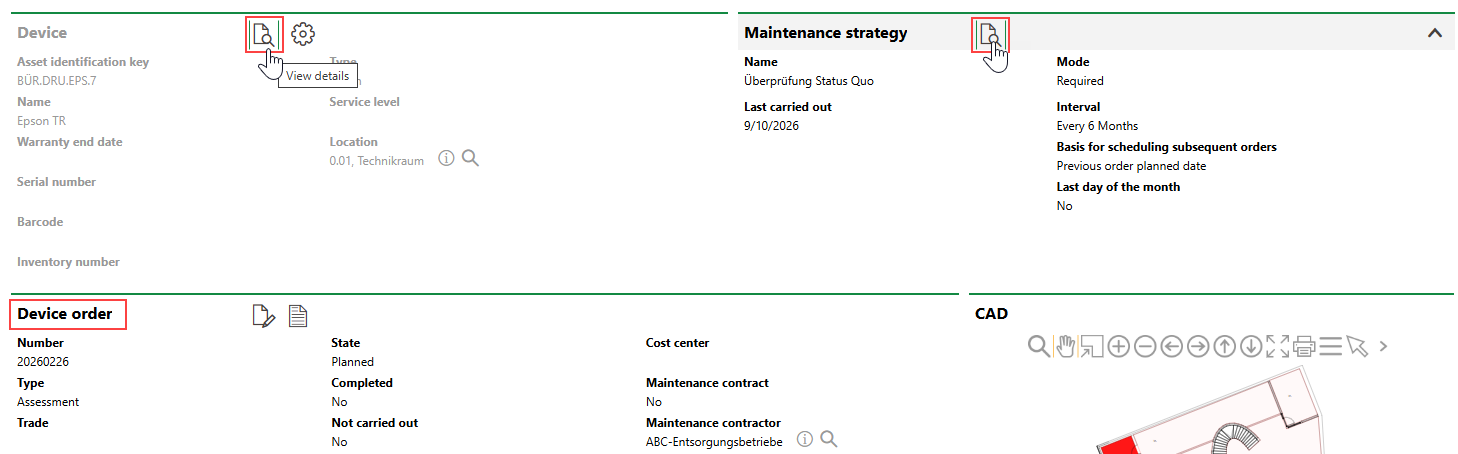
Device Order with Associated Device and Maintenance Strategy
List-Calendar Dashboard Toggle
On dashboards, sections that list maintenance tasks (for example, orders, work orders, subcontracts, inspections, and investigations) have buttons that you see the data in list or calendar form. When the schedule appears in list form, you can click the Calendar View ( ) icon to toggle to a weekly calendar view.
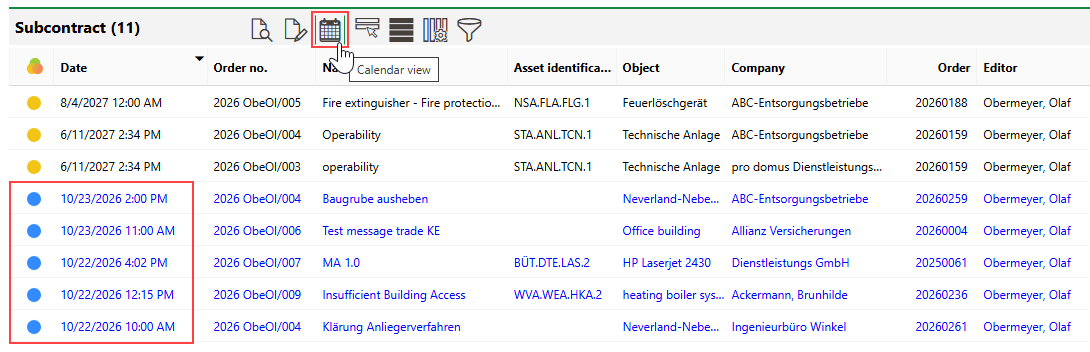
Subcontracts Assigned to User in List View
The sections now shows the events in the calendar view, allowing you to visualize your schedule for the week.
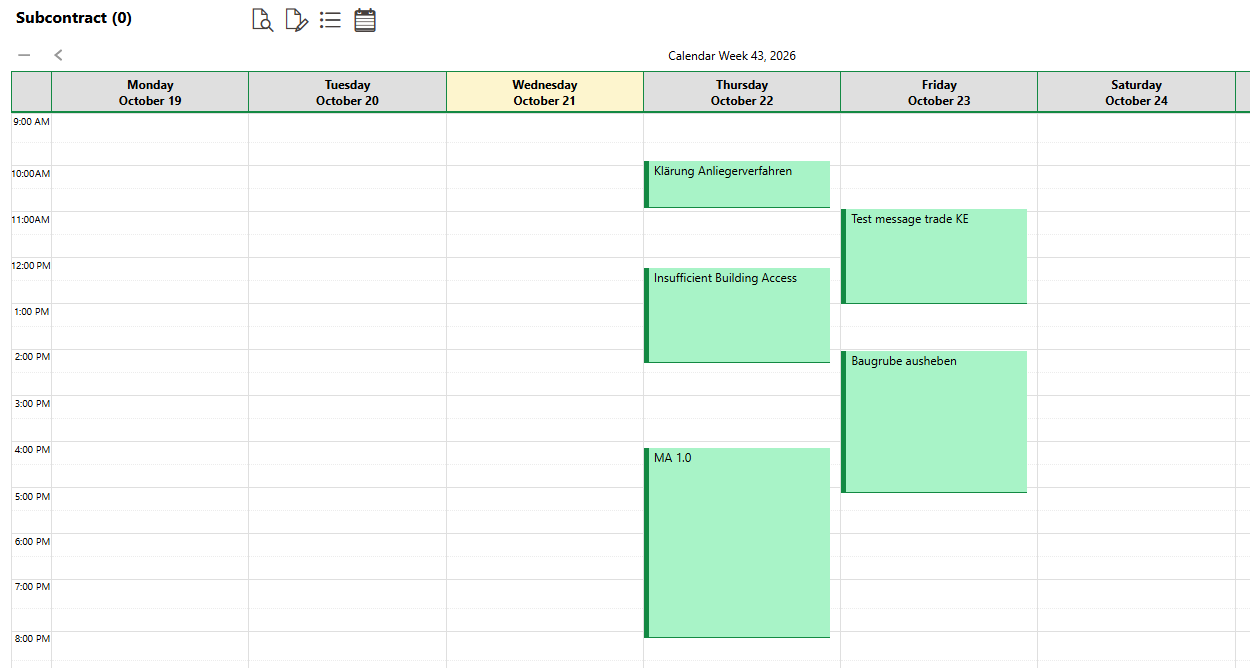
Subcontract Assigned to User in Calendar View
You can double-click an item in the calendar to open its details page.
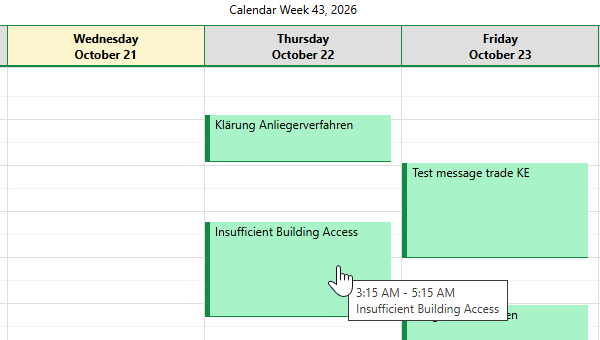
Opening Subcontract Details Page
To toggle from the calendar view to the list view, click the List View ( ) icon.
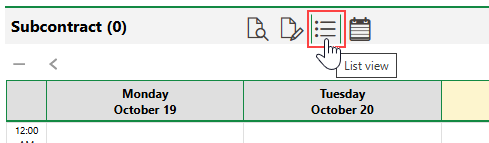
Toggle to List View