Answers are entries you can add to a service desk ticket that provide updates on the issue. You can update the service desk ticket's Status, Trade, Editor, and Planned Date properties by adding an answer instead of editing the ticket.
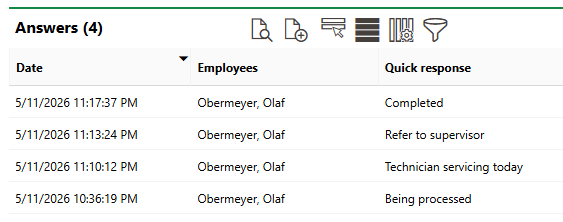
Answers Section on Service Desk Ticket Details Page
Add an Answer to a Service Desk Ticket
You can add an answer to a service desk ticket any time you want to update its status, its Trade, Editor, or Planned Date properties, or simply to provide an update without updating any properties.
Refer to Ticket Details.
To Add an Answer to a Service Desk Ticket
1.Navigate to the details page for the service desk ticket you want to add an answer to.
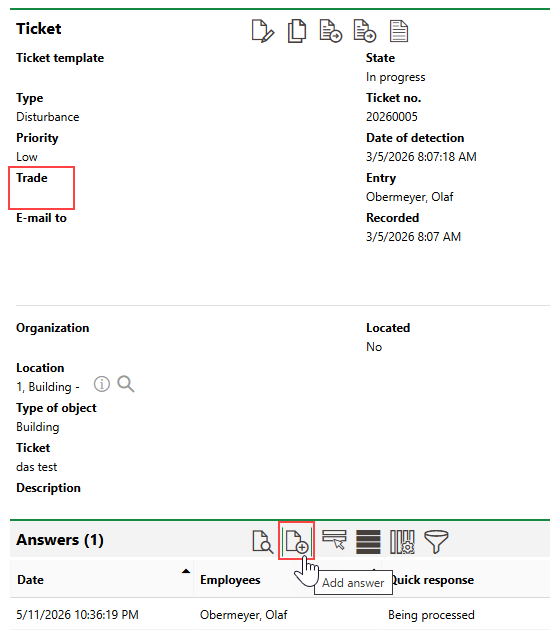
2.Expand the Answers section and click the Add Answer ( ) icon.
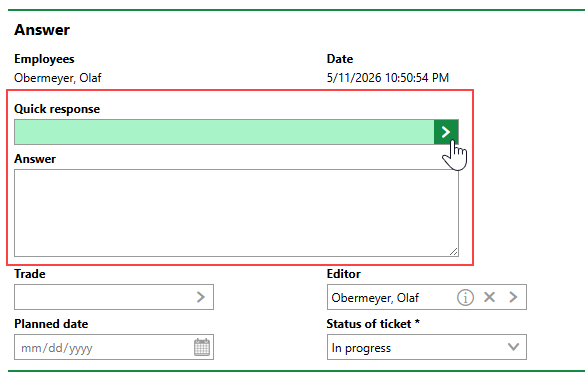
3.Enter a message associated with the answer. You can do this either by
▪Clicking the > button in the Quick Response menu and selecting an answer from the Quick Response catalog.
▪Typing a message that describes the update in the Answer text box.
4.Select a value in the Trade, Editor, Planned Date, or Status of Ticket menu. VertiGIS FM will update the corresponding fields in the ticket's core properties with the values you select in the answer.
You do not have to update any data fields in the service desk ticket to add an answer to the ticket.
Refer to Ticket Answer Details.
5.Optionally, in the Documents section, upload any photos or documents relevant to the update.
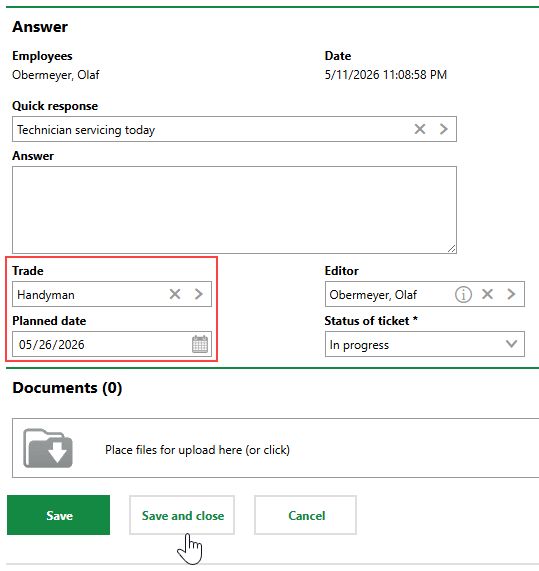
6.Click Save or Save and Close.
The answer now appears in the Answers section, and the updated service desk ticket details are reflected.
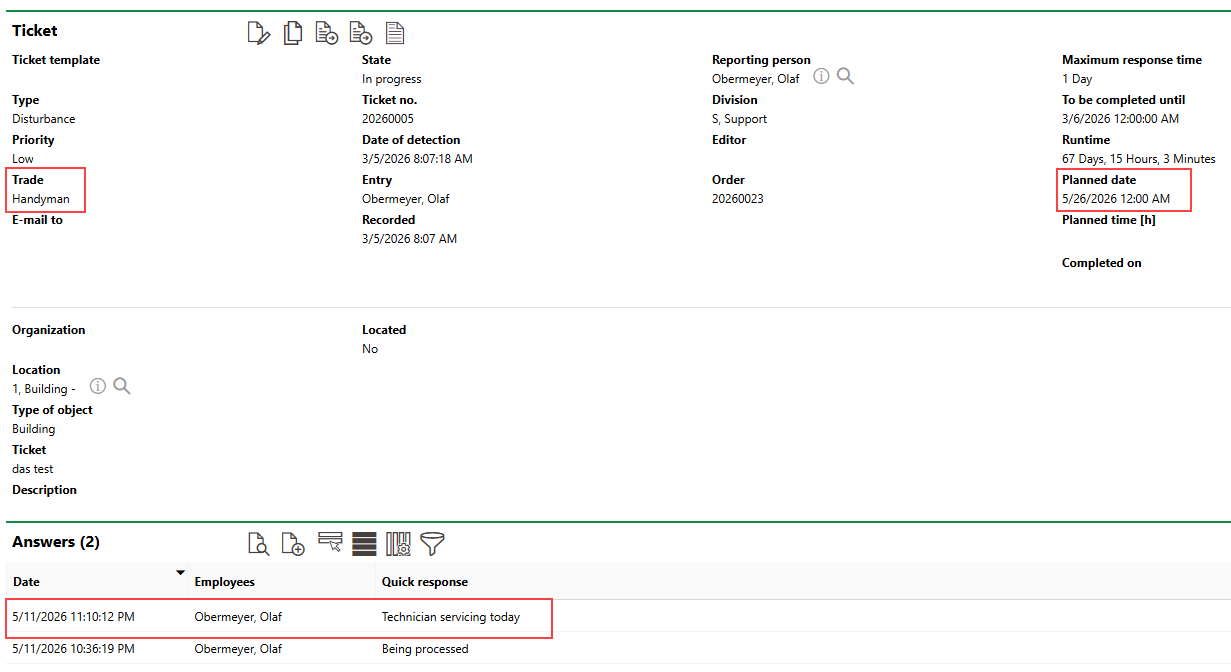
Recorded Answer and Updated Ticket Properties
You can add additional answers as required.
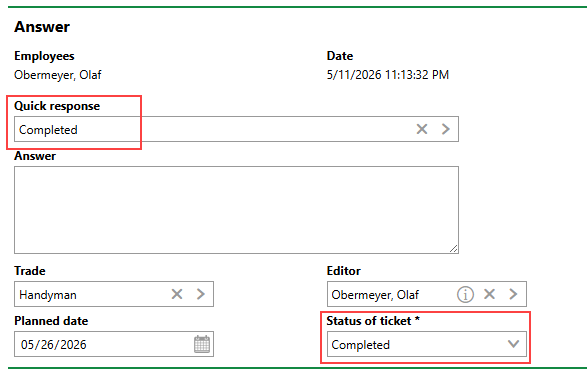
Answer with Updated Ticket Status
When work on the ticket is done, you can change its status to Complete.
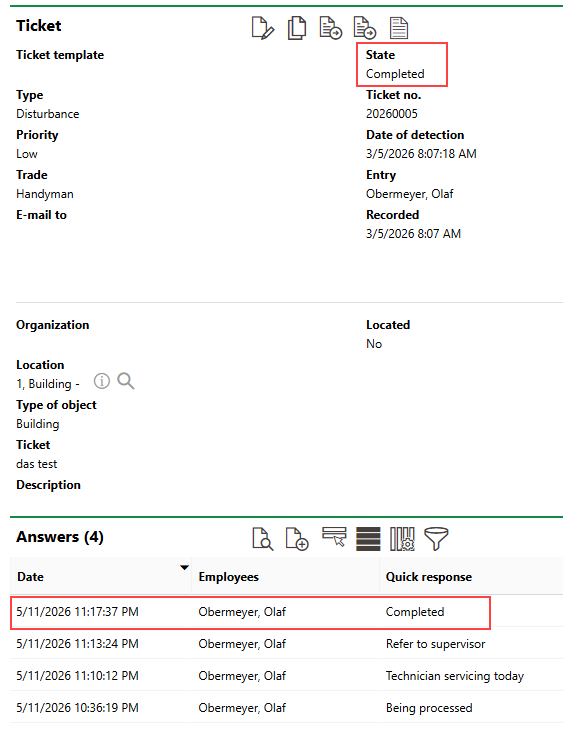
Ticket Completed by Answer with Updated Status
You cannot update a ticket's status to Finished using answers. Someone must manually update a service desk ticket's status from Completed to Finished.
Detail |
Description |
|---|---|
Change assignment |
If the ticket is associated with a device (i.e., a device was selected in the Object field in the ticket's core details), you can select this check box and then change the associated device.
|
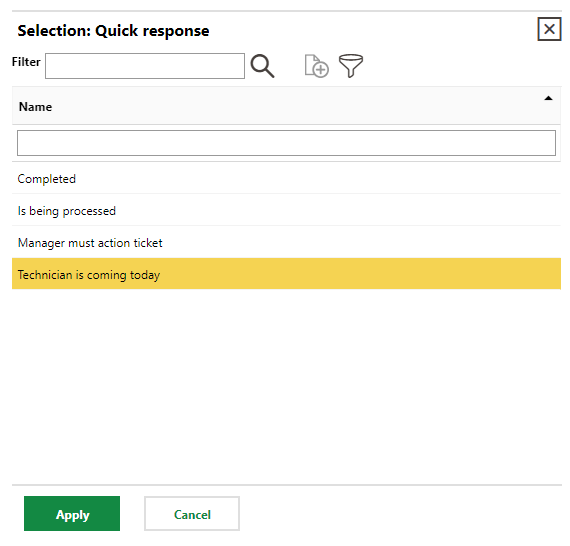
Quick response |
Instead of typing an answer in the Answer text box, you can select a quick response from this menu. Quick responses are managed in the Quick Response catalog.
|
Trade |
The type of expertise required to resolve the ticket selected in the Trade field in the ticket's core details. |
Editor |
The person responsible for the order associated with the ticket, as selected in the Editor field in the ticket's core details. |
Status of Ticket |
The current status of the ticket. |
Reopened |
Refer to Reopen a Ticket. |


Reopen a Ticket
If a ticket's status is Finished, you can reopen it by adding an answer. You cannot manually edit a ticket's to change its status from Finished to another status.
Refer to Reopen a Ticket.
Edit Answer
You can edit a previously saved answer by double-clicking it in the Answers section and then clicking the Edit ( ) icon.
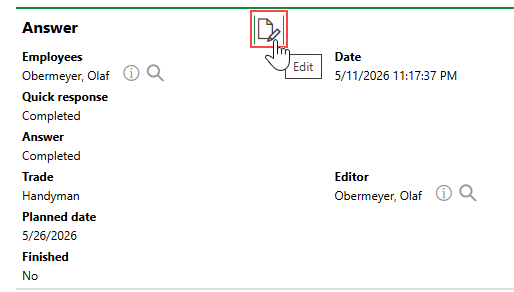
Editing a Ticket Answer
You can update the ticket's Trade, Planned Date, or Editor property, even if the data field has a different value from a more recent answer.
The Status of Ticket menu is not available when you edit an answer.