This topic outlines how to manually create an individual, standalone order for a maintenance asset. To generate orders as part of a maintenance strategy, refer to maintenance strategies.
Add Individual Orders
You can manually create an individual order on the details page for the asset associated with the order, or create an order on the VertiGIS FM Maintenance dashboard or search page and select the associated asset in the process.
Add an Order on the Asset's Details Page
In most VertiGIS FM products, you can manually add orders to assets managed in the system. The steps shown in the procedure below are the same in other VertiGIS FM products (for example, if you were adding an order for a construction stage in VertiGIS FM Buildings instead of for a device).
In VertiGIS FM Maintenance you can manually add an order to a device (in the Device and Systems Structure) or an component (in the Component Structure).
To Add an Individual Order on the Asset's Details PAge
1.Navigate to the details page for the object or asset for which you are creating a new order.
2.Expand the Orders section and click the Add ( ) icon.

3.Fill out the information fields in the Order or [Asset] Order section. Refer to Order Details for information about each information field.
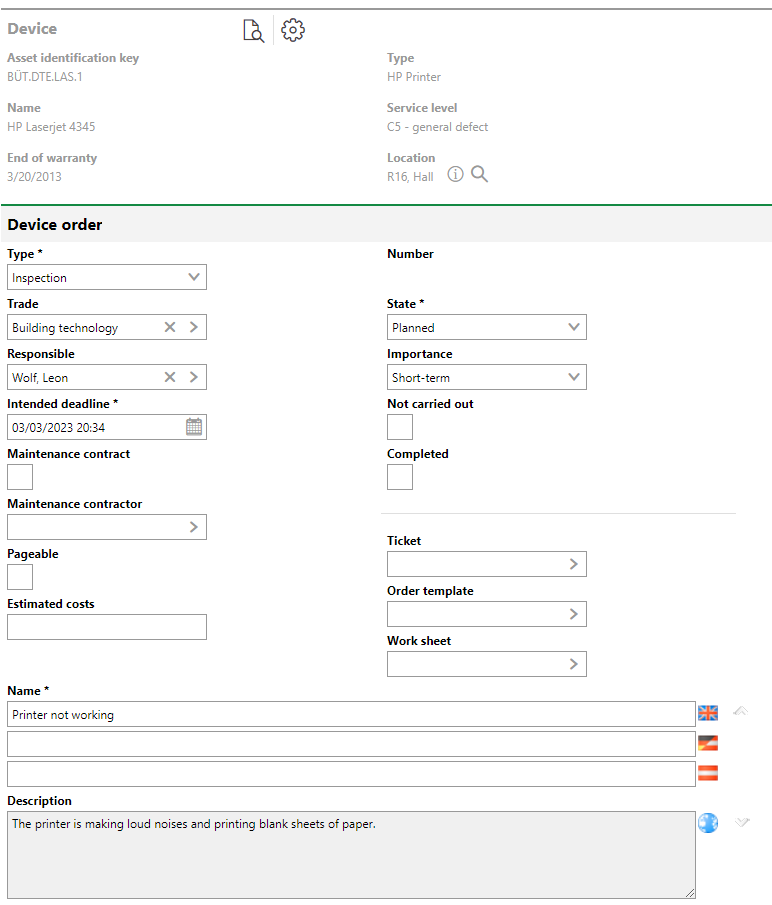
4.Click Save or Save and Close.
The Orders section on the asset's details page lists the newly created order.

New Order Shown in the Orders Section of the Details Page
Add an Order on the Dashboard
You can create an individual order on the VertiGIS FM Maintenance dashboard for any applicable assets in VertiGIS FM. In this process, you must specify the type of asset targeted by the order and then select the specific asset.
To Add an Order on the Dashboard
1.Navigate to the VertiGIS FM Maintenance dashboard.
2.Under Operational Procedures, click Record Order.
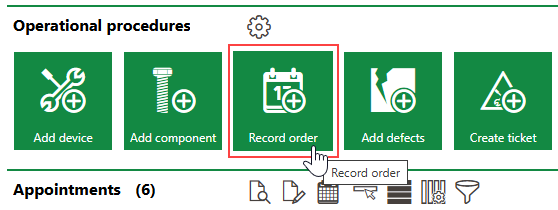
If you do not see the Operational Procedures template, an administrator must add it to your custom dashboard or restore the legacy dashboard. Refer to Dashboard Customization.
3.Select the type of asset you are creating the order for and click Apply, or double-click the type of asset.
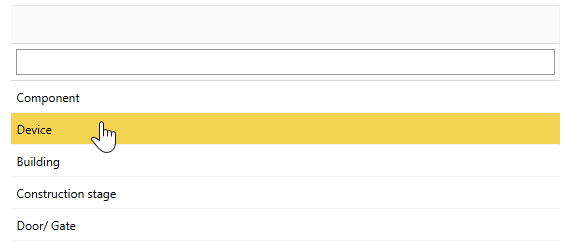
4.Click the > button in the menu whose label matches the type of asset you are creating an order for. Select the asset and click Apply.
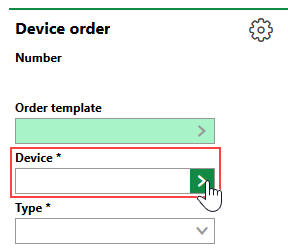
Depending on the type of asset, you may need to navigate through its hierarchical structure to find it in the Selection dialog.
5.Fill out the other information fields in the Order or [Asset] Order section. Refer to Order Details for information about each information field.
6.Click Save or Save and Close.
Add an Order on the Search Page
This procedure is nearly identical to the one to create an individual order on the dashboard.
To Add an Order on the Search Page
1.Navigate to the VertiGIS FM Maintenance search page.
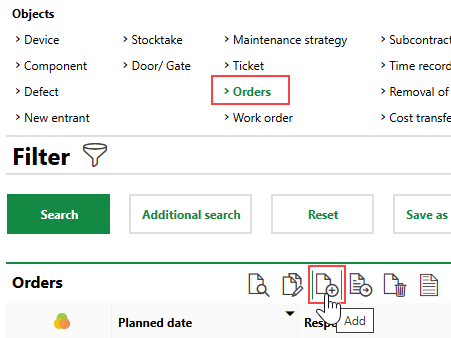
2.Under Objects, click Orders.
3.Click the Add () icon.
4.Select the type of asset you are creating the order for and click Apply, or double-click the type of asset.
5.Click the > button in the menu whose label matches the type of asset you are creating an order for. Select the asset and click Apply.
6.Fill out the other information fields in the Order or [Asset] Order section. Refer to Order Details for information about each information field.
7.Click Save or Save and Close.
Edit an Order
You can edit orders on the order details page, which you can access by double-clicking an order in the Orders section on its asset's details page, or in the search menu when you filter for orders.
To Edit an Order
1.On the order details page, click the Edit ( ) icon in the Device Order section.
2.Edit any of the order's details as required.
3.Click Save and Close.
Completing an Order
When editing an order, you can select the Completed check box to mark a completed order as Finished.
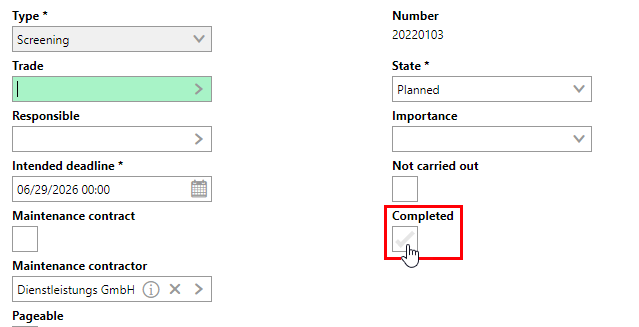
When you select the Completed check box when editing an order,
•The system updates the State of the order to Finished.
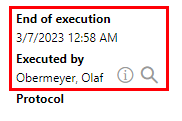
•The End of Execution field is automatically populated with the present time.
•The Executed by field is automatically populated by the name of the logged-in user.
Not Carried Out
When editing an order, you can select the Not Carried Out check box to indicate that the order is being closed despite the associated work not being completed.
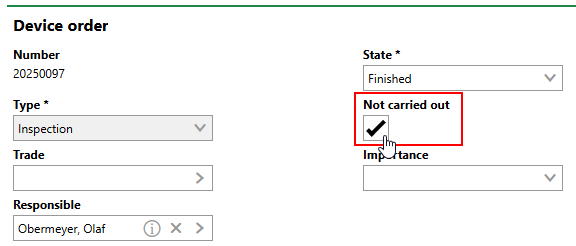
Not Carried Out Check Box
When you select this check box, VertiGIS FM updates the order's State to Finished. When you click Save and Close, the order's status icon indicates that the work was not completed.
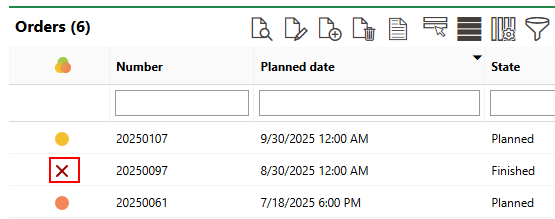
Status Icon for Order Not Carried Out
When saving an order as Not Carried Out, you can include a note in the Description field explaining that the work was deemed not necessary or otherwise cancelled.
Refer to Order Statuses.
Delete an Order
You can delete an order on the Maintenance search page clicking Orders in the Objects section, selecting the order you want to delete, and clicking the Delete ( ) icon.
You cannot delete an order that has a service desk ticket attached to it. For instructions on how to disassociate a ticket and an order, click here.
