API documentation:
What Are Catalogs?
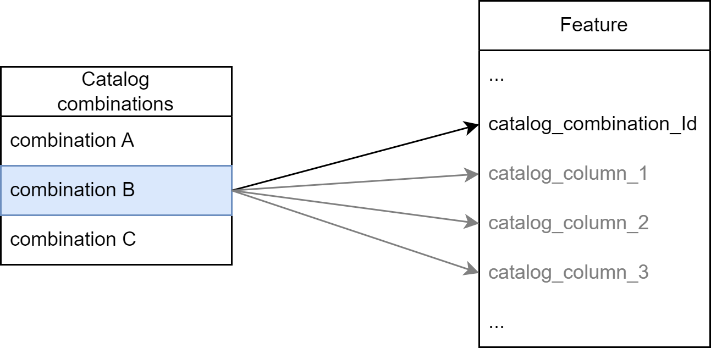
A catalog is a pre-defined collection of field value combinations that users can select from a single dropdown. Instead of filling out multiple fields individually, users pick one catalog entry, and all related fields are populated automatically.
Why Use Catalogs?
1.Speed: Fill multiple fields with one click
2.Accuracy: Eliminates invalid combinations (e.g., "plastic pipe with 500 PSI rating")
3.Consistency: Everyone uses the same standardized options
4.Traceability: The catalog ID is stored, so if specifications change, you can update all features using that catalog entry
Example: A telecom company has standard fiber optic cable configurations:
•Config 101: 12 fibers, Single-mode, LC connectors, Indoor rated → automatically sets 4 fields
•Config 102: 24 fibers, Multi-mode, SC connectors, Outdoor rated → automatically sets 4 fields
Users simply pick the configuration instead of risking incorrect combinations, such as "24 fibers with LC connectors that don't support that count".
How Catalogs Work
When a user selects a catalog entry:
1.All associated field values are automatically populated
2.The catalog combination ID is stored in the feature
3.If catalog specifications are updated later, linked features can be batch-updated
External Catalogs
API documentation: https://resources.geocom.ch/VertiGIS/VertiGIS_Attribute_Form/1.5.0/interfaces/common_SchemaInterfaces.CatalogWebJson.html
For reusability across multiple configurations, store catalogs as separate portal items. This is useful when:
•Multiple apps/projects use the same catalog (e.g., company-wide equipment standards)
•The catalog is large and managed by a different team
•You want to update the catalog without modifying all configurations
To reference, specify either:
•Portal item tag: A label like "CompanyPipeStandards"
•Portal item ID: The unique identifier
The system automatically merges the external catalog into your main configuration.
Service Catalogs
Some catalogs hold millions of combinations - often generated from external systems like SAP. Storing all this data in the configuration would make the portal item too large and difficult to update.
A service catalog retrieves combinations directly from a table or layer in an ArcGIS feature service. You specify the service by URL and map four field names from the referenced table or layer:
Field |
Description |
|---|---|
ID |
The attribute that delivers the ID stored on the feature (in the attribute that references the catalog) |
Description |
The text shown for each combination - should uniquely describe it so users understand what values will be set when selected |
Enabled |
A value indicating whether a combination is visible or not. If not specified, all combinations are visible |
Is Restricted |
A value indicating whether the combination is visible but cannot be selected for new assignments |
The service catalog table/layer must store all catalog value combinations. The four fields mentioned here are additional mandatory fields in the definition, which are then referenced in the attribute form schema.
The service catalog layer can be separate from the data layer.
Configuration Properties
Catalogs support many customization options:
Core Structure:
•columns (optional* | default = undefined): Defines the fields included in your catalog. Each column is a FormField object (at minimum, specify the name). Column names don't have to match your feature layer's field names - you can map them later.
oExample: A catalog could have columns "cat_diameter", "cat_material", "cat_pressure_rating" that map to your feature's "DIAM", "MAT", "PSI" fields
•combinations (optional* | default = undefined): The catalog entries users can select. Each combination specifies values for all columns and has a unique description that appears in the dropdown.
•combinationValueFieldName (optional | default = undefined): Specifies which feature field should store the human-readable description of the selected combination (e.g., "Schedule 40 PVC 6-inch").
External Catalog References: (optional | default = undefined): Contains the properties for referencing a catalog stored in a separate portal item:
•portalItemId (optional** | default = undefined): The unique ID of the portal item containing the external catalog.
•portalItemTag (optional** | default = undefined): The tag attached to the portal item containing the external catalog. Make sure the tag is unique - if multiple portal items share the same tag, the result is ambiguous.
User Experience:
•recentCount (optional | default = 0): Shows the user's most recently selected catalog items at the top of the dropdown for quick access
•sortDirection (optional | default = "ascending"): Controls list ordering:
oascending: A-Z or lowest to highest
odescending: Z-A or highest to lowest
•sortMode (optional | default = "alphabetical"): Determines what to sort by:
oalphabetical: Sort by the description text
oby_code: Sort by the numeric/coded ID
oby_definition: Keep the order from your JSON
Advanced:
•serviceReference (optional | default = undefined): Contains all information needed to use a service-based catalog:
osourceServiceUrl (mandatory): The URL of the feature service layer containing the catalog combinations.
oserviceCatalogIdFieldName (mandatory): The name of the attribute in the feature service layer containing the combination ID.
oserviceCatalogDescriptionFieldName (mandatory): The name of the attribute in the feature service layer containing the combination description.
oserviceCatalogEnabledFieldName (optional | default = undefined): The name of the attribute in the feature service layer containing the enabled (visible) value.
oserviceCatalogIsRetiredFieldName (optional | default = undefined): The name of the attribute in the feature service layer containing the is-retired (visible but not selectable) value.
•featureFieldNameMapping (optional | default = undefined): When using external catalogs, maps catalog column names to your layer's field names. Useful when the same catalog is reused across layers with different field naming conventions.
oExample: External catalog uses "diameter" → Your layer uses "PIPE_DIAM"
You must specify either (columns AND combinations) OR (portalItemId OR portalItemTag). The form will throw an error if none are provided.
When referencing external catalogs, provide either portalItemId or portalItemTag, not both.
JSON Structure
Example: Pipe Type Catalog
A water utility has standardized pipe configurations. Instead of users manually entering material group, specific material, and diameter (risking invalid combinations), they select from pre-approved pipe types.
{
"catalogs": {
"Pipetype": {
"sortMode": "alphabetical",
"sortDirection": "ascending",
"recentCount": 2,
"columns": [
{
"name": "cat_pipetype_materialgroup",
"title": "@Pipetype_Materialgroup",
"controlType": "DropDownList",
"codedValues": "@CV_Pipetype_Material_Group"
},
{
"name": "cat_pipetype_material",
"title": "@Pipetype_Material",
"controlType": "DropDownList",
"dependsOn": "@cat_pipetype_materialgroup"
},
{
"name": "cat_pipetype_diameter",
"title": "@Pipetype_Diameter",
"controlType": "Number"
}
],
"combinations": [
{
"id": 100,
"description": "@cat_pipetype_comb100",
"enabled": "$feature.asset_type == -1000",
"values": {
"cat_pipetype_materialgroup": 10,
"cat_pipetype_material": 10,
"cat_pipetype_diameter": 14.5
}
},
{
"id": 101,
"description": "@cat_pipetype_comb101",
"enabled": "$feature.asset_type == -1000",
"values": {
"cat_pipetype_materialgroup": 10,
"cat_pipetype_material": 10,
"cat_pipetype_diameter": 12
}
}
],
"serviceReference": {
"sourceServiceUrl": "https://vertigis.agsservice.test",
"serviceCatalogIdFieldName": "ObjectID",
"serviceCatalogDescriptionFieldName": "Description"
},
"portalItemReference": {
"portalItemId": "9da7466c98df473ea8ee7b5a80e2d037"
}
}
}
}
How this works:
1.Columns section defines three fields:
oMaterial Group (dropdown with coded values)
oMaterial (dropdown dependent on Material Group selection)
oDiameter (numeric input)
2.Combinations section defines pre-approved options:
oCombination 100: Perhaps translates to "PVC Schedule 40 - 14.5 inch"
oCombination 101: Perhaps translates to "PVC Schedule 40 - 12 inch"
oBoth only appear when asset_type equals -1000 (conditional availability)
3.User experience:
oUser opens dropdown and sees: "PVC Schedule 40 - 14.5 inch" and "PVC Schedule 40 - 12 inch"
oUser selects one option
oAll three fields (material group, material, diameter) populate automatically
oThe last 2 selections appear at the top next time (recentCount: 2)
4.Data stored:
oCombination ID (100 or 101) is stored in the feature
oIndividual field values (material group=10, material=10, diameter=14.5) are stored
oIf specifications for combination 100 change later, all features using ID 100 can be batch-updated