Please enable JavaScript to view this site.

Version:

Navigation: Attribute Form

Attribute Form Configuration

Prev Top Next More

Main Configuration Sections

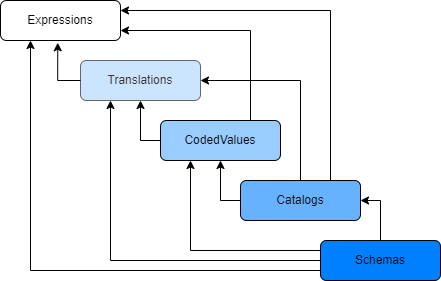
The configuration is organized into 5 main sections that work together. Think of them as building blocks that reference each other:

1.Expressions: Reusable calculations and logic

2.Locales: Multi-language text translations

3.CodedValues: Dropdown list options

4.Catalogs: Pre-defined combinations of field values

5.Schemas: The actual form layout and field definitions

How do different sections of the configuration work together?

A schema defines your form layout and references expressions for calculations, locales for text labels, coded values for dropdown menus, and catalogs for quick data entry templates.
Main configuration sections diagram

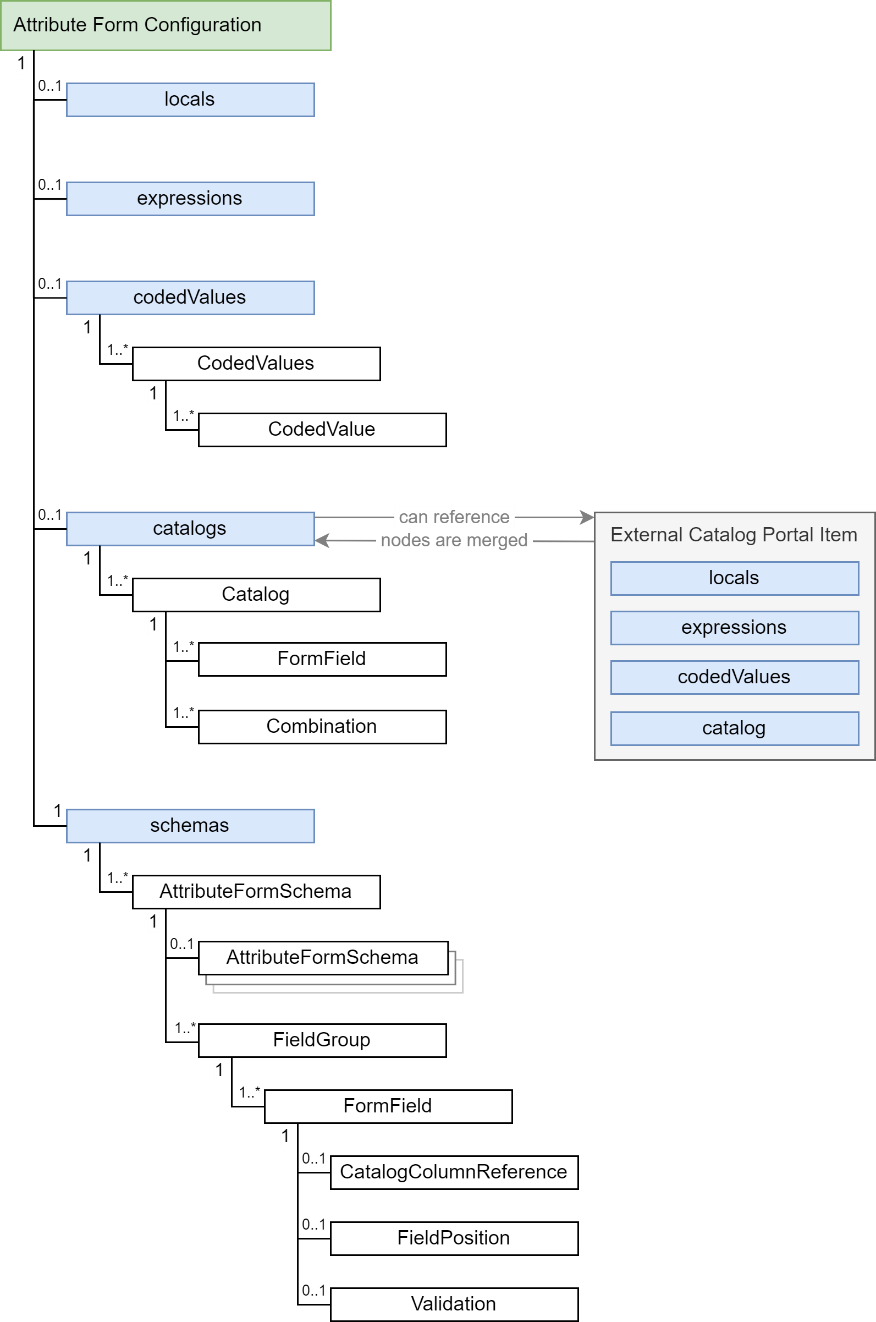
Overview of the JSON Structure

JSON structure overview

Expressions JSON structure

Expressions / expressions

API documentation: https://resources.geocom.ch/VertiGIS/VertiGIS_Attribute_Form/1.5.0/types/common_SchemaInterfaces.Expressions.html

Expressions are reusable formulas written in ESRI Arcade, a scripting language designed for GIS calculations. They let you:

Perform calculations (e.g., convert meters to feet)

Display dynamic text (e.g., "Updated by John on 2/18/2026")

Implement business logic (e.g., show a warning if pressure exceeds limits)

How to Define Expressions

In the expressions section, you create a library of named expressions using a key-value structure:

Key: A unique name (e.g., calculateArea, fullAddress)

Value: The Arcade code that performs the calculation

Accessing Feature Data

Use the special variable $feature to access field values from the current feature:

Syntax: $feature.fieldname

Example: $feature.diameter gets the diameter field value

Expressions are dynamic - they recalculate automatically when field values change in the form.

JSON Structure

Translations JSON structure

Example

Scenario:

You manage a pipeline network and need to:

1.Convert radius from meters to centimeters for easier reading

2.Display a standardized description

{
"expressions": {
  "radiusInCentimeters": "$feature.radius * 100",
  "pipeDescription": "'Pipe ID: ' + $feature.objectid + ' - Material: ' + $feature.material"
}
}

How this works:

radiusInCentimeters: If a pipe has radius = 0.5 meters, this expression returns 50

pipeDescription: For a pipe with objectid=1234 and material="Steel", this generates: "Pipe ID: 1234 - Material: Steel"

Using Expressions in Your Configuration

Once defined, reference expressions anywhere in your configuration using the @ prefix:

{
"fields": [
  {
    "name": "radius_display",
    "expression": "@radiusInCentimeters",
    "title": "Radius (cm)"
  }
]
}

Pro tip: You can write Arcade code directly in most places, but defining expressions is better when:

You use the same calculation multiple times

The logic is complex and benefits from a descriptive name

You want to maintain calculations in one central location


Translations / locales

API documentation: https://resources.geocom.ch/VertiGIS/VertiGIS_Attribute_Form/1.5.0/types/common_SchemaInterfaces.TranslatorLocales.html

What Are Translations?

The locales section enables multi-language support, allowing your Attribute Form to display text in different languages based on the user's preference. This is essential for international teams or organizations operating in multilingual regions.

Example: A European utility company operates in Switzerland where German, French, and Italian are official languages. The same app can show "Durchmesser" to German users, "Diamètre" to French users, and "Diameter" as the default.

Language Structure

Translations are organized by language code:

inv (invariant): The default/fallback language, typically English

de: German

fr: French

es: Spanish

it: Italian

And so on, using ISO 639-1 two-letter codes

If a user's language isn't configured, the system automatically falls back to the inv version.

JSON Structure

CodedValues JSON structure

Basic Example

Scenario: You want field labels and messages to appear in English and German.

{
"locales": {
  "inv": {
    "fieldDiameter": "Pipe Diameter",
    "fieldMaterial": "Material Type",
    "messageRequired": "This field is required"
  },
  "de": {
    "fieldDiameter": "Rohrdurchmesser",
    "fieldMaterial": "Materialtyp",
    "messageRequired": "Dieses Feld ist erforderlich"
  }
}
}

Using the translations: Reference them with the @ prefix in your configuration:

{
"fields": [
  {
    "name": "diameter",
    "title": "@fieldDiameter"
  }
]
}

When a German user opens the form, they see "Rohrdurchmesser". English users see "Pipe Diameter".

Advanced: Embedding Expressions in Translations

You can make translations dynamic by embedding expressions directly within the translated text.

Scenario: You want to display the Object ID within a translated title.

Step 1: Define an expression to get the Object ID:

"expressions": {
 "getObjectID": "Concatenate('(OID: ', $feature.objectid, ')')"
}

Step 2: Include the expression in your translations using {@expressionName} syntax:

{
"locales": {
  "inv": {
    "titleWithObjectID": "Water Valve {@getObjectID}"
  },
  "de": {
    "titleWithObjectID": "Wasserventil {@getObjectID}"
  }
}
}

Result:

English users see: "Water Valve (OID: 1234)"

German users see: "Wasserventil (OID: 1234)"

API documentation: https://resources.geocom.ch/VertiGIS/VertiGIS_Attribute_Form/1.5.0/interfaces/common_SchemaInterfaces.CodedValues.html

What Are Coded Values?

A coded value is a pair consisting of:

Code: The numeric or text ID stored in the database (e.g., 10, PVC)

Value/Name: The human-readable label shown to users (e.g., "Polyvinyl Chloride")

Why use codes instead of storing the full text?

1.Saves space: Store 10 instead of "Polyvinyl Chloride Pipe Material"

2.Easier updates: Change the display name without touching the data

3.Consistency: Prevents typos like "Steel", "steel", "STEEL" being treated as different values

4.Multi-language support: The same code (10) can show different text in different languages

Think of them like airport codes - LAX is stored in databases, but displayed as "Los Angeles International Airport" to travelers.

Understanding Domains

A domain is simply a collection of coded values that define all valid options for a field. Think of it as a dropdown menu definition.

Example: A "Pipe Material" domain might contain

Code: 10 → Name: "PVC"

Code: 20 → Name: "Steel"

Code: 30 → Name: "Copper"

Code: 40 → Name: "Concrete"

Configuration Properties

Each domain can be customized with these properties:

codedValues: The list of code-name pairs (mandatory)

sortDirection: Controls list ordering

oascending: Smallest value first (0-9, A-Z)

odescending: Largest value first (Z-A, 9-0)

sortMode: Determines what to sort by

oalphabetical: Sort by the display name ("Copper" before "Steel")

oby_code: Sort by the numeric/text code (10 before 20)

oby_definition: Keep the exact order from your JSON configuration

Additional Properties for Each Coded Value

Beyond the basic code and name, each entry supports:

enabled: Shows or hides this option based on a condition

oUse true/false for static visibility

oUse an Arcade expression for dynamic visibility (e.g., "$feature.assetType == 10")

oExample: Only show "High Pressure" material options when pipe type is "Transmission"

isRetired 🕑: Marks outdated values that can't be selected for new features but might exist in old data

oSet to true to show the option with a clock icon

oExample: "Asbestos" pipes were used historically but aren't allowed for new installations

oUsers can still see existing asbestos pipes but can't create new ones

dependentCodedValues: Creates cascading dropdowns where one selection filters another list

oExample:

1.User selects "Wood" from Material Group

2.Material Type dropdown automatically updates to show only wood types: Oak, Pine, Maple

3.If user changes group to "Metal", Material Type updates to: Steel, Aluminum, Copper

oProperty format: {"fieldName": "@domainName"}

JSON Structure

Catalogs interface example

Complete Example: Construction Materials with Dependent Dropdowns

You're managing a construction asset database. Users first select a general material group (Wood, Metal), then see specific materials based on that choice. Metal options are only available for certain asset types.

{
"codedValues": {
  "cv_materialgroup": {
    "sortDirection": "ascending",
    "sortMode": "alphabetical",
    "codedValues": [
      {
        "code": 10,
        "name": "@materialGroup_woods",
        "isRetired": false,
        "enabled": true,
        "dependentCodedValues": {
          "material_field": "@cv_wood_materials"
        }
      },
      {
        "code": 20,
        "name": "@CV_MaterialGroup_Metals",
        "isRetired": false,
        "enabled": "$feature.assetType == 10",
        "dependentCodedValues": {
          "material_field": "@cv_metal_materials"
        }
      }
    ]
  },
  "cv_wood_materials": {
    "sortDirection": "ascending",
    "sortMode": "alphabetical",
    "codedValues": [
      {
        "code": 300,
        "name": "Beech"
      },
      {
        "code": 500,
        "name": "Oak"
      }
    ]
  },
  "cv_metal_materials": {
    "sortDirection": "ascending",
    "sortMode": "alphabetical",
    "codedValues": [
      {
        "code": 1000,
        "name": "Copper"
      },
      {
        "code": 1010,
        "name": "Iron"
      }
    ]
  }
}
}

How this works:

1.Material Group dropdown shows two options:

o"Woods" (code 10) - always available

o"Metals" (code 20) - only appears when assetType field equals 10

2.When user selects "Woods":

oThe material_field dropdown automatically switches to use cv_wood_materials domain

oUser sees: Beech, Oak

3.When user selects "Metals":

oThe material_field dropdown switches to cv_metal_materials domain

oUser sees: Copper, Iron

4.Translations: Notice @materialGroup_woods and @CV_MaterialGroup_Metals – these reference the translations defined in the locales section, so users see localized names

Pro tip: You can chain multiple dependent fields. For example: Country → State/Province → City

Catalogs / catalogs

API documentation: https://resources.geocom.ch/VertiGIS/VertiGIS_Attribute_Form/1.5.0/types/common_SchemaInterfaces.CatalogsByKey.html

or

https://resources.geocom.ch/VertiGIS/VertiGIS_Attribute_Form/1.5.0/interfaces/common_SchemaInterfaces.Catalog.html

What Are Catalogs?

A catalog is a pre-defined collection of field value combinations that users can select from a single dropdown. Instead of filling out multiple fields individually, users pick one catalog entry, and all related fields are populated automatically.

Why Use Catalogs?

1.Speed: Fill multiple fields with one click

2.Accuracy: Eliminates invalid combinations (e.g., "plastic pipe with 500 PSI rating")

3.Consistency: Everyone uses the same standardized options

4.Traceability: The catalog ID is stored, so if specifications change, you can update all features using that catalog entry

Example: A telecom company has standard fiber optic cable configurations:

Config 101: 12 fibers, Single-mode, LC connectors, Indoor rated → automatically sets 4 fields

Config 102: 24 fibers, Multi-mode, SC connectors, Outdoor rated → automatically sets 4 fields

Users simply pick the configuration instead of risking incorrect combinations, such as "24 fibers with LC connectors that don't support that count".

How Catalogs Work

When a user selects a catalog entry:

1.All associated field values are automatically populated

2.The catalog combination ID is stored in the feature

3.If catalog specifications are updated later, linked features can be batch-updated

External Catalogs

API documentation: https://resources.geocom.ch/VertiGIS/VertiGIS_Attribute_Form/1.5.0/interfaces/common_SchemaInterfaces.CatalogWebJson.html

For reusability across multiple configurations, store catalogs as separate portal items. This is useful when:

Multiple apps/projects use the same catalog (e.g., company-wide equipment standards)

The catalog is large and managed by a different team

You want to update the catalog without modifying all configurations

To reference, specify either:

Portal item tag: A label like "CompanyPipeStandards"

Portal item ID: The unique identifier

The system automatically merges the external catalog into your main configuration.

Configuration Properties

Catalogs support many customization options:

Core Structure:

columns (optional* | default = undefined): Defines the fields included in your catalog. Each column is a FormField object (at minimum, specify the name). Column names don't have to match your feature layer's field names - you can map them later.

oExample: A catalog could have columns "cat_diameter", "cat_material", "cat_pressure_rating" that map to your feature's "DIAM", "MAT", "PSI" fields

combinations (optional* | default = undefined): The catalog entries users can select. Each combination specifies values for all columns and has a unique description that appears in the dropdown.

combinationValueFieldName (optional | default = undefined): Specifies which feature field should store the human-readable description of the selected combination (e.g., "Schedule 40 PVC 6-inch").

External Catalog References:

portalItemId (optional** | default = undefined): The unique ID of a portal item containing an external catalog

portalItemTag (optional** | default = undefined): A tag name to identify the catalog portal item (must be unique to avoid ambiguity)

User Experience:

recentCount (optional | default = 0): Shows the user's most recently selected catalog items at the top of the dropdown for quick access

sortDirection (optional | default = "ascending"):

oascending: A-Z or lowest to highest

odescending: Z-A or highest to lowest

sortMode (optional | default = "alphabetical"):

oalphabetical: Sort by the description text

oby_code: Sort by the numeric/coded ID

oby_definition: Keep the order from your JSON

Advanced:

featureFieldNameMapping (optional | default = undefined): When using external catalogs, maps catalog column names to your layer's field names. Useful when the same catalog is reused across layers with different field naming conventions.

oExample: External catalog uses "diameter" → Your layer uses "PIPE_DIAM"

You must specify either (columns AND combinations) OR (portalItemId OR portalItemTag). The form will throw an error if none are provided.

When referencing external catalogs, provide either portalItemId or portalItemTag, not both.

JSON Structure

Catalogs JSON structure

Example: Pipe Type Catalog

A water utility has standardized pipe configurations. Instead of users manually entering material group, specific material, and diameter (risking invalid combinations), they select from pre-approved pipe types.

{
"catalogs": {
  "Pipetype": {
    "sortMode": "alphabetical",
    "sortDirection": "ascending",
    "recentCount": 2,
    "columns": [
      {
        "name": "cat_pipetype_materialgroup",
        "title": "@Pipetype_Materialgroup",
        "controlType": "DropDownList",
        "codedValues": "@CV_Pipetype_Material_Group"
      },
      {
        "name": "cat_pipetype_material",
        "title": "@Pipetype_Material",
        "controlType": "DropDownList",
        "dependsOn": "@cat_pipetype_materialgroup"
      },
      {
        "name": "cat_pipetype_diameter",
        "title": "@Pipetype_Diameter",
        "controlType": "Number"
      }
    ],
    "combinations": [
      {
        "id": 100,
        "description": "@cat_pipetype_comb100",
        "enabled": "$feature.asset_type == -1000",
        "values": {
          "cat_pipetype_materialgroup": 10,
          "cat_pipetype_material": 10,
          "cat_pipetype_diameter": 14.5
        }
      },
      {
        "id": 101,
        "description": "@cat_pipetype_comb101",
        "enabled": "$feature.asset_type == -1000",
        "values": {
          "cat_pipetype_materialgroup": 10,
          "cat_pipetype_material": 10,
          "cat_pipetype_diameter": 12
        }
      }
    ]
  }
}
}

How this works:

1.Columns section defines three fields:

oMaterial Group (dropdown with coded values)

oMaterial (dropdown dependent on Material Group selection)

oDiameter (numeric input)

2.Combinations section defines pre-approved options:

oCombination 100: Perhaps translates to "PVC Schedule 40 - 14.5 inch"

oCombination 101: Perhaps translates to "PVC Schedule 40 - 12 inch"

oBoth only appear when asset_type equals -1000 (conditional availability)

3.User experience:

oUser opens dropdown and sees: "PVC Schedule 40 - 14.5 inch" and "PVC Schedule 40 - 12 inch"

oUser selects one option

oAll three fields (material group, material, diameter) populate automatically

oThe last 2 selections appear at the top next time (recentCount: 2)

4.Data stored:

oCombination ID (100 or 101) is stored in the feature

oIndividual field values (material group=10, material=10, diameter=14.5) are stored

oIf specifications for combination 100 change later, all features using ID 100 can be batch-updated

Schemas / schemas

API documentation: https://resources.geocom.ch/VertiGIS/VertiGIS_Attribute_Form/1.5.0/interfaces/common_SchemaInterfaces.AttributeFormSchema.html

What Are Schemas?

A schema is the blueprint for your attribute form. It defines:

Which fields to show (and in what order)

How fields are grouped and organized

The form's title and description

Field behavior (required, read-only, visible, etc.)

One Schema Per Layer

Each layer in your map needs its own schema. The schema name must match the layer name exactly. How you identify layers depends on your map service type:

Feature Service (client-side rendering):

Layer name comes from the service definition

Multiple map layers can share the same underlying source

Example: Subtype group layers can reference one schema

Map Image Service (server-side rendering):

Layer name matches what appears in the layers list

Each subtype sublayer needs its own separate schema

Example: "Water Valves - Gate" and "Water Valves - Butterfly" need individual schemas

Showing/Hiding Fields

Schemas are selective - you don't need to include every field.

Fields in schema: Visible and editable in the form

Fields not in schema: Hidden and won't be modified

Schema Properties

Form-Level Settings

Setting

Type

Default

Description

Examples

title*

string

-

Main heading displayed at the top of the form.

"Edit Water Valve"
"Inspection Report"

description

string (Markdown + Arcade)

undefined

Text displayed below the title. Supports Markdown formatting and Arcade expressions.

"Last updated: {$feature.edit_date}"

fieldTitleLocation

"above" | "beside"

"above"

Controls where field labels appear relative to inputs.

"above"

readonly

boolean | Arcade expression

false

Makes the entire form read-only when true or when the expression evaluates to true.

$feature.status == "Approved"

Fields marked with * are required.

Organizational Structure:

groups (mandatory): A list of field groups. Each group acts as a collapsible section containing related fields.

Group Properties

Groups organize fields into logical sections. Each group supports:

Property

Type

Default

Description

Examples

title

string

undefined

Group heading displayed above the fields.

"Physical Properties"

"Location Data"

"Maintenance History"

description

string (Markdown + Arcade)

undefined

Text displayed below the group title. Supports Markdown and Arcade expressions.

"Enter measurements taken during installation"

fields*

FormField[]

-

Array of field definitions contained within the group.

[ { ...fieldDefinition } ]

format

"collapsible-section"

"basic-section"

"fieldset-section"

"unstyled-section"

collapsed

boolean

Arcade expression

false

Controls the group’s initial expanded/collapsed state.

visible

boolean

Arcade expression

true

Determines whether the group is rendered.

readonly

boolean

Arcade expression

false

Disables all fields within the group when true or when the expression evaluates to true.

An inspection form could have:

1.Basic Info group (always open, always visible)

2.Damage Assessment group (only visible when condition != "Good")

3.Historical Data group (initially collapsed, read-only)

Advanced: Sub-Level Schemas

Conditional Schema Switching

Sometimes you need completely different forms based on a field value - different asset types have different attributes.

subLevelKey (optional | default = undefined): Specifies which field value determines schema selection

subLevels (optional | default = undefined): A collection of alternative schemas, each triggered by different field values

oCan be nested: Define sub-levels within sub-levels for multi-level conditional forms

Example: A utility company has different asset types in one layer:

Fire Hydrants (assetType = 1): Show fields for flow rate, barrel size, connection type

Gate Valves (assetType = 2): Show fields for pressure rating, turns to close, actuator type

Backflow Preventers (assetType = 3): Show fields for test date, certification number, assembly type

By using subLevelKey: "assetType" and defining three sub-level schemas, users see only relevant fields based on what they're editing.

FormField

API documentation: https://resources.geocom.ch/VertiGIS/VertiGIS_Attribute_Form/1.5.0/interfaces/common_SchemaInterfaces.FormField.html

What Is a FormField?

A FormField defines how a single feature attribute appears and behaves in your form. While FormField has many properties, only one is required: the field name.

When you specify just the field name, the Attribute Form automatically pulls metadata from your feature service/database:

Field label (alias name)

Data type: determines input control - text box, number, date picker, etc.

Required/optional status

Value domains: dropdown options

Editability: read-only system fields

Add properties to override defaults, add validation, create dynamic behavior, or enhance the user experience.

FormField Properties

Basic Configuration:

name (mandatory): The feature field name this FormField represents

oExample: "diameter", "install_date", "owner_name"

oIf the name doesn't match any feature field, the FormField is hidden

title (optional | default = field's alias/name from database): The label shown to users

oExample: "Pipe Diameter (inches)" instead of just "DIAM"

oSupports translation references: "@fieldDiameterLabel"

tooltip (optional | default = undefined): Help text shown on hover

oExample: "Enter the measured diameter, not the nominal size"

oSupports translations: "@diameterTooltip"

Control Type:

controlType (optional | default = auto-detected): Specifies the input control. Not all types work with all field data types.

oTextBox: Single-line text input

oTextArea: Multi-line text input (see rows property)

oNumber: Numeric input with optional increment arrows

oCheckBox: Boolean checkbox (0 = unchecked, other values = checked)

oDatePicker: Date selector (no time)

oTimePicker: Time selector (no date)

oDateTimePicker: Date and time selector

oDropDownList: Dropdown menu (requires codedValues)

oRadioGroup: Radio button group (requires codedValues)

oCatalogPicker: Catalog selector (requires catalog)

Catalog Integration:

catalog (optional | default = undefined): Reference to the catalog to use

oOnly applicable when controlType is CatalogPicker

oExample: "@Pipetype"

catalogColumnMapping (optional | default = undefined): Maps catalog columns to feature fields

oFormat: {"catalogColumnName": "featureFieldName"}

oUse case: Catalog uses generic names ("diameter") but your layer uses "PIPE_DIAM"

oSpecial cases:

Omit a catalog column to hide it

Map to empty string ("") to show in UI but not save to feature

catalogColumnReference (optional | default = undefined): Display a catalog value without storing it

oScenario: Feature stores catalog ID but not all column values - use this to display additional catalog info

oProperties:

catalog: Which catalog to reference

catalogColumn: Which column's value to display

catalogKeyField: Feature field containing the catalog ID

oExample: Show "material description" based on stored "material_id"

Coded Values and Domains:

codedValues (optional | default = undefined): Reference to a codedValues domain for dropdown/radio options

oOnly applicable with DropDownList or RadioGroup control types

oExample: "@CV_PipeMaterials"

oSee also: noValue property

noValue (optional | default = "no value"): The label for the empty option in dropdowns/radio groups

oOnly appears when field is not required

oExample: "-- Select One --", "None", "Not Applicable"

oSupports translations: "@selectOneLabel"

Field Relationships:

dependsOn (optional | default = undefined): Specifies a field that, when changed, triggers re-evaluation of this field

oPrimary use case: Dependent coded values (cascading dropdowns)

oExample: Material dropdown depends on Material Group

oWhen the referenced field changes, this field's options/value/validation are recalculated

See CodedValues section for implementation details

Calculated Fields:

expression (optional | default = undefined): Reference to an Arcade expression that calculates this field's value

oCannot specify expression code directly - must reference a defined expression

oSyntax: Use {$expressionName} pattern

oMulti-expression text: Combine multiple expressions in one string

Example: "Total: {$sum} items of type {$category}"

oWith translations: Reference translated text containing expressions: "@translationKey"

oBehavior: Field automatically recalculates when any referenced field changes

oNote: Expression-based fields are automatically read-only

Field Behavior:

enabled (optional | default = true): Controls whether the field is interactive

oBoolean: true or false

oArcade expression: "$feature.status != 'Completed'"

oImportant: Database-level read-only fields cannot be enabled via configuration

readonly (optional | default = false): Makes the field read-only (disabled for editing)

oBoolean: true or false

oArcade expression: "$feature.approved == 1"

oUse case: Show field value but prevent modifications

required (optional | default = from database nullable setting): Whether the field must have a value before saving

oBoolean: true or false

oArcade expression: "$feature.assetType == 10"

oExample: Make inspection date required only for completed inspections

visible (optional | default = true): Controls field visibility

oBoolean: true or false

oArcade expression: "$feature.hasDamage == 1"

oExample: Only show repair cost field when damage is reported

Formatting Options:

rows (optional | default = 3): Number of visible text lines for TextArea control type

oExample: 5 for description fields, 10 for detailed notes

numberPrecision (optional | default = 3): Decimal places for Number control type

oExample: 2 for currency (10.25), 4 for precise measurements (3.1416)

showThousandsSeparators (optional | default = true): Display commas in numbers (1,000 vs 1000)

oOnly applies to Number control type

oExample: false for ID numbers, true for population counts

propertyType (optional | default = auto-detected): Explicitly specify the data type

oUsually auto-detected and doesn't need configuration

oUse when overriding automatic type detection

Validation:

validation (optional | default = undefined): Custom validation rules beyond basic required/not-required

oexpression (optional): Arcade expression returning Boolean

Example: "$feature.endDate > $feature.startDate" (end after start)

omaxLength (optional): Maximum character count for TextBox or TextArea

Example: 50 for name fields, 500 for comments

oregex (optional): Regular expression pattern for text validation

Example: "^[A-Z]{2}\\d{4}$" for asset IDs like "AB1234"

orange (optional): Min/max values for Number fields

min (optional): Minimum acceptable value

max (optional): Maximum acceptable value

Example: Pressure rating between 0-200 PSI

omessage (optional): Custom error message when validation fails

Supports placeholders: {0}, {1}, {2} for dynamic values

Example: "Not in range: {0} must be between {1} and {2}"

Supports translations: "@validationErrorMessage"

Note: Required field validation is always enforced automatically.

Layout (Experimental):

position (not yet fully supported | optional | default = undefined): Specify exact grid position

ocolumnIndex: Column number

orowIndex: Row number (counts across entire form including group headers)

JSON Structure

FormField JSON structure

Complete Schema Example

A water utility needs a form for editing water valve features. The form should organize fields into groups, use translations, include validation, and show/hide fields based on conditions.

{
"schemas": {
  "WaterValves": {
    "title": "@valve_form_title",
    "description": "**Important**: Changes to critical valves require supervisor approval",
    "fieldTitleLocation": "above",
    "readonly": "$feature.status == 'approved'",
    "groups": [
      {
        "title": "@basic_information",
        "format": "collapsible-section",
        "collapsed": false,
        "fields": [
          {
            "name": "objectid",
            "title": "Valve ID",
            "readonly": true
          },
          {
            "name": "valve_name",
            "title": "@field_valve_name",
            "required": true,
            "validation": {
              "maxLength": 50,
              "message": "@name_too_long_error"
            }
          },
          {
            "name": "valve_type",
            "title": "@field_valve_type",
            "controlType": "DropDownList",
            "codedValues": "@CV_ValveTypes",
            "required": true
          },
          {
            "name": "install_date",
            "title": "@field_install_date",
            "controlType": "DatePicker",
            "required": false
          }
        ]
      },
      {
        "title": "@specifications",
        "format": "collapsible-section",
        "collapsed": false,
        "fields": [
          {
            "name": "diameter",
            "title": "@field_diameter",
            "controlType": "Number",
            "numberPrecision": 2,
            "showThousandsSeparators": false,
            "required": true,
            "validation": {
              "range": {
                "min": 1,
                "max": 48
              },
              "message": "Diameter must be between 1 and 48 inches"
            },
            "tooltip": "Enter the nominal diameter in inches"
          },
          {
            "name": "pressure_rating",
            "title": "Pressure Rating (PSI)",
            "controlType": "Number",
            "numberPrecision": 0,
            "showThousandsSeparators": true,
            "required": true,
            "validation": {
              "range": {
                "min": 0,
                "max": 500
              }
            }
          },
          {
            "name": "turns_to_close",
            "title": "Turns to Close",
            "controlType": "Number",
            "numberPrecision": 1,
            "visible": "$feature.valve_type == 10",
            "tooltip": "Only applicable for gate valves"
          }
        ]
      },
      {
        "title": "@maintenance_info",
        "format": "collapsible-section",
        "collapsed": true,
        "visible": "$feature.install_date != null",
        "fields": [
          {
            "name": "last_inspection",
            "title": "@field_last_inspection",
            "controlType": "DatePicker",
            "readonly": true
          },
          {
            "name": "condition_rating",
            "title": "@field_condition",
            "controlType": "RadioGroup",
            "codedValues": "@CV_ConditionRatings"
          },
          {
            "name": "notes",
            "title": "Inspection Notes",
            "controlType": "TextArea",
            "rows": 5,
            "validation": {
              "maxLength": 500
            }
          }
        ]
      }
    ]
  }
}
}

How this example works:

1.Form-level settings:

oUses translated title (@valve_form_title)

oShows Markdown description with important note

oLabels appear above fields

oEntire form becomes read-only when status is "approved"

2.Basic Information group:

oContains identification fields

oobjectid is read-only (system field)

ovalve_name is required with 50-character limit

ovalve_type uses a translated dropdown menu

oAll fields always visible

3.Specifications group:

oTechnical measurements with validation

odiameter must be 1-48 inches (custom error message)

opressure_rating shows thousands separators (e.g., "1,500")

oturns_to_close only visible for gate valves (valve_type == 10)

4.Maintenance Info group:

oInitially collapsed to reduce clutter

oGroup only visible if valve has installation date

olast_inspection is read-only (set by system)

ocondition_rating uses radio buttons

onotes allows 500 characters across 5 lines

This single configuration creates a smart, user-friendly form that adapts to data, validates input, and organizes information logically - all without custom code!

© 2026 VertiGIS North America Ltd. All Rights Reserved. | Privacy Center | Imprint
Documentation Version 1.10 (0bb5be13)