Job Management Groups enable organizations to partition work across multiple departments or external contractors. Since network data maintenance often involves different teams or contractors responsible for separate areas, JM-Groups provide the structure to organize jobs and manage permissions according to these operational boundaries.
These groups are not the same as the groups that can be created on a portal level. To reduce confusion, they will be referred to as job management groups in the remainder of the document.
Users can further define a group hierarchy, which defines the QA workflow during the processing and post of jobs. The two hierarchies are as follows:
•Hierarchy 1 (Single-Level): Workers function as both worker and supervisor with combined responsibilities. They can create, execute, complete, assign, and manage the entire job lifecycle.
•Hierarchy 2 (Two-Level): Separate supervisor and worker roles. Supervisors create, assign, manage jobs, and reconcile edits. Workers execute assigned jobs and post updates.
Groups can be created by a portal administrator, who can then also assign portal users to those groups.
Creating a new Job Management Group
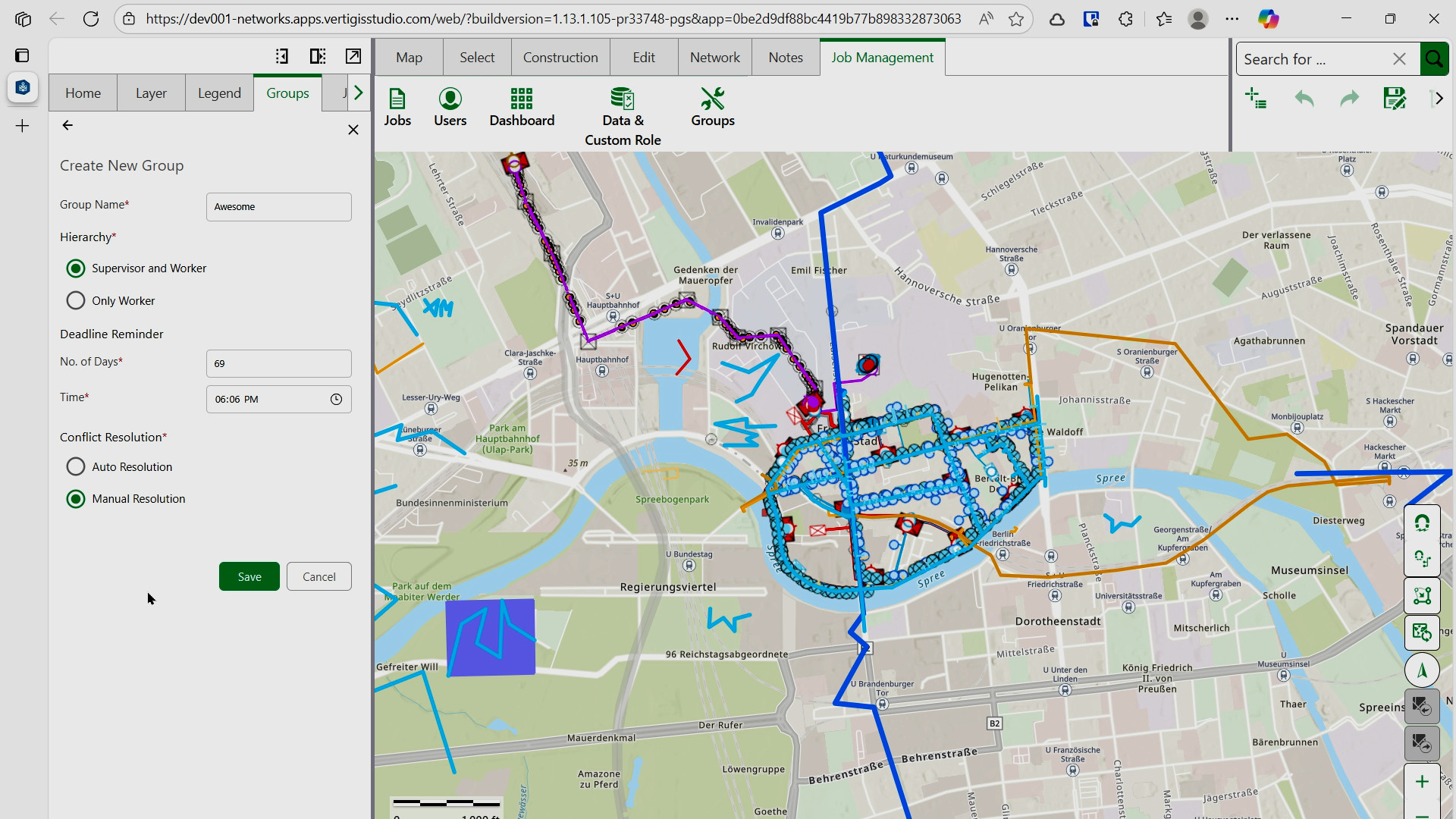
To create a new job management group:
1.Log in to VertiGIS Job Management with administrator credentials.
2.Select the Job Management tab.
3.Click Groups in the navigation menu.
4.Click the Create Group button.
5.Enter a descriptive name in the Group Name field that reflects its purpose or project.
6.Select the Hierarchy Type:
oHierarchy 1 (Single-Level): Workers function as both worker and supervisor with combined responsibilities. They can create, execute, complete, assign, and manage the entire job lifecycle.
oHierarchy 2 (Two-Level): Separate supervisor and worker roles. Supervisors create, assign, manage jobs, and reconcile edits. Workers execute assigned jobs and post updates.
7.Configure the Deadline Reminder (optional) if the group is associated with a specific project:
oEnter the number of days until the project is due.
oSet the time when you want to receive the reminder notification.
8.Select a Conflict Resolution method (see below for details).
9.Click Save to create the group.
A confirmation notification appears: "Group saved successfully".
Conflict Resolution: Auto vs Manual
Auto Resolution
•Conflicts are automatically resolved based on predefined criteria
•Suitable for straightforward workflows with clear precedence rules
•Reduces manual intervention
Manual Resolution
•Supervisors manually choose which version to retain during conflicts
•Provides greater control over conflict resolution
•Suitable for complex workflows requiring human judgment
•Resolution process requires supervisor approval before proceeding