This chapter describes how the DXF Export Backend can be set up in an Azure environment.
To create a container on Azure:
1.Open the Azure portal
2.Navigate to Container Apps
3.Click on Create + and select Container App
Create Container app - Basics
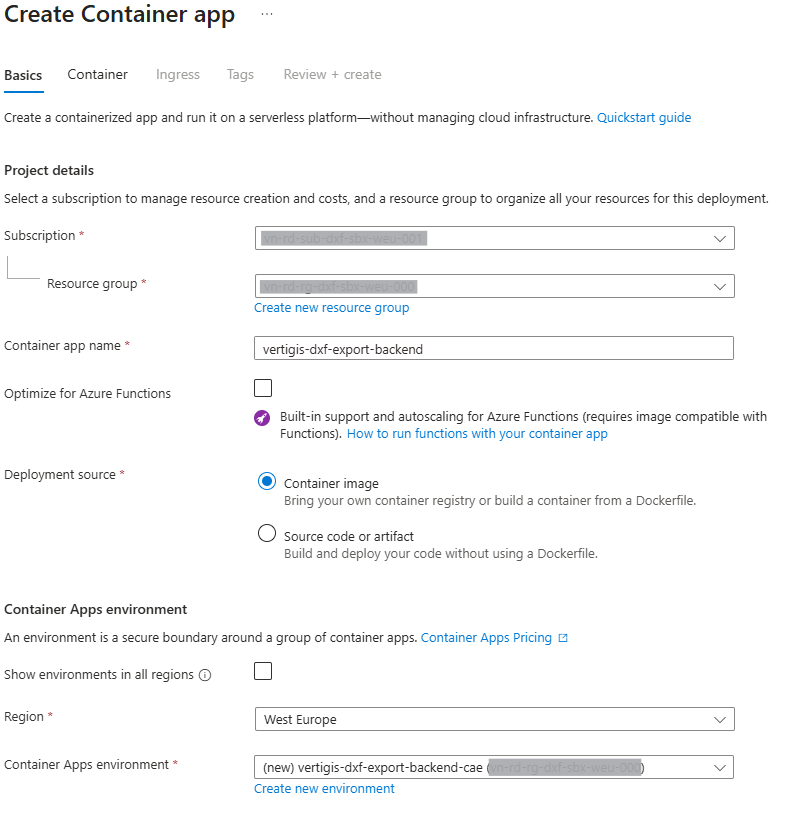
Setting |
Description |
Recommended value |
|---|---|---|
Subscription |
Select your subscription |
- |
Resource group |
Select your resource group |
- |
Container app name |
Specify a name for the container to be created. |
vertigis-dxf-export-backend |
Optimize for Azure Functions |
|
Unchecked |
Deployment source |
Using docker or not? |
Container image |
Show environments in all regions |
|
Unchecked |
Region |
Select your region |
- |
Container Apps environment |
Select your environment |
- |
Select Next : Container > to continue.
Creating new Container Apps Environment
If you had already selected one before clicking on Next, then skip this section.
For creating a new environment, DXF Export does not need specific values. Feel free to select the settings matching your needs.
Basics
|
Workload profiles
|
Monitoring
|
Networking
|
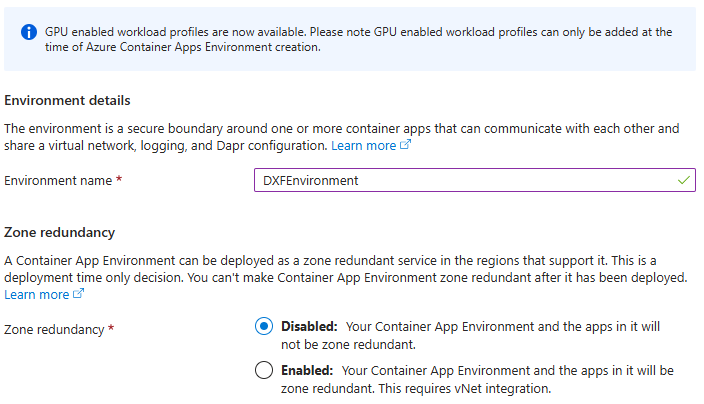
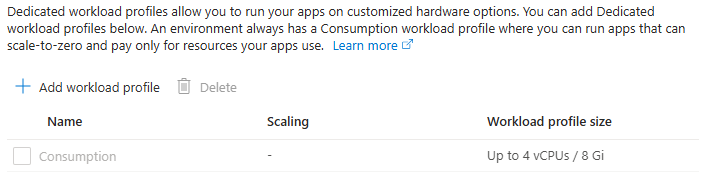
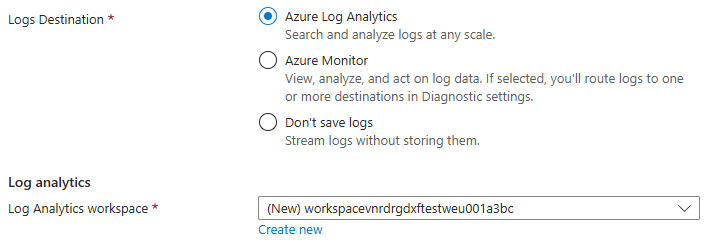
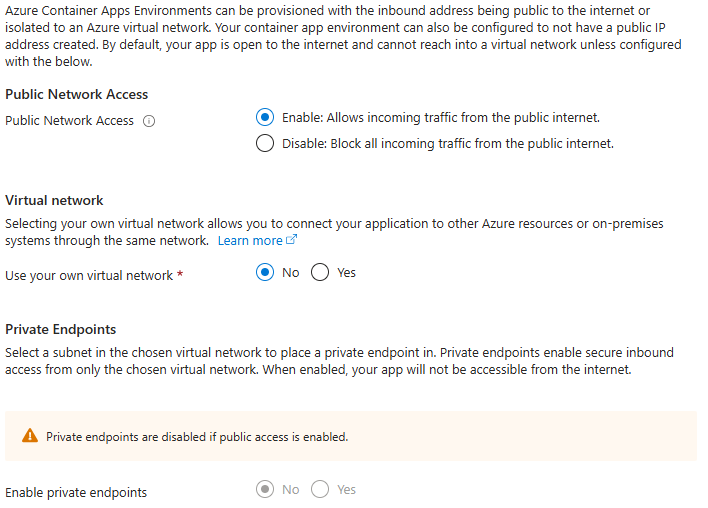
Environment name is the only required value for creating the environment.
Adjust the other parameters as per your preference, then select Create.
Create Container app – Container, part 1
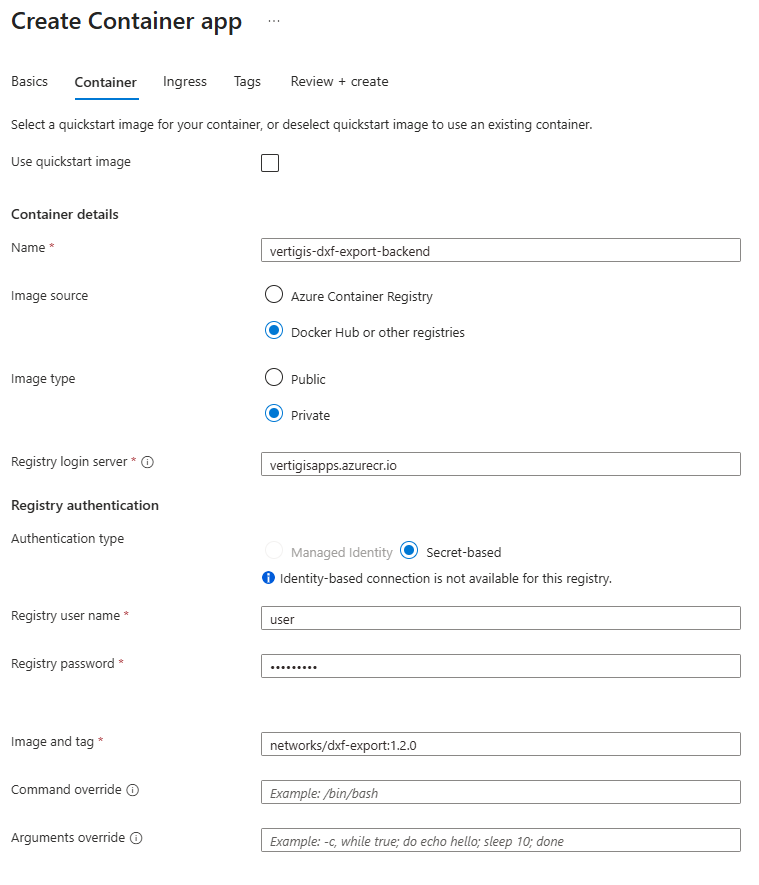
Setting |
Description |
Recommended value |
|---|---|---|
User quickstart image |
|
Unchecked |
Name |
Copied from previous page |
vertigis-dxf-export-backend |
Image source |
Select the entry that allows you to access the VertiGIS azure registry |
Docker Hub or other registries |
Image type |
Select type of docker image |
Private |
Registry login server |
Enter the VertiGIS container registry |
vertigisapps.azurecr.io |
Authentication type |
Select the authentication type |
Secret-based |
Registry username |
Enter the VertiGIS container registry username that you get by your VertiGIS vendor. |
- |
Registry password |
Enter the VertiGIS container registry password for your specified username. |
- |
Image and tag |
Select the published DXF-Export images. Multiple versions are available. |
networks/dxf-export:1.3.0 |
Command overrides |
Add command overrides |
- |
Arguments override |
Add arguments overrides |
- |
Create Container app – Container, part 2
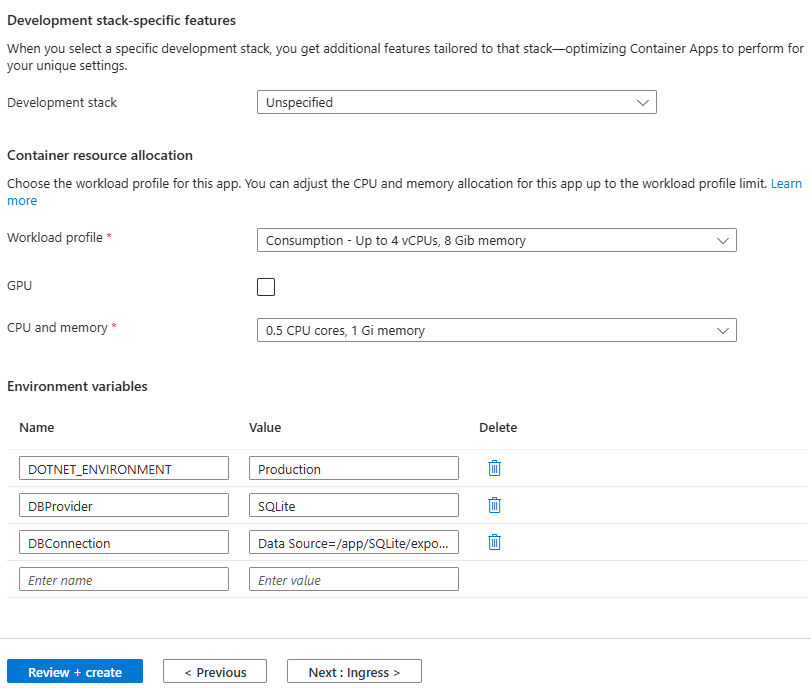
Setting |
Description |
Recommended value |
|---|---|---|
Development stack |
Select development stack |
“Unspecified” |
Workload profile |
Select workflow profile |
- |
GPU |
Select if GPU is included |
Unchecked |
CPU and memory |
Select CPU and memory |
- |
Environment variables
The following variable is independent of the used database type:
DOTNET_ENVIRONMENT |
|
Production |
The following variables are different, depending on the database system used:
SQLite
DBProvider |
SQLite |
DBConnection |
Data Source=/app/SQLite/export.db |
Postgress SQL
DBProvider |
Postgres |
DBConnection |
Host={DB-Host};Port={DB-Port};Database={DB-Name};Username={DB-User};Password={DB-User-Password} |
DBConnection Placeholders:
•DB-Host: The name of the host where the Postgres database is running
•DB-Port: The port to access the Postgres database on the host
•DB-Name: The name of the database
•DB-User: The name of the user to access the Postgres database.
•DB-User-Password: The password of the Postgres database user.
Select Next : Ingress > to continue.
Create Container app - Ingress
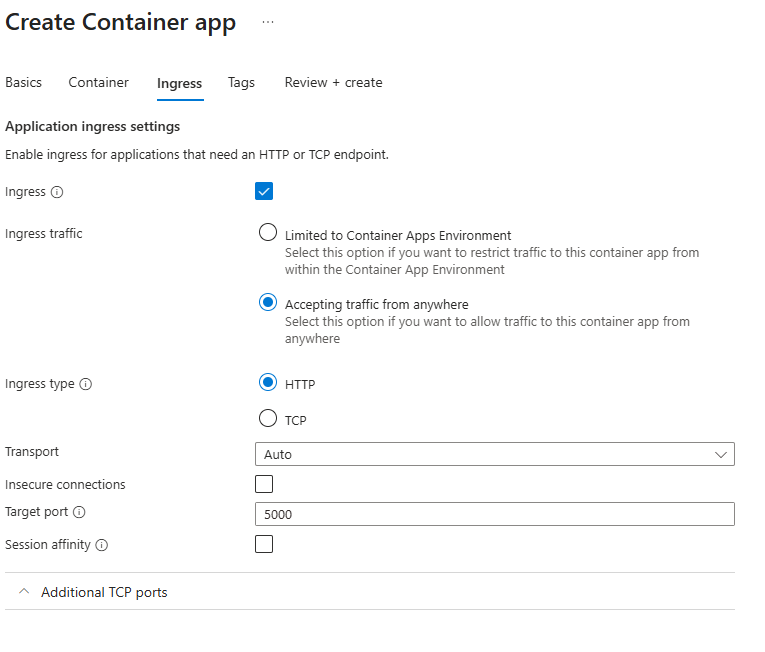
Setting |
Description |
Recommended value |
|---|---|---|
Ingress |
Select if Ingress is used |
Checked |
Ingress traffic |
Select the kind of traffic |
Accepting traffic from anywhere |
Ingress type |
Select the Ingress type |
HTTP |
Transport |
Select the type of transport |
Auto |
Insecure connections |
Select if insecure connections are allowed |
Unchecked |
Target port |
Select the target port |
5000 |
Session affinity |
Select if session affinity is enabled |
Unchecked |
Select Next : Tags > to continue.
Create Container app – Tags
While tags aren't required, they can be specified.
Select Next: Review + create to continue.
Create Container app – Review & Create
Check the listed settings and correct validation failures.
Select Create to create the container
Validate the installation
•Search for the container app by inserting the name (if you follow this installation, it is ‘vertigis-dxf-export-backend’) of the create container in the main search box of azure and open it:
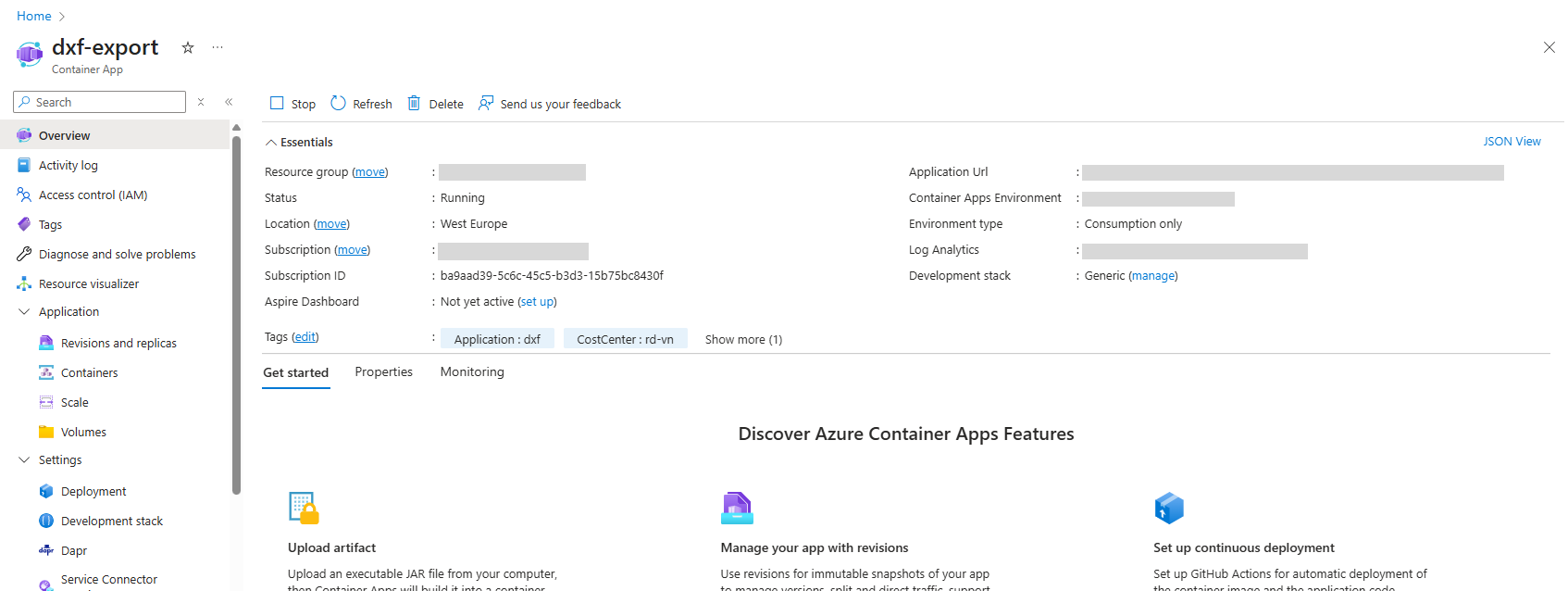
•Application URL shows the URL that can be used to reference the Backend in VertiGIS Applications.
•Select Revisons and replicas under the node Application
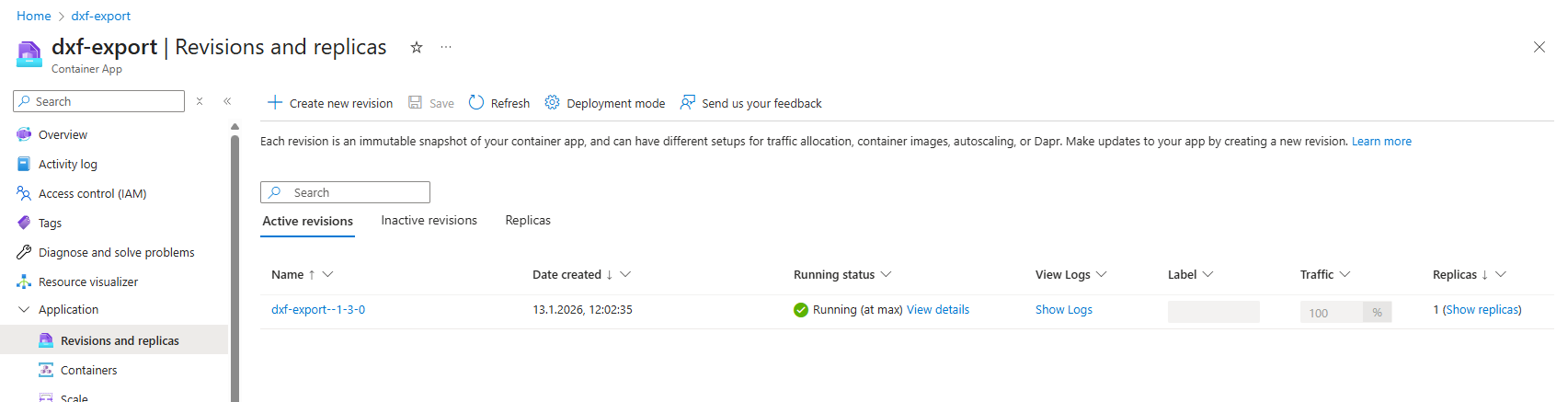
•Check if Running state is Running.
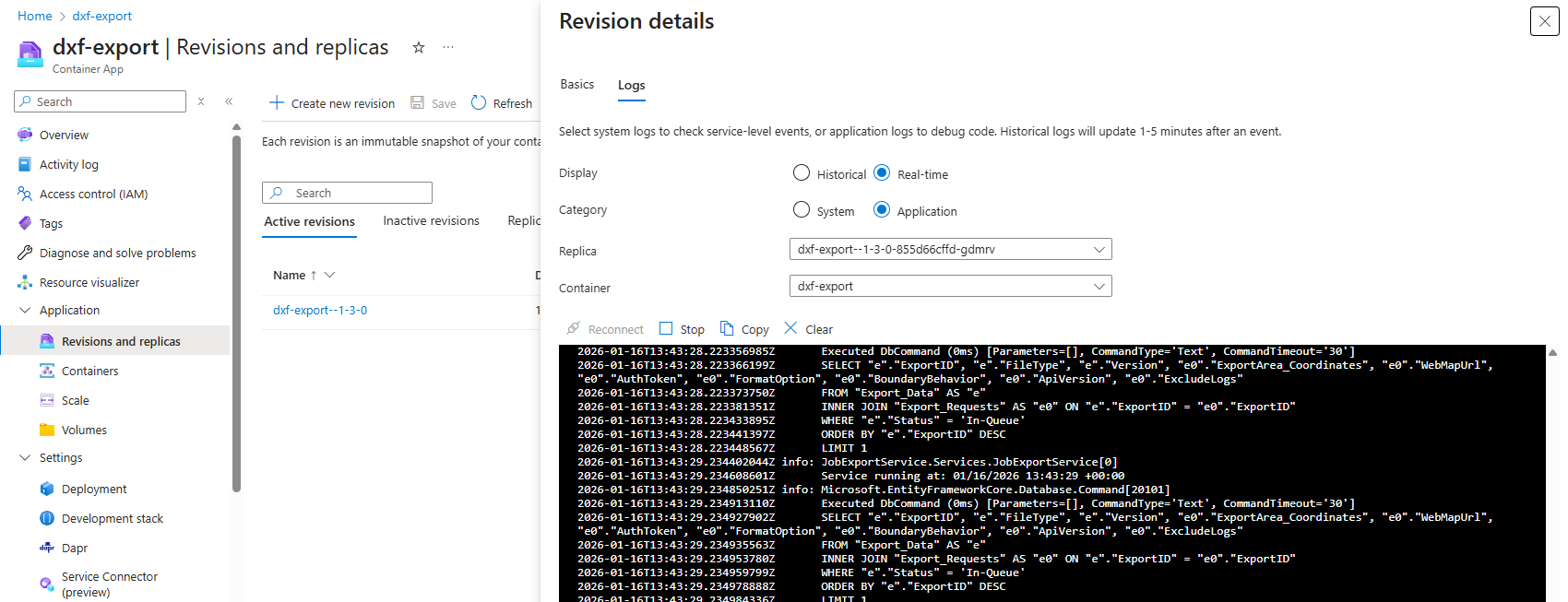
•Select Show Logs and check for any error messages:
Container Maintenance
To observe, maintain, or scale DXF Backend Apps, use the Azure tools as you would for any other container application.