MQTT is a network protocol ideal for Internet of Things (IoT) devices. Its lightweight header and message size and broker-managed communication model make it ideal for transferring data like sensor values and meter readings into VertiGIS FM Energy. Using the MQTT protocol, you can scale and connect a broker service to millions of IoT devices in your network.
Refer to VertiGIS FM Energy for general information about meters and sensors.
Configure and manage your organization's MQTT connections on the MQTT administration page (Administration > Interfaces > MQTT).
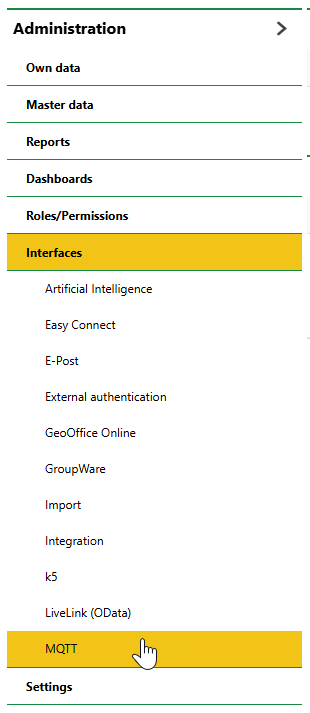
MQTT Administration Page
MQTT uses a broker to handle communication between publisher and subscriber clients. Publisher clients like smart meters and sensors send messages to a topic on an MQTT broker, and subscriber clients you create in VertiGIS FM query the topic for new messages. Values published to the subscribed topic (typically meter and sensor reading values) are then imported into VertiGIS FM as meter readings.
If your organization has its own MQTT broker, add it in the MQTT-Broker section, and then select it in the MQTT-Broker menu for each client you subscribe to the broker.
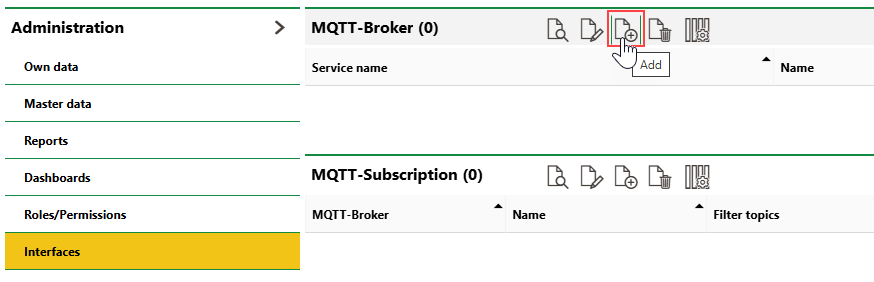
Adding Your Own MQTT Broker in VertiGIS FM
Add subscriptions to individual topics in the MQTT-Subscription section. If you plan to use a broker from a managed MQTT service, enter its endpoint and your authentication credentials in the entry for each subscriber client you add in the MQTT-Subscription section.
MQTT Brokers
Your organization can decide what kind of MQTT broker it wants to use in its implementation. You can
•use your own MQTT broker.
•use a broker provided by VertiGIS FM on the Azure platform, available to all customers.
•use an alternative managed MQTT service.
Most VertiGIS FM customers use a managed MQTT service for their broker.
Using Your Own Broker
If your organization has the infrastructure, MQTT broker software, security components, and operational knowledge to run and maintain its own MQTT broker, you can add it in the MQTT-Broker section on the MQTT administration page.
You can select brokers you add in the MQTT-Broker section from the MQTT-Broker menu when you add an MQTT subscriber.
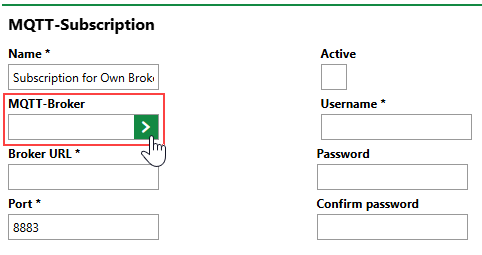
Selecting Your Own MQTT Broker in the Subscriber
Using a Managed MQTT Service
If your organization plans to use a managed MQTT service (for example, Azure IoT Hub and Event Hub, AWS IoT Core, or HiveMQ Cloud), you only require an account or subscription to the service, authentication credentials, and a URL endpoint for the broker. In VertiGIS FM, specify the broker, credentials, and endpoint when you add a subscriber client. Do not add the broker in the MQTT-Broker section.
Add a Subscriber Client
Regardless of whether your organization uses its own broker or a third-party managed MQTT service, you can subscribe clients to it on the MQTT administration page in VertiGIS FM.
To Add an MQTT Subscriber Client
1.Navigate to the MQTT administration page (Administration > Interfaces > MQTT).
2.In the MQTT-Subscription section, click the Add ( ) icon.
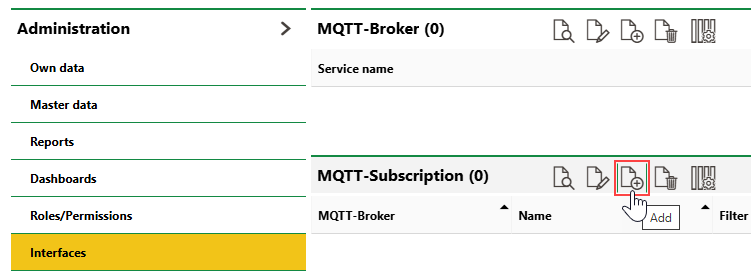
3.Enter a name for the new subscription in the Name field.
4.Enter the broker authentication and client configuration properties in the corresponding data fields. The following fields are mandatory:
▪Broker URL
▪Username
▪Filter topics
Refer to MQTT Subscriber Details for descriptions of all form fields.
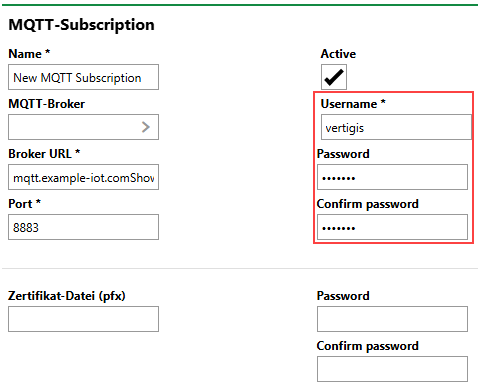
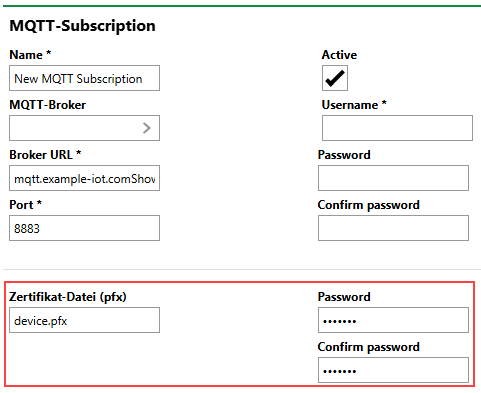
The new subscriber form has multiple password menus for different MQTT authentication options. Refer to MQTT Subscription Details to ensure you are entering the password in the correct field.
5.Click Save or Save and Close.
Field |
Description |
||||||
|---|---|---|---|---|---|---|---|
Name |
A name that describes the client. |
||||||
MQTT-Broker |
The broker you are configuring the client for. Only select an option in this menu if your organization has established its own MQTT broker and does not plan to use a managed service instead. If you plan to use a managed MQTT service for your broker, do not select anything in this menu. |
||||||
Broker URL |
The endpoint URL for your broker. This value is provided by the MQTT provider or managed service. |
||||||
Port |
The port used to connect to the MQTT service. Enter 1883 for MQTT or 8883 for MQTT over TLS/SSL. |
||||||
Username |
The user or account associated with the MQTT service. If you do not have a user or account associated with the MQTT service, you can upload a certificate in the Certificate file menu instead. |
||||||
Password |
If you entered a user or account in the Username menu, the password for the user or account associated with the MQTT service. |
||||||
Confirm password |
If you entered a user or account in the Username menu, the password for the user or account associated with the MQTT service. VertiGIS FM requires you to enter it twice.
User Account Password Authentication Option |
||||||
Certificate file |
The certificate file for the MQTT broker. If the MQTT managed service provided you with a certificate file instead of an endpoint, upload it here. |
||||||
Password |
If you provided a certificate file, the password associated with the certificate.
Certificate and Password Authentication Option |
||||||
Confirm password |
If you provided a certificate file, the password associated with the certificate. VertiGIS FM requires you to enter it twice. |
||||||
Connection established |
An information-only field that indicates whether the MQTT connection is established. This check box programmatically appears selected if the connection is established. |
||||||
Filter topic |
The MQTT topic (the folder or path in the MQTT structure) the client is subscribed to. The subscription retrieves messages from this location. |
||||||
Quality of service |
The delivery guarantee setting for messages sent between the broker and clients.
|
||||||
Clean start |
A check box that, if selected, means if the client loses connectivity to the broker, it starts a new session when reconnecting and does not resume any previously stored session state. |
||||||
Session expiry interval [s] |
How long the broker continues the session after disconnecting from the client. If you enter 1000, VertiGIS FM will receive messages published to the broker within 1000 seconds of its disconnecting. The default value is 0. It is recommended you use a lower number to avoid storing excessive amounts of data on the broker. For each session, the broker can hold a maximum of 100 QoS1 messages or 1 MB in total messages. |
||||||
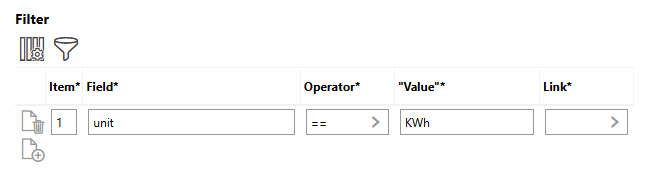
Filter |
A section in which you can tell VertiGIS FM to ignore messages whose payloads lack a value you specify. In the example below, only payloads for readings whose "unit" key has a value of "kWh" are imported into VertiGIS FM.
Filter Section The Link column lets you designate the filter condition as an "and/or" condition in relation to the filter condition on the line below it. |
||||||
Parameters |
|
MQTT Gateway
Your local infrastructure requires an MQTT gateway that acts as a publishing client for readings collected by your devices. The gateway publishes messages to the broker so that subscriber clients you create in VertiGIS FM can retrieve them from their topics.
Gateway JSON File
For VertiGIS FM to process MQTT data, the gateway payload must adhere to a nodal structure that uses specific keys. Certain values in the JSON must map to energy form and sensor type data in your VertiGIS FM implementation.
Structure
Currently, only JSON files with nodal structure that includes a top-level "muc" object for gateway data, a "meter" key with an object for sensor data for each sensor with readings in the file, and a "data" array with a payload for each reading associated with the meter or sensor are supported.
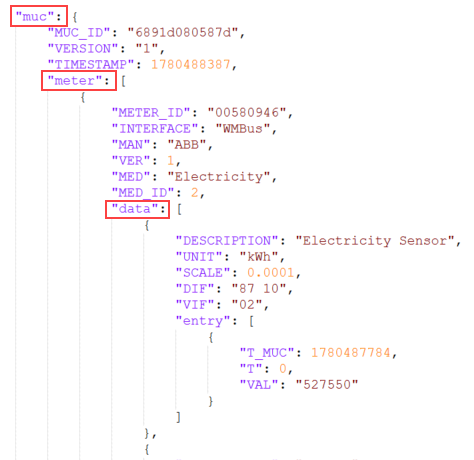
JSON File with Supported Structure
VertiGIS FM will support the use of other JSON files in the future.
Data Mapping
Values in JSON objects for the sensor and reading must match certain catalog values in VertiGIS FM. The meter key's array of objects must specify the energy form catalog entry assigned to the sensor, and the data's array of objects must specify the sensor type catalog entry assigned to the sensor, as well as the scale and unit of measurement specified in the sensor type catalog entry.
For example, refer to the JSON file below.
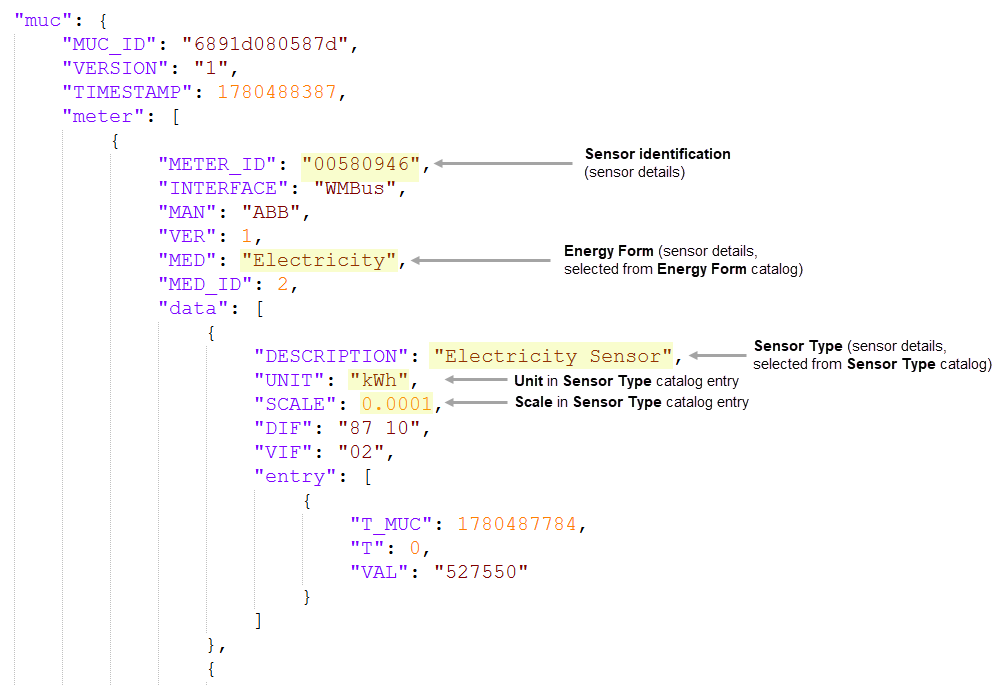
Sensor Catalog Data in MQTT Gateway JSON File
To see the energy form and sensor type assigned to a sensor, go to its details page.
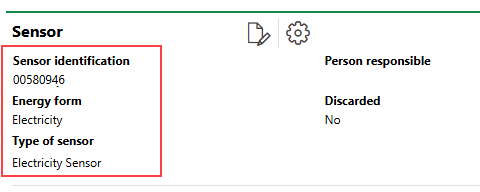
Sensor Details Page
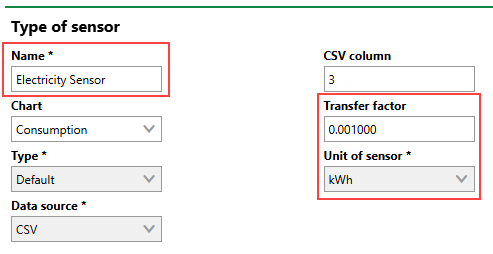
You can see the Scale and Unit values associated with the sensor type if you open the sensor type catalog entry selected in the Type of Sensor field.
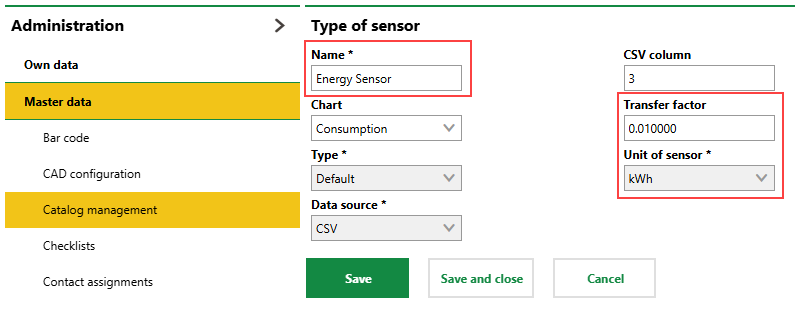
Type of Sensor Catalog Entry
Important Keys in MQTT Gateway JSON File
Key |
Data Type |
Description |
|---|---|---|
muc |
object |
Key-value pairs related to the gateway. |
meter_ID |
string |
The Sensor Identification property of the sensor. |
MED |
string |
The Energy Form property of the sensor. Selectable options are stored in the Energy Form catalog. |
data |
array of objects |
Key-value pairs related to the sensor. |
DESCRIPTION |
string |
The Sensor Type property of the sensor. Selectable options are stored in the Sensor Type catalog. |
UNIT |
string |
The unit of measurement associated with the value captured by the sensor, and the sensor's Unit property. The value is stored in the Unit of Sensor field in the Sensor Type catalog entry selected in the sensor's Type of Sensor field. |
SCALE |
number |
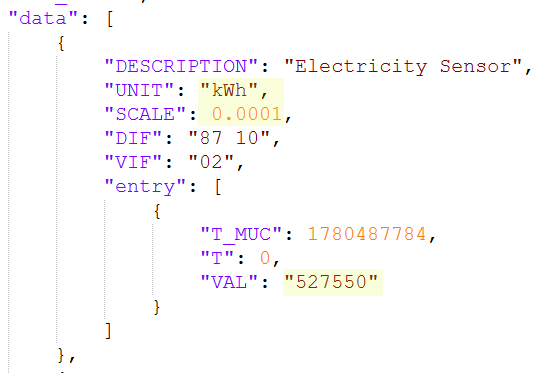
The number by which the sensor reading value is multiplied to yield its real value in the specified units of measurement. The value is stored in the Transfer Factor field in the Sensor Type catalog entry selected in the sensor's Type of Sensor field.
Transfer Factor and Unit of Sensor Properties in Sensor Type Catalog In the example below, the recorded sensor value of 527550 is multiplied by 0.0001 to yield an imported meter reading value of 52.76 kWh.
Sensor Unit, Transfer Factor, and Reading Value in JSON File |
entry |
object |
Key-value pairs related to a specific sensor reading. |
T_MUC |
number |
A timestamp associated with the sensor reading. |
VAL |
string |
The value captured in the sensor reading. This value is multiplied by the SCALE value to yield the actual sensor reading as it will appear in VertiGIS FM. |
The diagram below outlines the relationship between sensors, readings, and administrative data in VertiGIS FM Energy.
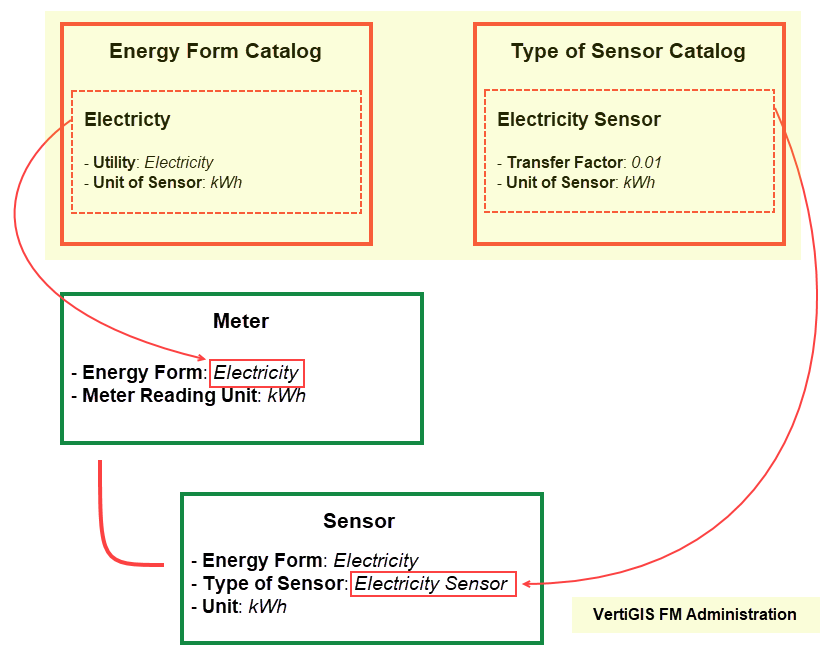
Diagram Showing Relationships Between Catalog Entries, Metering Points, and Sensors in the VertiGIS FM Administration