Pages in VertiGIS FM may not display the sections and entities outlined in this manual based on the section authorization. Conversely, an object's details page may include a section you do not want your users to see. You can control which sections or entities on a VertiGIS FM page users can access by editing a page's section authorization.
When you edit the section authorization for a details page, you can set
•which sections users can see on the details page.
•whether the section is expanded or collapsed by default.
When you edit the section authorization for a search page, you can set
•which entities (assets or other data objects) users can click in the Objects section.
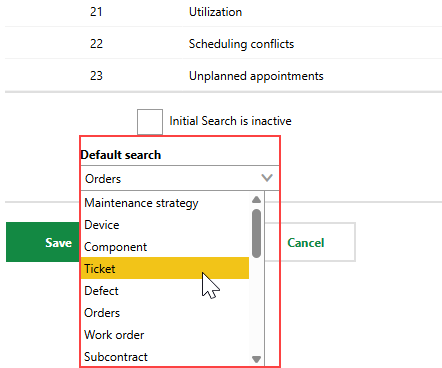
•which entity is selected by default when users navigate to the search page.
Required Permissions
Only users assigned a user role with the Form Layout permission in the Platform Permissions role administration section can complete this action. Refer to Roles and Permissions for more information.
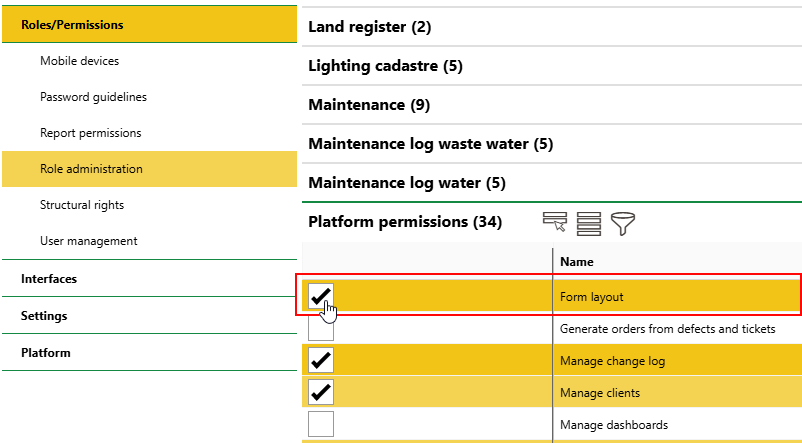
Form Layout Permission
Edit the Section Authorization
You can complete the procedure below to show or hide sections on most details pages and search pages throughout VertiGIS FM.
To Show or Hide a Section
1.Click the  icon on the page on which you want to show or hide a section.
2.Expand the Section Authorization tab.
3.From the Role menu, select the user right you want to set the section authorization for.
4.Review the list of sections and their settings:
▪for a details page, select the radio buttons in the Visible or Invisible columns to show or hide the section on the page, respectively. Select the check box in the Opened column to make the section expanded by default when a user navigates to the page.
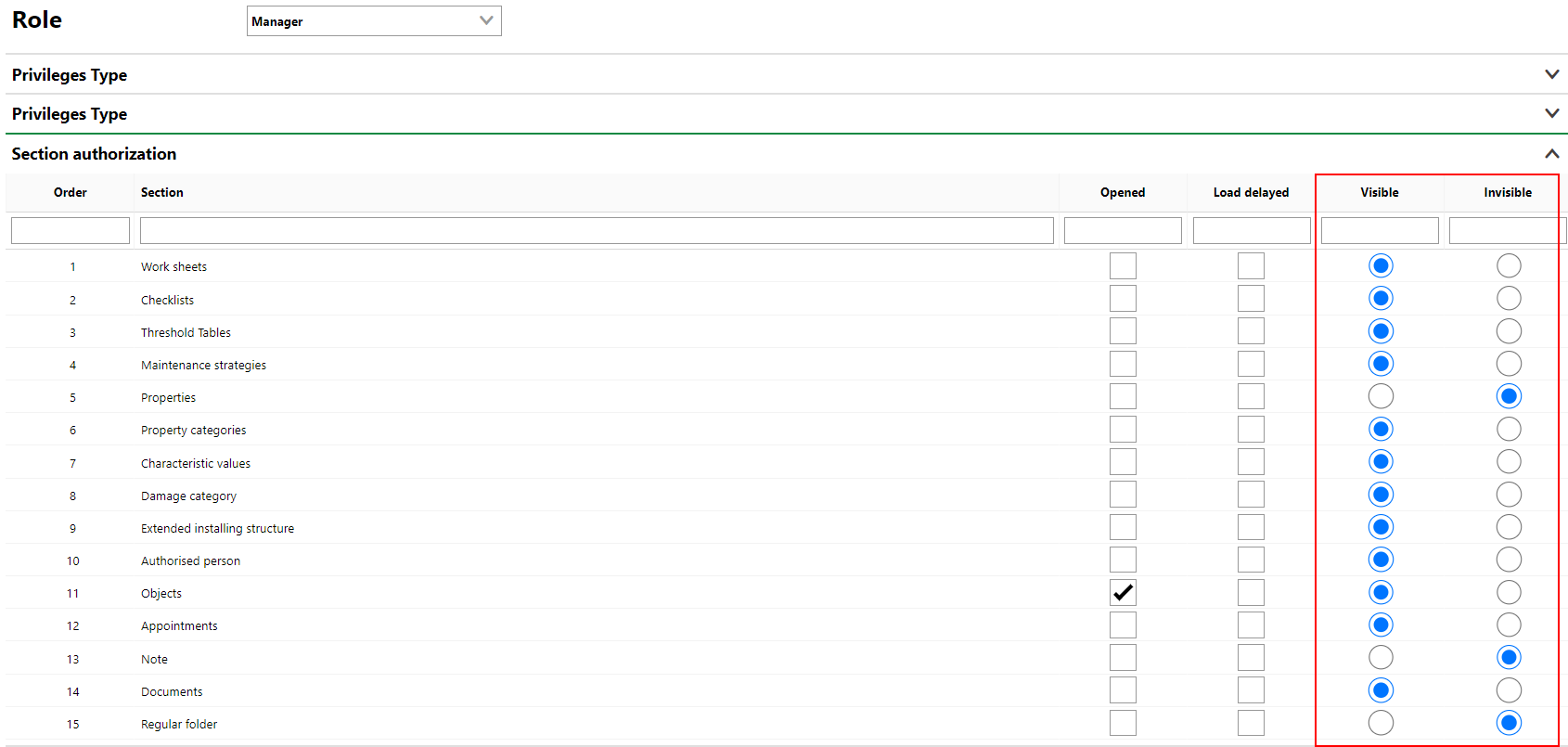
▪for a search page, select the radio buttons in the Visible or Invisible columns to show or hide the entity in the Objects section. Select the entity you want to be selected in the Objects section by default when a user navigates to the page.
5.Click Save and Close.
User Roles
Section authorization is dictated on a user role basis. Ensure you have selected the role for which you want to show or hide a section before completing the steps below.
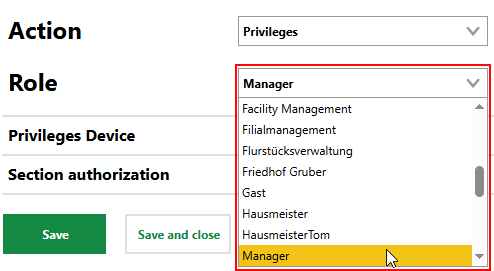
Role Selection for Section Visibility
Gear Icon
On details pages for objects and assets managed in VertiGIS FM, the icon appears in the section with the entity's core properties.
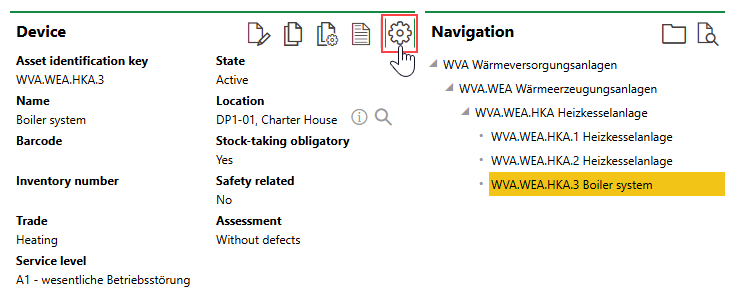
Gear Icon on Asset Details Page
On the search page, the icon appears in the top-right corner.