In VertiGIS FM, you can create a door or gate and install it in the entryway or another asset (real estate, building, construction stage, floor, or room) in one action. You can do this in either of two places in the application:
•on the search page. This method requires you to select the real estate, building, construction stage, floor, or room you want to install it in in the Installed In box.
•on the details page for the real estate, building, construction stage, floor, or room you want to install the door or gate in. With this method, the asset whose details page you created the door or gate on is prepopulated in the Installed In box.
To Create a Door or Gate on the Search Page and Install It In an Asset
1.Navigate to the VertiGIS FM Buildings search page.
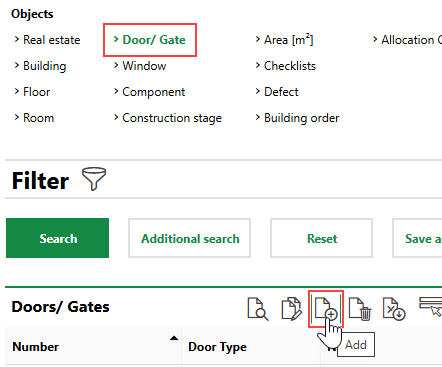
2.Under Objects, click Door/Gate.
3.Click the Add ( ) icon.
4.Enter the door's details in the corresponding information fields. At minimum, enter an identifier for the door in the Number field and select the door's designation from the Door Type menu.
Refer to Door Details for descriptions of all information fields.
5.Click the arrow ( ) in the Installed In box and select the asset in which you want to install the door or gate.
▪The Selection: Installed In dialog that opens shows the list of real estates you can select. To select an asset from a lower level in the buildings hierarchy (for example, a building on the real estate), double-click the real estate that contains the building in which you want to install the door. You can then select the building and click the down-arrow again to select an asset contained within the building (for example, a floor or room). You can click the up-arrow button to navigate back up the hierarchy.
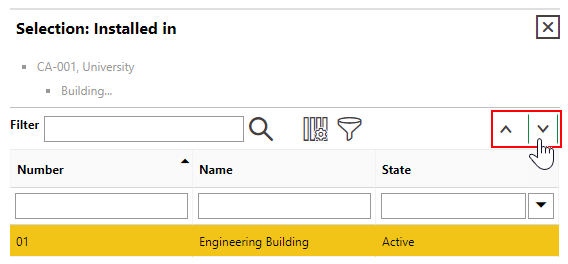
This step is not mandatory. You can install the new door or gate in an asset from the buildings hierarchy at a later time.
6.Click Apply.
7.Click Save and Close.
Create a Door or Gate on the Details Page for the Asset You Want To Install It In
1.Navigate to the details page for the asset (real estate, building. floor, construction stage, or room) that you want to install a new door in.
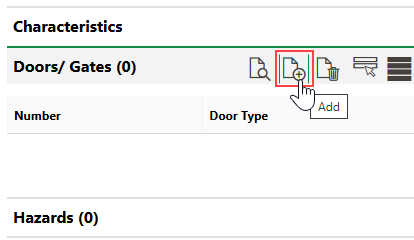
2.In the Doors/Gates section, click the Add () icon.
3.Enter the door's details in the corresponding information fields. At minimum, enter an identifier for the door in the Number field and select the door's designation from the Door Type menu.
Refer to Door Details for descriptions of all information fields.
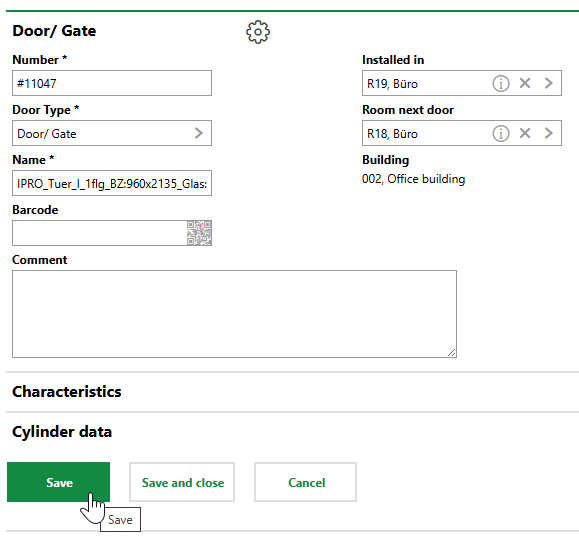
4.Click Save.
Edit a Door or Gate
You can edit the properties on an existing door or gate on its details page.
To Edit a Door or Gate
1.Navigate to the details page of the door or gate you want to edit.
2.Click the Edit ( ) icon.
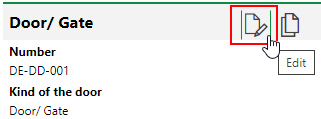
3.Edit the door or gate details as required.
4.Click Save or Save and Close.