In VertiGIS FM, hierarchies define superior and subordinate relationships between individual objects of the same kind. For objects to which hierarchical relationships are applicable, like inventory items, the details page includes a Hierarchy section that documents its relationships to other inventory items.
The use of hierarchies can vary based on the VertiGIS FM products you use and the way your organization structures its assets. In the Inventory Management module, you can document relationships between inventory items. For example, you could add an ergonomic component for an office desk as a subordinate asset to the desk.
An inventory item's hierarchical relationship to other inventory items is also reflected in the Hierarchy section on the , which reflects the Type of Metering Point property in the State column. The order of the hierarchy is indicated by the arrow in the leftmost column. A down-arrow means that the inventory item in that row is beneath the inventory item whose details page you're viewing.

Hierarchy Section Indicating a Secondary Inventory Item
You can navigate to the details page of an inventory item in the Hierarchy section by selecting it and clicking the View Details ( ) icon.
Create an Inventory Hierarchy
You can establish hierarchies of assets in your inventory database by adding subordinate items to assets above them in the hierarchy. For example, you could lamps, mouse pads, or partitions as subordinate assets to the hierarchy for office desks.
When you add a subordinate inventory item to a hierarchy, you can create an inventory item in the process or select an existing inventory item from the database.
To Add a New Inventory Item to a Hierarchy
1.Navigate to the details page for the inventory item you want to be at the top of the hierarchy you are creating.
2.Expand the Hierarchy section. You may need to edit the section authorization if you do not see the Hierarchy section.
3.Click the Add Inventory ( ) icon.
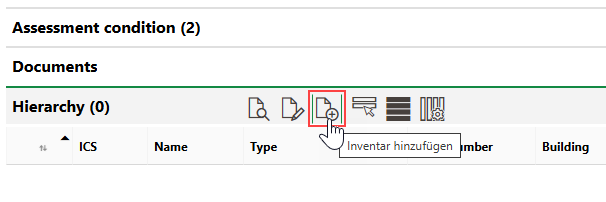
4.Select the group, designation, and version to which the new inventory item will belong. You can click the up- and down-arrows in the Selection dialog to move up and down the Inventory Management hierarchy.
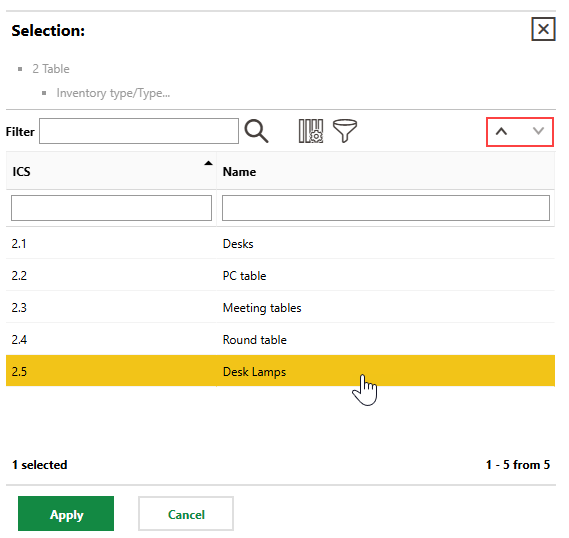
5.When you have selected the version to which you want to add the new inventory item, click Apply.
6.Fill out the form to add a new inventory item.
7.Click Save and Close.
The inventory item you created is shown in the Hierarchies section on the inventory item details page on which you started the procedure above.
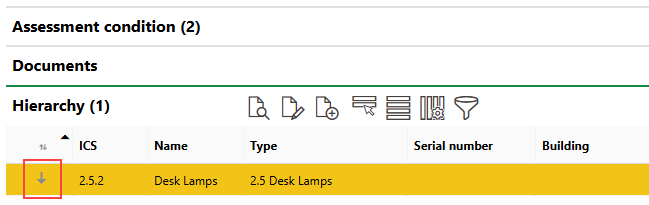
Newly Created Inventory Item Added to Hierarchy
To Add an Existing Inventory Item to a Hierarchy
1.Navigate to the details page for the inventory item you want to be at the top of the hierarchy you are creating.
2.Expand the Hierarchy section. You may need to edit the section authorization if you don't see the Hierarchy section.
3.Click the Additional Editing ( ) icon.
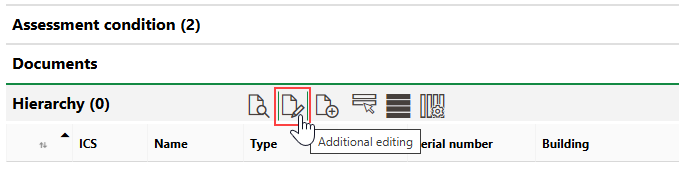
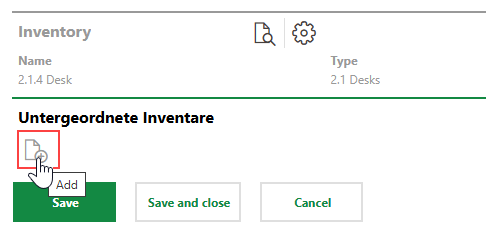
4.Under Subordinate Inventory, click the Add () icon.
5.In the Selection: Inventory dialog, select an inventory item and click Apply, or double-click the inventory item. You can select an inventory item from any group in the system.
6.Click Save and Close.
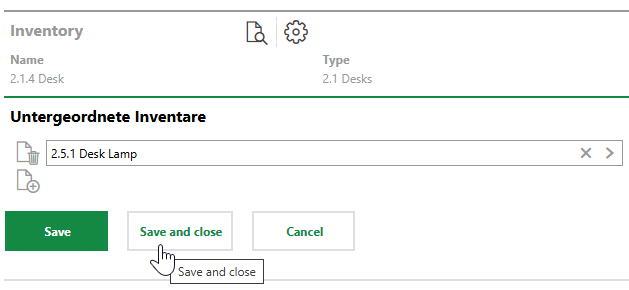
The inventory item is now shown in the Hierarchy section, with a down-arrow indicating that it is beneath the inventory item whose details page you are viewing.
Inventory Item Added to Hierarchy Section
To add another level to the hierarchy, double-click an inventory item in the Hierarchy section and repeat the procedures above on the details page for the subordinate inventory item. Alternatively, you can add more subordinate inventory items to the top-level inventory item.
Remove an Inventory Item from a Hierarchy
You can remove a subordinate inventory item from a hierarchy on the details page for the inventory item above it in the hierarchy.
To Remove an Inventory Item from a Hierarchy
1.Navigate to the details page for the inventory item at the top of the existing hierarchy.
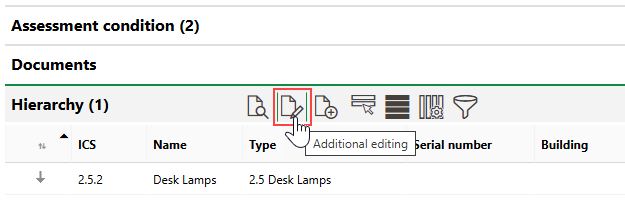
2.Click the Additional Editing () icon.
3.Click the Delete icon next to the inventory item you want to remove from the hierarchy.
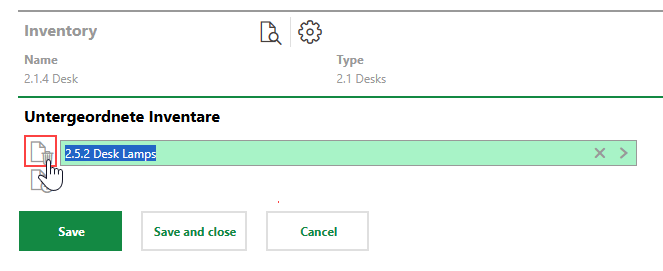
4.Click Save and Close.
The action shown above does not delete the inventory item from the database. It only removes it from the hierarchy. Click here for instructions to delete the inventory item.