You can create rental management inspections either of two ways: by using the Create Inspection workflow on the Condition Assessment legacy dashboard, or on the rental agreement's details page.
Rental inspections are not associated with strategies or recurring intervals. You must manually create new inspections for a rental agreement whenever a tenant takes possession of or vacates a rental unit.
To Create a Rental Agreement Inspection on the Condition Assessment Dashboard
1.Navigate to the Condition Assessment legacy dashboard.
2.Under Operational Procedures, click Add Inspection.
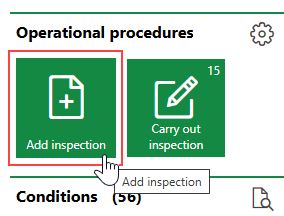
If you do not see the Operational Procedures template, an administrator must add it to your custom dashboard or restore the legacy dashboard. Refer to Dashboard Customization.
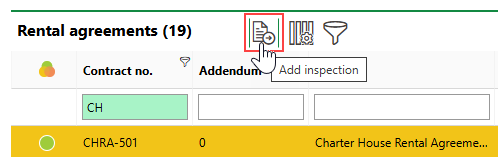
3.In the Rental Agreements section, select the rental agreement for which you want to create an inspection and click the Add Inspection ( ) icon.
4.Enter the inspection's properties in the Options of Inspections form. Refer to Inspection Details for information about each field in the form.
5.In the Order Checklists section, select the checklists you want to include in the inspection. The employee who completes the checklist must complete any required items in the checklist, and can complete other checklist items optionally.
The Order Checklists section lists global inspection checklists saved in the rental management checklist administration whose Kind of Inspection property matches the one selected in the inspection's Type menu.
Checklists that do not have a Kind of Inspection property can be selected for both types of inspections.
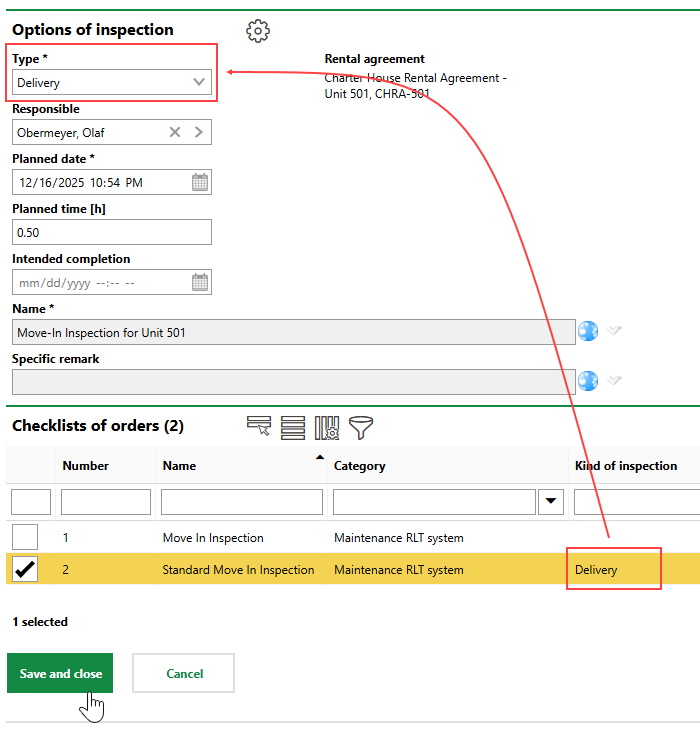
6.Click Save and Close.
To Create a Rental Agreement Inspection on the Rental Agreement Details Page
1.Navigate to the details page for the rental agreement for which you want to create an inspection.
2.Expand the Inspections section and click the Add Inspection ( ) icon.
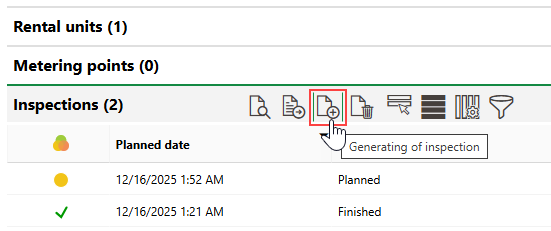
3.Enter the inspection strategy's properties in the Options of Inspections form. Refer to Inspection Strategy Details for information about each field in the form.
4.In the Order Checklists section, select the checklists you want to include in the inspection. The employee who completes the checklist must complete any required items in the checklist, and can complete other checklist items optionally.
The Order Checklists section lists global inspection checklists saved in the rental management checklist administration whose Kind of Inspection property matches the one selected in the inspection's Type menu.
Checklists that do not have a Kind of Inspection property can be selected for both types of inspections.
5.Click Save and Close.
Field |
Description |
|---|---|
Type |
The inspection category. You can select Initial Condition Report (or Remittance) or Exit Condition Report (or Delivery). These options are hard-coded and not stored in any catalog. These two inspection types are also associated with inspection checklists in the rental management checklist administration. The inspection type you select in this field determines what types of catalogs the employee who performs the inspection must complete. |
Responsible |
The employee, contact, or team responsible for the inspection. Must be selected from an entry created in VertiGIS FM Contact Management. |
Planned Date |
The date the inspection should be completed. |
Planned time [h] |
The number of hours of work the inspection is expected to take to complete. |
Intended completion |
The date and time by which the inspection should be completed. |
Name |
A name for inspections associated with this strategy (for example, Standard Sussex Building Office Suite inspection). |
Specific remark |
|