Create New Attribute Forms
Attribute form designer offers two options for creating new form items:
•New empty attribute form: Start from scratch
•New from Web Map: Configuration generated using an existing web map
Create New from Web Map
To create a configuration based on a web map:
1.Select New from Web Map to generate a schema - avoid starting from scratch.
2.In the dialog, choose a webmap.
To dismiss the dialog, click outside it.
3.Enter name of the map in the search box.
4.Apply filters and sort the results to narrow the list. (optional)
5.Select the required map from the list.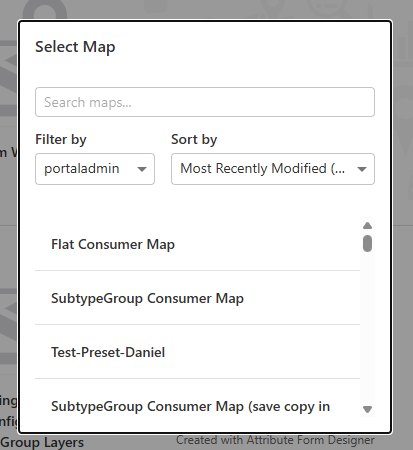
6.Select options to generate configuration:
oInclude coded values in the generated configuration: Converts existing coded domains from the database into coded values.
oUse checkboxes for small integer fields: Interprets small integer fields as checkbox values - true/false.
oShow thousands separators for number fields: Displays numbers with thousands separators.
oGenerate subtypes in the attribute form if they exist in the web map: Automatically creates a schema definition for each layer subtype.
oNumber of decimal places for double/float fields: Defines how many decimal places are displayed.
oString length threshold for generating text areas instead of text fields: Defines the character limit at which a text field is rendered as a text area.
oNumber of rows for text areas: Defines the number of visible rows in a text area.
oField group format type: Defines the group layout type
▪unstyled section
▪fieldset section
▪basic section
▪collapsible section
▪tab section
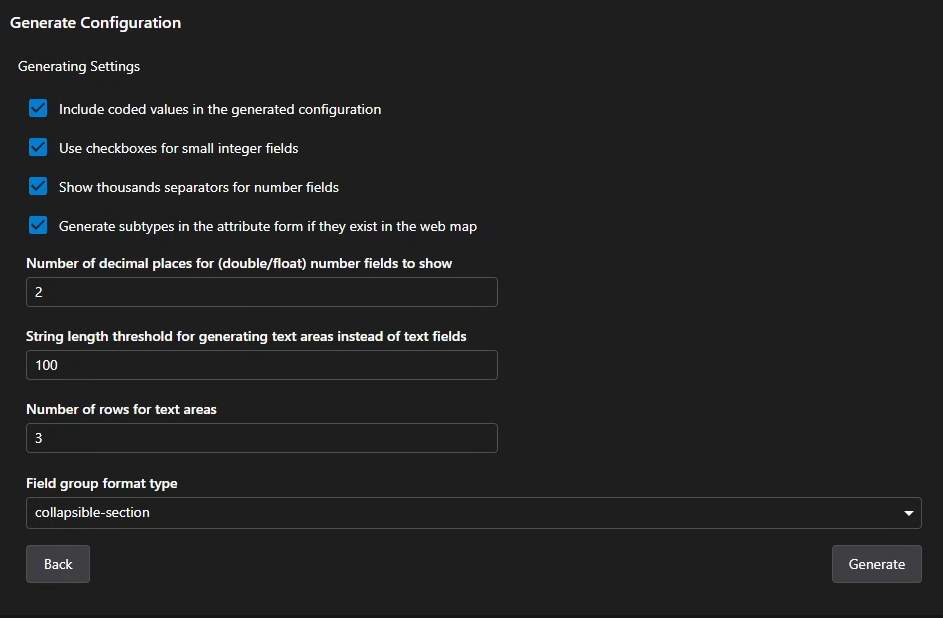
7.Select Generate.
8.To save any further changes, select File > Save or press CTRL + S (Windows) or ⌘ Command + S (Mac).
The configuration is created for every feature layer or subtype group / subtype sublayer in the map.
The designer includes as much information as possible from the web map and the feature services.
Upon form creation, the translation page appears. To return to the dashboard, select the attribute form icon at the top of the sidebar.
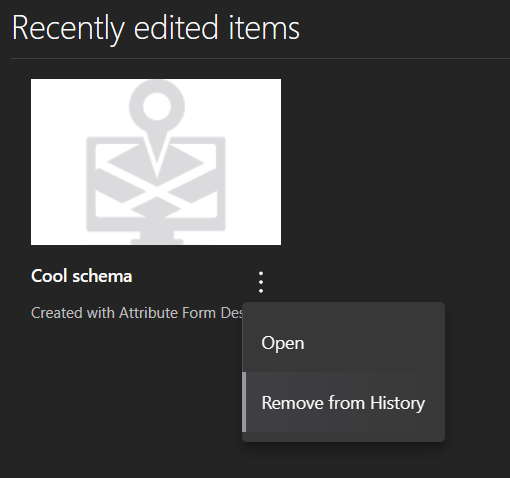
Open Recently Edited Items
You can find all stored configurations in the list of edited items.
The menu provides two functions:
•Open: opens the configuration (same as clicking the item)
•Remove from History: Removes the configuration from recent edited items