Before you Begin
We use the Capital City Web Map feature service for this tutorial. Use VertiGIS Studio Designer to configure the same or adapt this example to use the layer names as per the feature service you'll use.
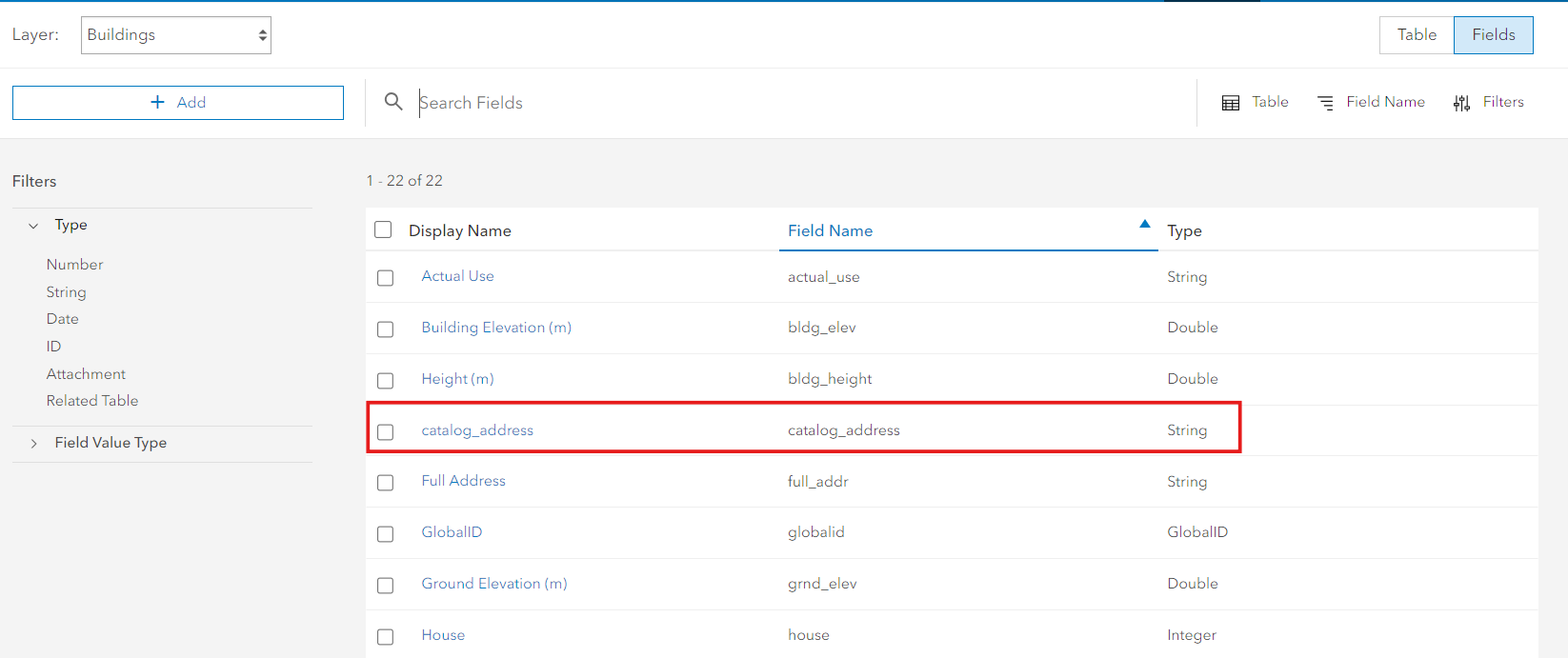
Also, add the string field named catalog_address to the Buildings layer. This field maps to the catalog field that we'll configure through the Attribute Form Designer.
Scenario
The buildings layer tracks two classification fields together: Actual Use (actual_use) and Legal Type (legal_type). These describe what a building is used for and how it is legally classified. Entering them separately risks inconsistent combinations - for example, pairing a "Commercial" actual use with a "Single Family Dwelling" legal type.
A catalog solves this by presenting a list of pre-approved pairings. When a user selects a classification such as "Commercial Office", both actual_use and legal_type are populated automatically and consistently. The catalog_address field stores the name of the selected classification as a human-readable reference on the feature.
What You'll Configure
•Coded values - Two sets: one for actual use types, one for legal types (used in the catalog column dropdowns)
•Catalog - One catalog named BuildingClassification with two columns and six pre-approved combinations
•Schema field - A CatalogPicker field in the Buildings schema that writes values to actual_use, legal_type, and catalog_address

Step 1: Define Coded Values
The catalog columns use dropdown controls, so define the coded values first.
In the Coded Values editor, select + to create the first entry.
Actual Use coded values (cv_actual_use)
Set Name to cv_actual_use, Sort Mode to Alphabetical, and Sort Direction to Ascending. Then add the following code/value pairs:
Code |
Name |
|---|---|
SINGLE FAMILY RESIDENTIAL |
Single Family Residential |
MULTI FAMILY RESIDENTIAL |
Multi Family Residential |
COMMERCIAL |
Commercial |
INDUSTRIAL |
Industrial |
MIXED USE |
Mixed Use |
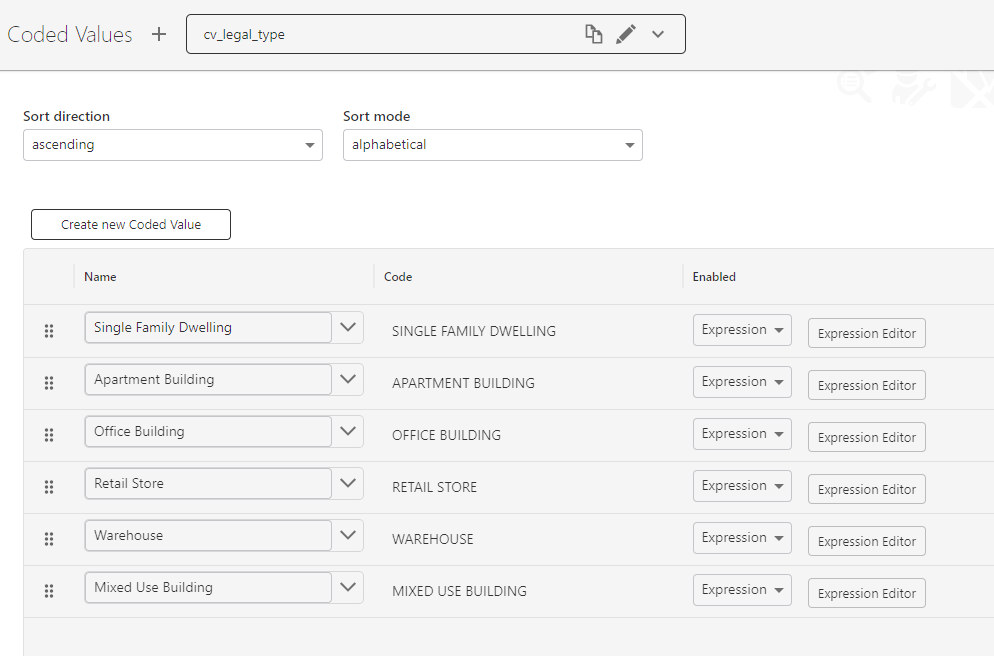
Legal Type coded values (cv_legal_type)
Create a second entry named cv_legal_type with the same sort settings:
Code |
Name |
|---|---|
SINGLE FAMILY DWELLING |
Single Family Dwelling |
APARTMENT BUILDING |
Apartment Building |
OFFICE BUILDING |
Office Building |
RETAIL STORE |
Retail Store |
WAREHOUSE |
Warehouse |
MIXED USE BUILDING |
Mixed Use Building |
Step 2: Create the Catalog
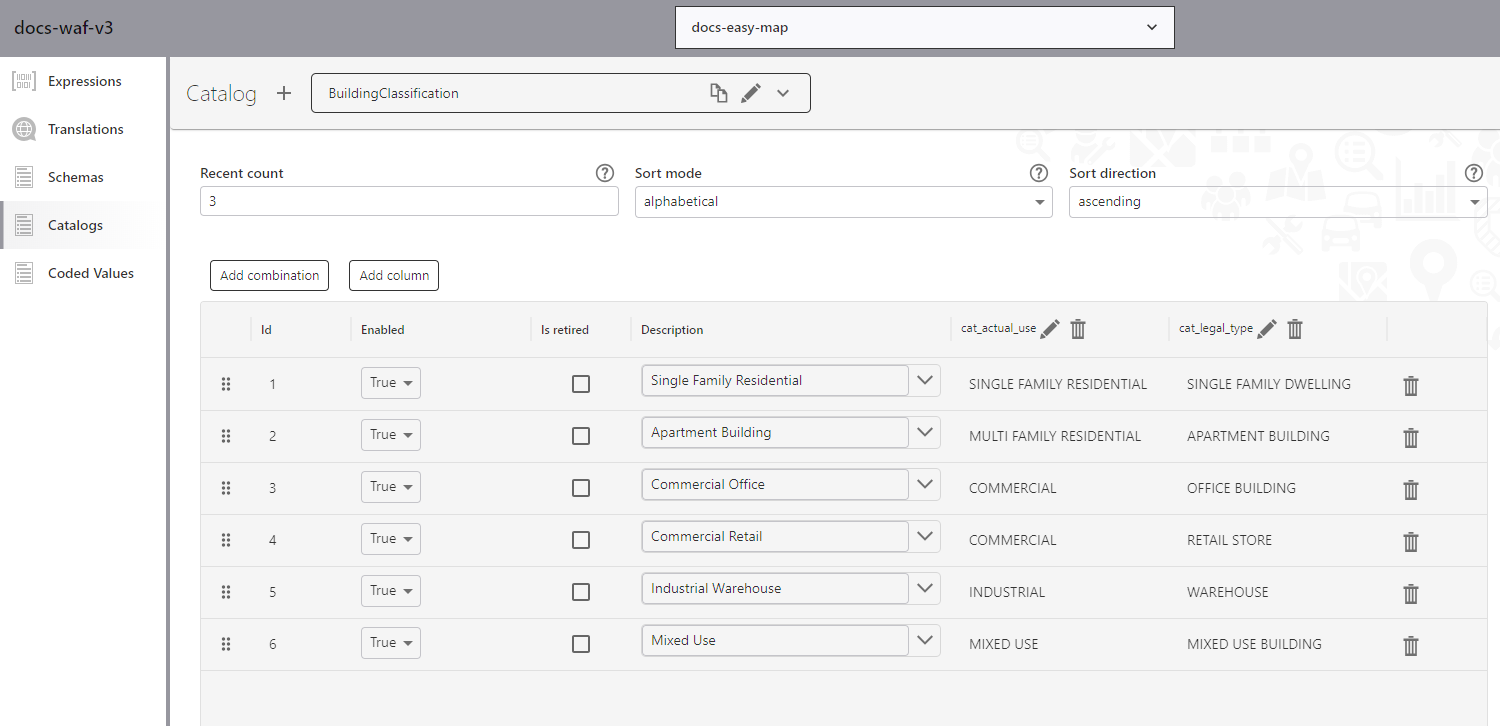
In the Catalogs editor, select + to create a new catalog. Set the following properties:
Property |
Value |
|---|---|
Name |
BuildingClassification |
Sort Mode |
Alphabetical |
Sort Direction |
Ascending |
Recent Count |
3 |
The Recent Count of 3 means the three most recently selected combinations appear at the top of the picker for quick access - useful for staff who regularly work with the same building types.
Add columns
Select Add Column twice to create two columns. Open each with the pen icon and configure:
Column 1 - Actual Use
Property |
Value |
|---|---|
Name |
cat_actual_use |
Title |
Actual Use |
Control Type |
DropDownList |
Coded Values |
cv_actual_use |
Column 2 - Legal Type
Property |
Value |
|---|---|
Name |
cat_legal_type |
Title |
Legal Type |
Control Type |
DropDownList |
Coded Values |
cv_legal_type |
Add combinations
Select Add Combination for each pre-approved pairing. Enter the Description and the value for each column:
ID |
Description |
cat_actual_use |
cat_legal_type |
|---|---|---|---|
1 |
Single Family Residential |
SINGLE FAMILY RESIDENTIAL |
SINGLE FAMILY DWELLING |
2 |
Apartment Building |
MULTI FAMILY RESIDENTIAL |
APARTMENT BUILDING |
3 |
Commercial Office |
COMMERCIAL |
OFFICE BUILDING |
4 |
Commercial Retail |
COMMERCIAL |
RETAIL STORE |
5 |
Industrial Warehouse |
INDUSTRIAL |
WAREHOUSE |
6 |
Mixed Use |
MIXED USE |
MIXED USE BUILDING |
Step 3: Add the CatalogPicker to the Schema
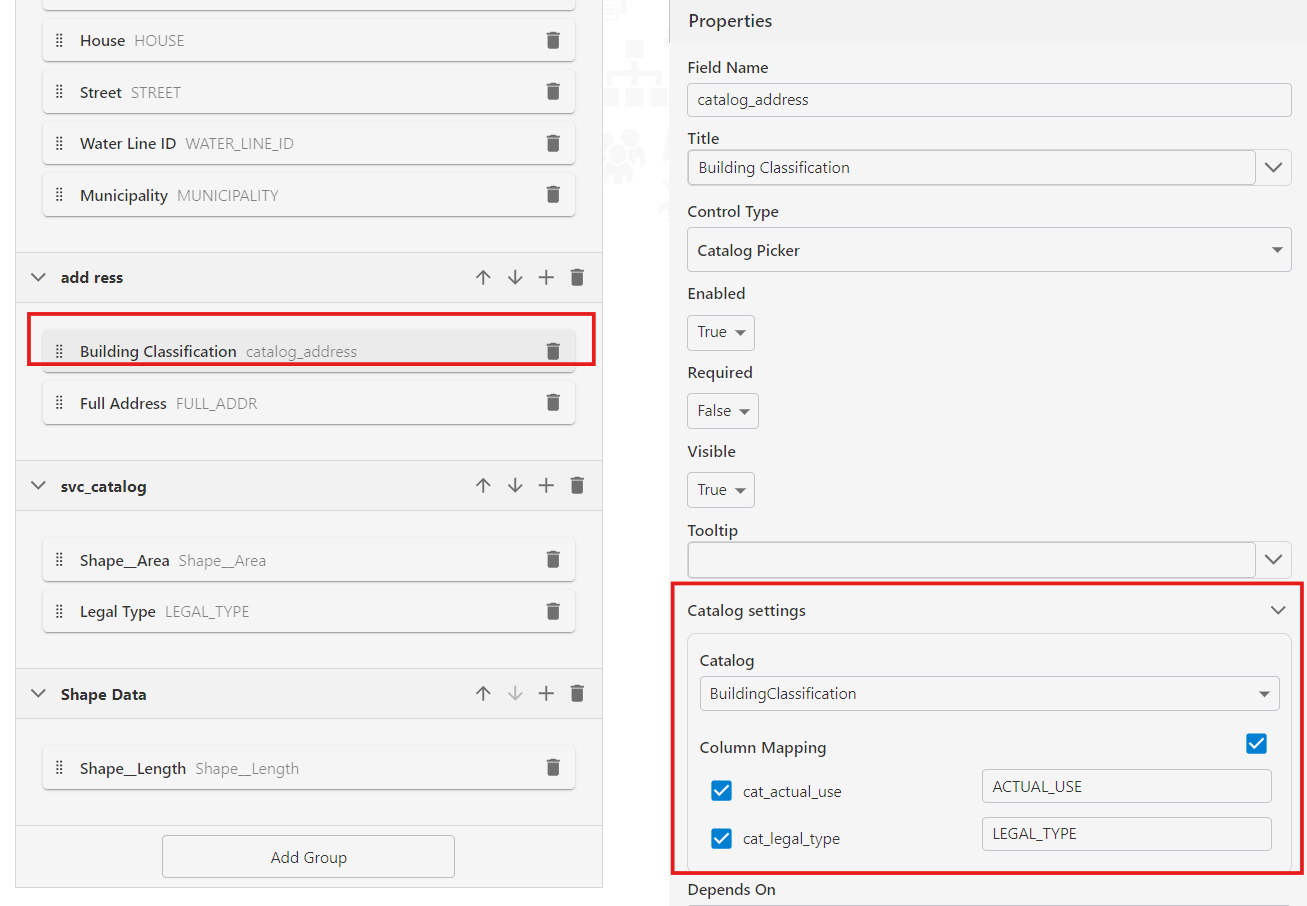
In the Schemas editor, open the Buildings schema and select the group where the classification picker should appear. Select Add Field and configure:
Property |
Value |
|---|---|
Name |
catalog_address |
Title |
Building Classification |
Control Type |
CatalogPicker |
Catalog |
BuildingClassification |
Then set the column mapping so the catalog writes values to the correct feature fields:
Catalog Column |
Feature Field |
|---|---|
cat_actual_use |
actual_use |
cat_legal_type |
legal_type |
The catalog_address field - bound to this FormField via the name property - stores the human-readable description of the selected combination (for example, Commercial Office). This means the classification name is readable directly on the feature without needing to decode any codes.