Your users can sign in to VertiGIS FM via Lightweight Directory Access Protocol (LDAP) using their Windows Active Directory credentials. This topic outlines required configuration steps.
If you want to use the roles assigned to users in the Active Directory to assign permissions to users in VertiGIS FM, you must first create the roles in VertiGIS FM. The roles you create must match the names of the roles in the Active Directory exactly.
LDAP Configuration in VertiGIS FM
You can configure LDAP settings in VertiGIS FM on the Administration > Interfaces > External Authentication page. Select the LDAP entry and click the Edit ( ) icon to configure LDAP authentication.
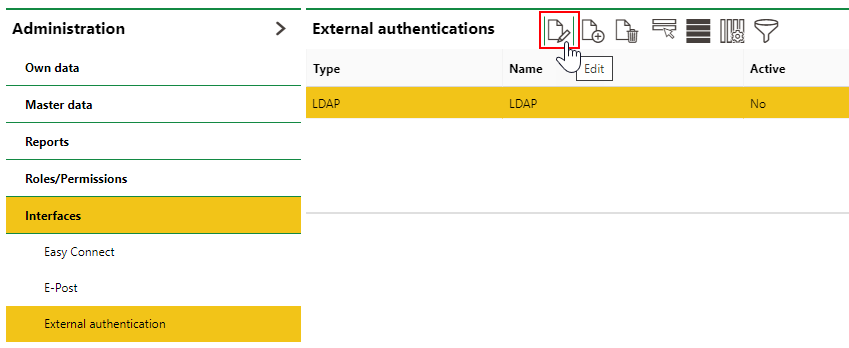
LDAP Authentication on the External Authentication Page in VertiGIS FM
Refer to the sections below for information about how to configure VertiGIS FM for LDAP authentication.
Advanced system knowledge and knowledge of LDAP is required to complete LDAP configuration.
LDAP Access
Field or Section |
Details |
|---|---|
Active |
Select the check box to make the authentication method available for users in the system. |
Query limit |
Enter the maximum number of user records VertiGIS FM will request in a single API call. |
LDAP Server URL |
Enter an LDAP server URL including the port (default is 389). If you are using an LDAP with TLS encryption, the port default is 636. Example: ldap://hostname:636 |
Service User and Password |
Enter the user (domain\Windows user) and password. The service user checks the validity of all users in the Active Directory. If their password expires, login for all users on the server is blocked. |
LDAP Roles
Field |
Input |
|---|---|
Transfer roles |
Select this check box if you want groups in the Active Directory to be converted to roles in VertiGIS FM. If a user's group in the Active Directory matches a role that exists in VertiGIS FM, they are assigned the role when they authenticate in VertiGIS FM for the first time. To enable the role transfer functionality, you must have already created roles with names identical to the ones in the directory. |
Role Basic Index |
Enter the Distinguished Name (DN) for a group object in your Active Directory that the application uses to resolve role assignments based on group membership.
Role Basic Index Text Box |
Field members |
Enter the attribute you want to query the directory with to determine the user's roles. In the example below, the system queries group objects under the specified DN and checks the group’s member attribute for the user’s DN. |
Field roll-name |
Enter the attribute that contains the group’s name in Active Directory. In the example below, cn is entered, which tells VertiGIS FM to use the group’s common name as the role name when assigning roles. |
Default role |
As an alternative to transferring roles from the Active Directory, select an existing VertiGIS FM role. The system assigns this role to a user when they authenticate in VertiGIS FM. Any role you have already created in VertiGIS FM can be selected. If you want to manually add roles to users authenticated via LDAP, do not select any default role. |
Ignore role referrals |
Select this check box if you want the system to ignore existing groupings in the Active Directory. |
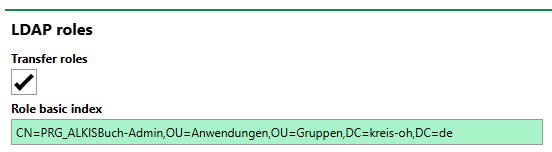
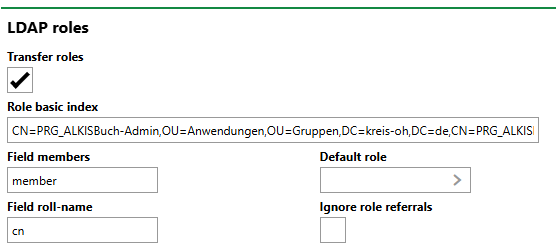
Example Roles Section for LDAP
LDAP User
Field |
Input |
|---|---|
User directory |
Enter the Distinguished Name (DN) for a group object that contains the Active Directory users whose membership VertiGIS FM will use to determine which users can authenticate. |
Filtering based on role base directory |
Select this check box to limit authentication to users who are members of groups located under the DN specified in the User directory field. |
Create users automatically |
Select this check box to create users based on their Active Directory entry when they authenticate by LDAP. |
Field user / member of |
Enter the attribute you want to query the Active Directory with to determine the user's group memberships. This tells VertiGIS FM where to look for the user's group memberships. In the example below, VertiGIS FM uses the memberOf attribute to determine the user's group memberships. |
Field user SID |
Enter the attribute that contains the user’s Security Identifier (SID). In the example below, VertiGIS FM uses the user's objectSid value as the user's SID. |
Field user name |
Enter the attribute that tells VertiGIS FM what to use as the user's user name. In the example below, the user's sAMAaccountname value in the Active Directory will be adopted as their user name in VertiGIS FM. |
Ignore user referrals |
Select this check box if you want the system to ignore existing groupings in the Active Directory. |
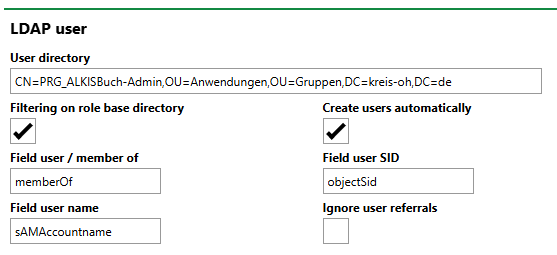
User Directory Field
Employees
In the Employees section, enter attributes that tells VertiGIS FM which values to assign to the employee associated with each user who authenticates using LDAP.
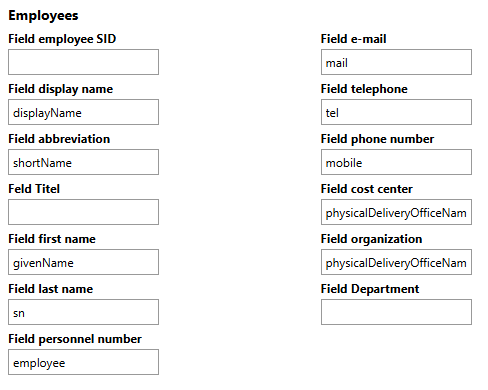
Employee Properties in User Section
Settings
In the Default User section, you can select a user whose user properties will be assigned to users who authenticate via LDAP. User properties are attributes specific to individual users that can differ between users assigned the same roles. Examples include the user's language, password, and display settings.
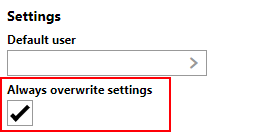
Overwrite Settings Check Box
If you select the Always Overwrite check box, the user is updated with the settings stored in this section every time they log in, not just the first time.
Run a Test
When you have configured LDAP according to your Active Directory, click the Test button at the bottom of the form.
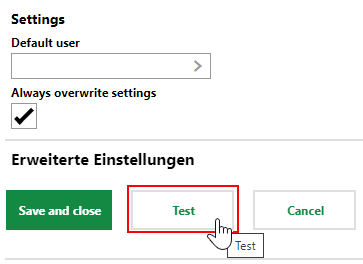
Test Button on the LDAP Configuration Form
This generates a log file (LdapLog.txt) that indicates the users (usr) and group names (grp) in the specified directory.
grp |
VertiGIS FM Group (LDAP://VertiGIS.VertiGIS.local/CN=VertiGIS FM Group OU=VertiGIS Groups DC=VertiGIS DC=local) |
usr |
VertiGIS\xyzUser – First name Last name |
If the groups and users appear in the file without any error messages, you can activate LDAP by selecting the Active check box on the form and saving the configuration.
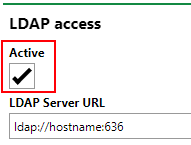
LDAP Active
Enable Windows Authentication
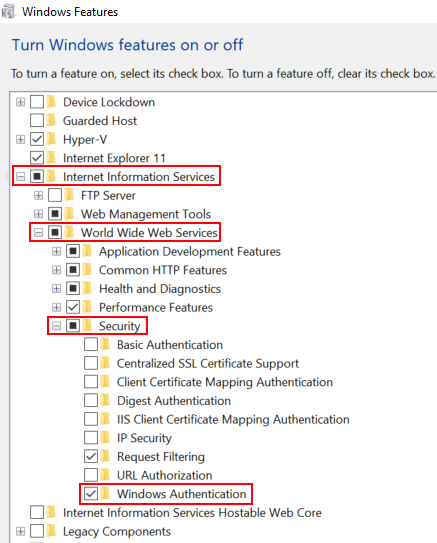
To enable LDAP with your implementation of VertiGIS FM, Windows authentication must be activated in the Internet Information Services (IIS) configuration.
To Enable Windows Authentication
1.Open the Control Panel on your computer.
2.Click Programs.
3.Under Programs and Features, click Turn Windows features on or off.

4.Expand Internet Information Services > World Wide Web Services > Security and select the Windows Authentication check box.
5.Click OK.
Activate Windows Integrated Authentication in the IIS Manager
To ensure roles can be transferred from the Active Directory to the LDAP system, you also have to activate Windows Integrated Authentication in the Internet Information Services (IIS) Manager.
To Activate Windows Integrated Authentication in the IIS Manager
1.Open the IIS Manager.
2.In the left pane, expand Default Web Site and select the VertiGIS FM site for your implementation.
3.Double-click Application Manager.
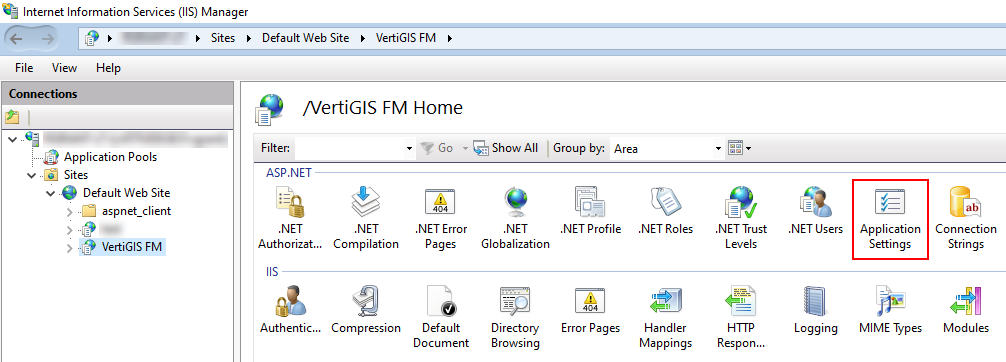
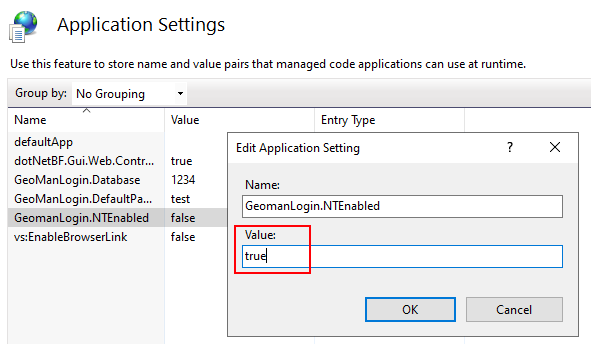
4.Right-click GeoManLogin.NTEnabled and select Edit.
5.In the Value text box, type true and click OK.
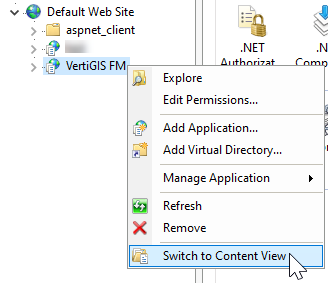
6.Right-click the VertiGIS FM website in the left pane and select Switch to Content View.
7.In the contents that appear, right-click GeoManLogin.aspx and select Switch to Features View.
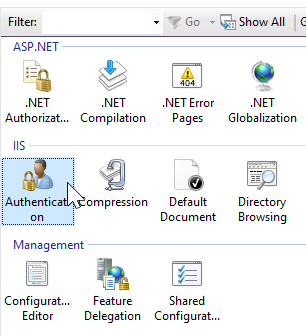
8.Under IIS, double-click Authentication.
9.Right-click the following authentications and select Enable.
▪Anonymous Authentication
▪Windows Authentication
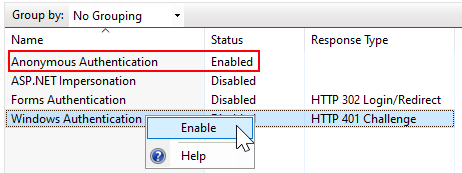
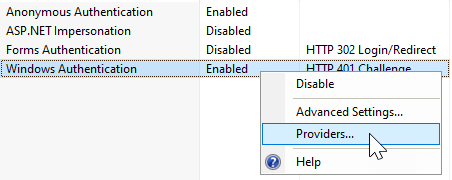
10.After enabling Windows Authentication, right-click it and select Providers.
11.Select NTLM and click Move Up.
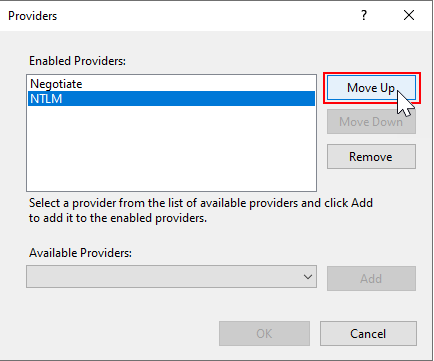
12.Click OK.
After completing the procedure above, you can navigate to VertiGIS FM in a new web browser. You will be signed in automatically via LDAP, and a new VertiGIS FM user will be created for your Windows user.
Accessing VertiGIS FM Outside of Company Network
If you want users in your Active Directory who authenticate using LDAP to be able to access VertiGIS FM when outside the company network, you need to create internal users and passwords for them on the Administration > Roles and Permissions > User Management page. Refer to User Management for more information.
