The Update feature in VertiGIS Solution Manager allows you to upgrade deployed applications - such as Networks Editor, Networks Explorer, etc. - to newer versions while preserving your customizations. The update process automatically detects and handles conflicts between your changes and the new version's changes.
Requirements
•Access to VertiGIS Solution Manager.
•A previously deployed application that you want to update.
•The update package file.
•Appropriate permissions on the ArcGIS Portal.
What Gets Updated
When you update an application:
•Application version is upgraded to the new release.
•Your customizations are preserved where possible. (e.g., brand colors, services, configurations)
•Conflicts are detected and resolved automatically based on predefined rules.
•Original item IDs are maintained on the ArcGIS Portal.
To update a package with Solution Manager:
In this example, we update a package from Networks Editor v1.14.3 to Networks Editor v1.15.0.
1.Initiate the update.
•Open the VertiGIS Solution Manager.
•Navigate to the Deployments Dashboard by clicking Deployment.
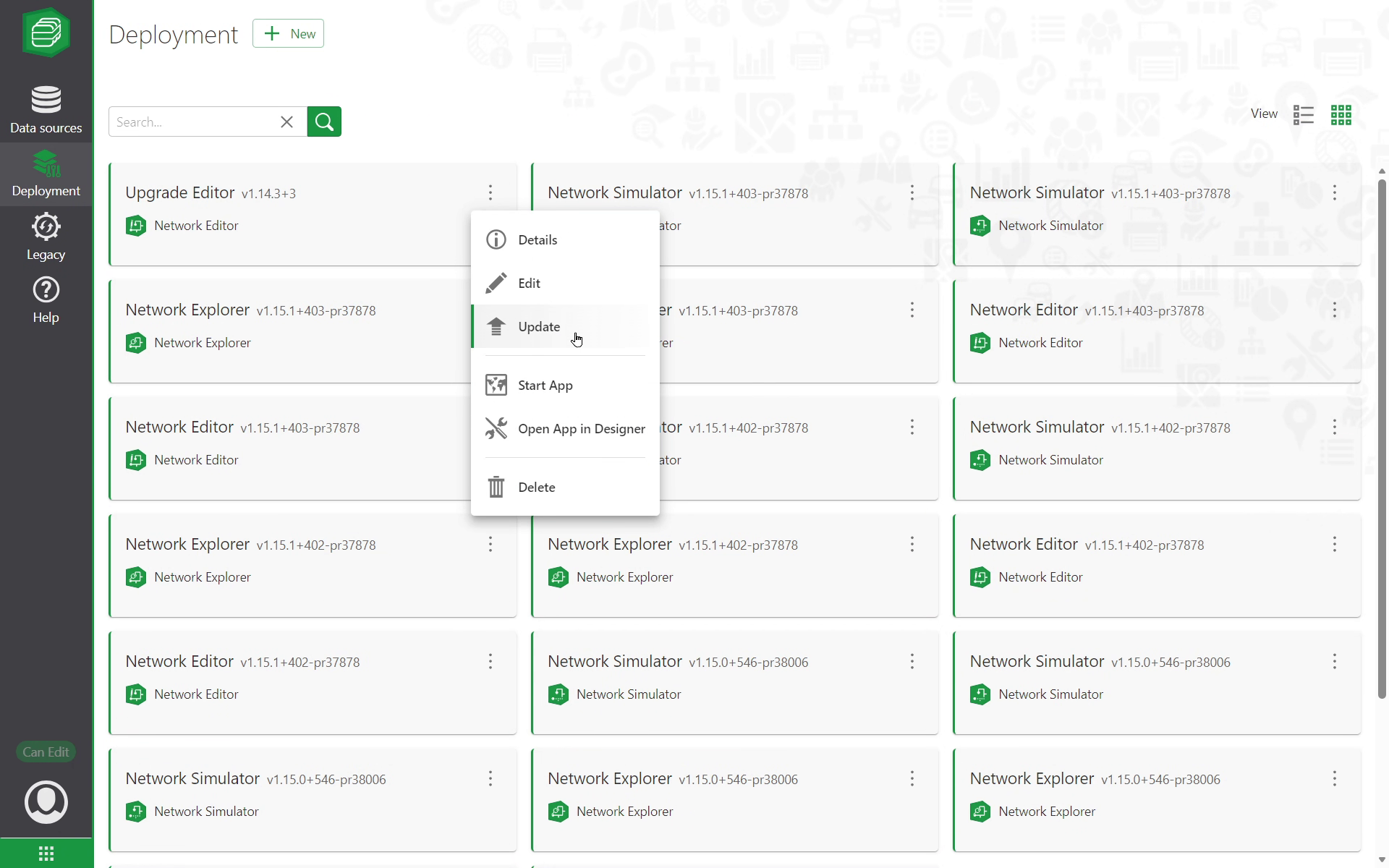
•Locate the application you want to update then click on its action menu.
•Click Update.
2.Upload the update package.
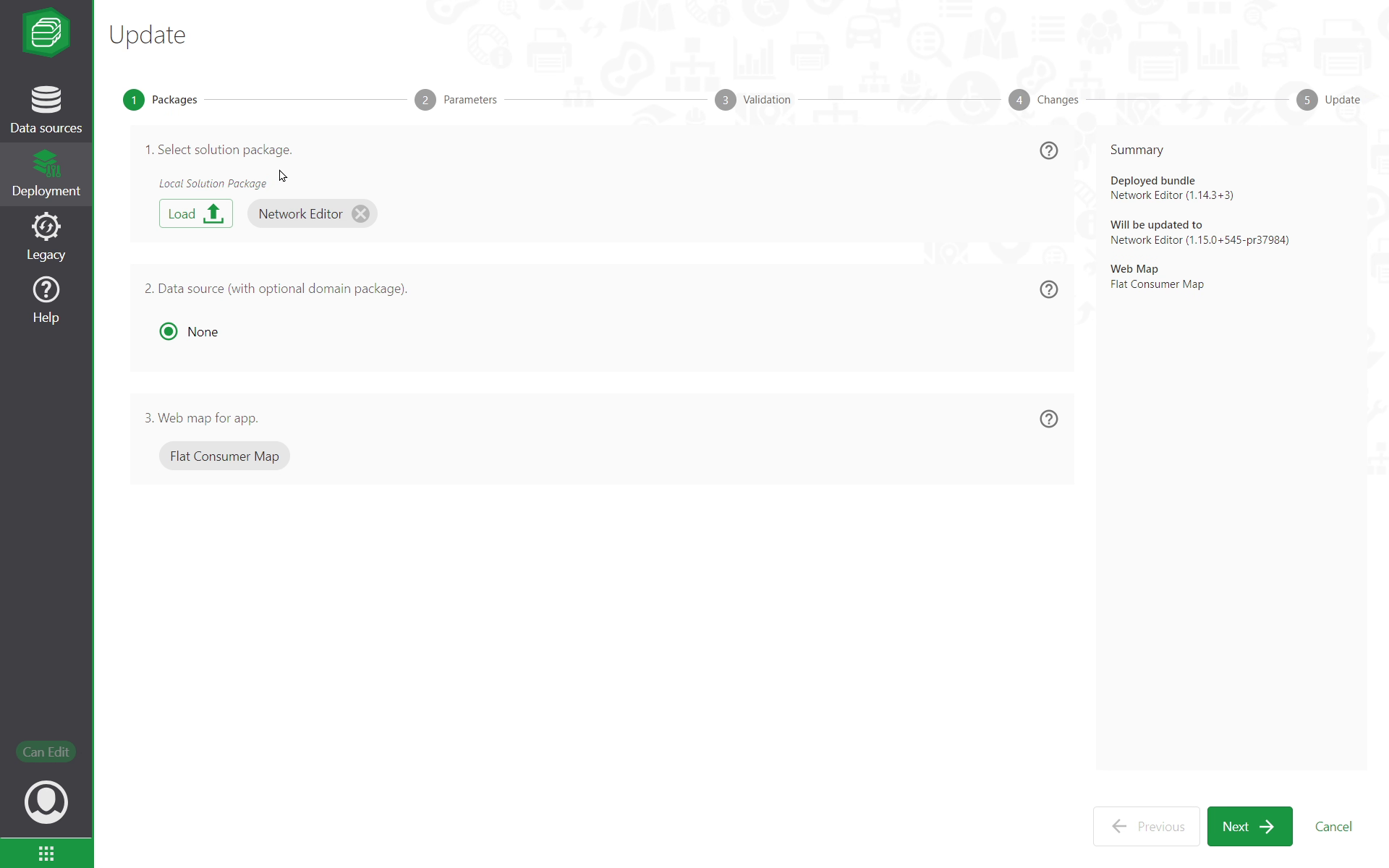
•Click Load to browse for the update package.
•Select the package file for your target version (e.g., Network Editor 1.15.0).
The system then validates the package.
Download the latest packages from VertiGIS Support Portal
3.Optional: Configure your data sources.
•Review the Data Sources section.
•The system will show the default data source you selected during initial deployment.
•Confirm or modify the data source selection.
4.Verify your web map.
•The system displays the web map associated with your application from your initial deployment, which the update will use.
•Click Next.
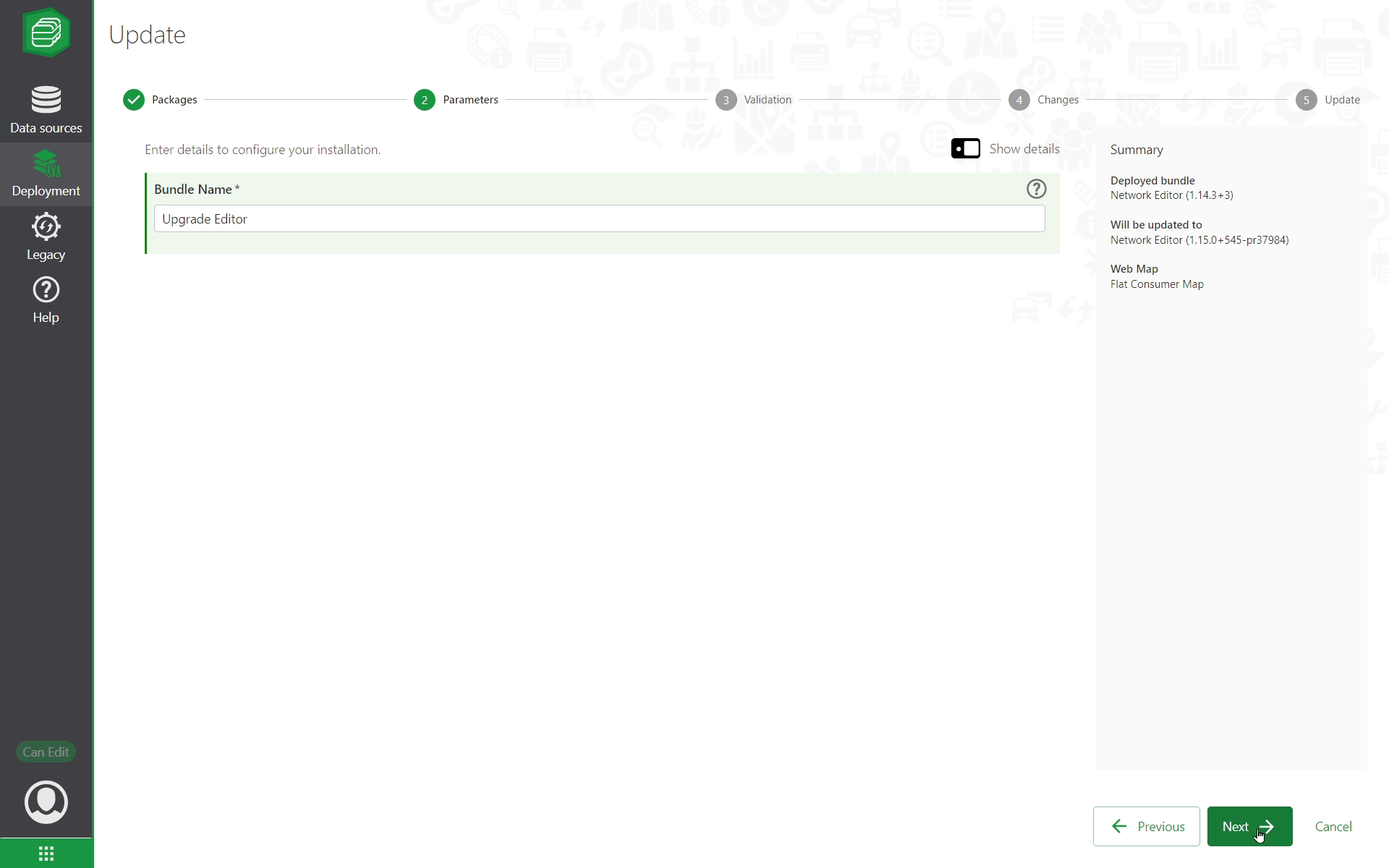
5.Update your parameters by toggling Show Details.
•Review and update the bundle name and the other configuration parameters as needed
•Click Next.
6.After the system completes the validation checks, click Next.
If errors are detected during the validation process, review the error messages, correct the available issues and retry the validation process.
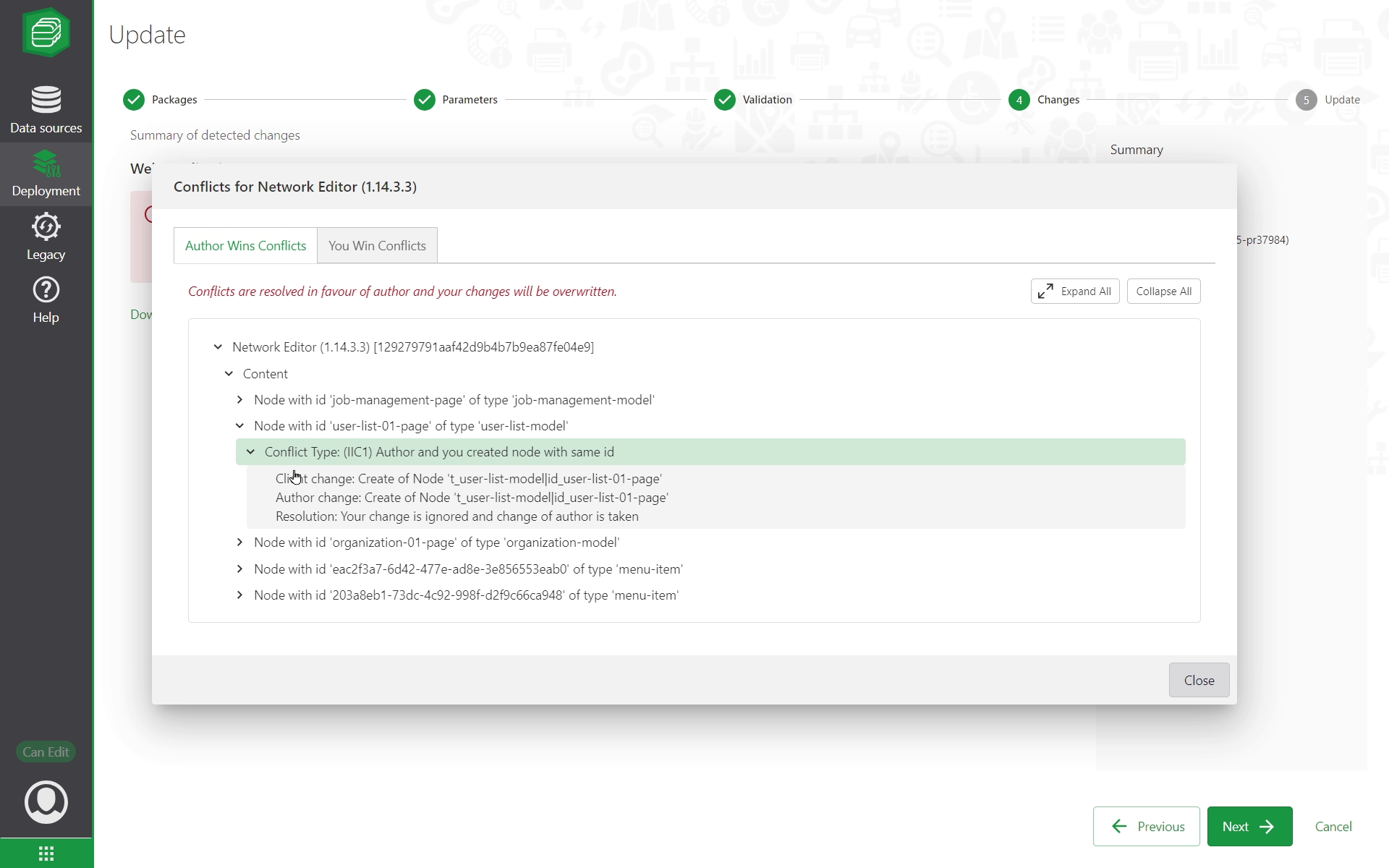
7.Review the detected changes and conflicts that are split into two types:
i.Author Wins Conflicts Tab:
▪Conflicts are resolved in favor of the update package (author).
▪Your changes will be overwritten.
▪Typically affects application configurations.
▪Does NOT typically affect brand colors, services, and similar customizations.
i.You Win Conflicts Tab:
▪Conflicts are resolved in your favor.
▪Changes from the author will be ignored.
▪Your customizations are preserved.
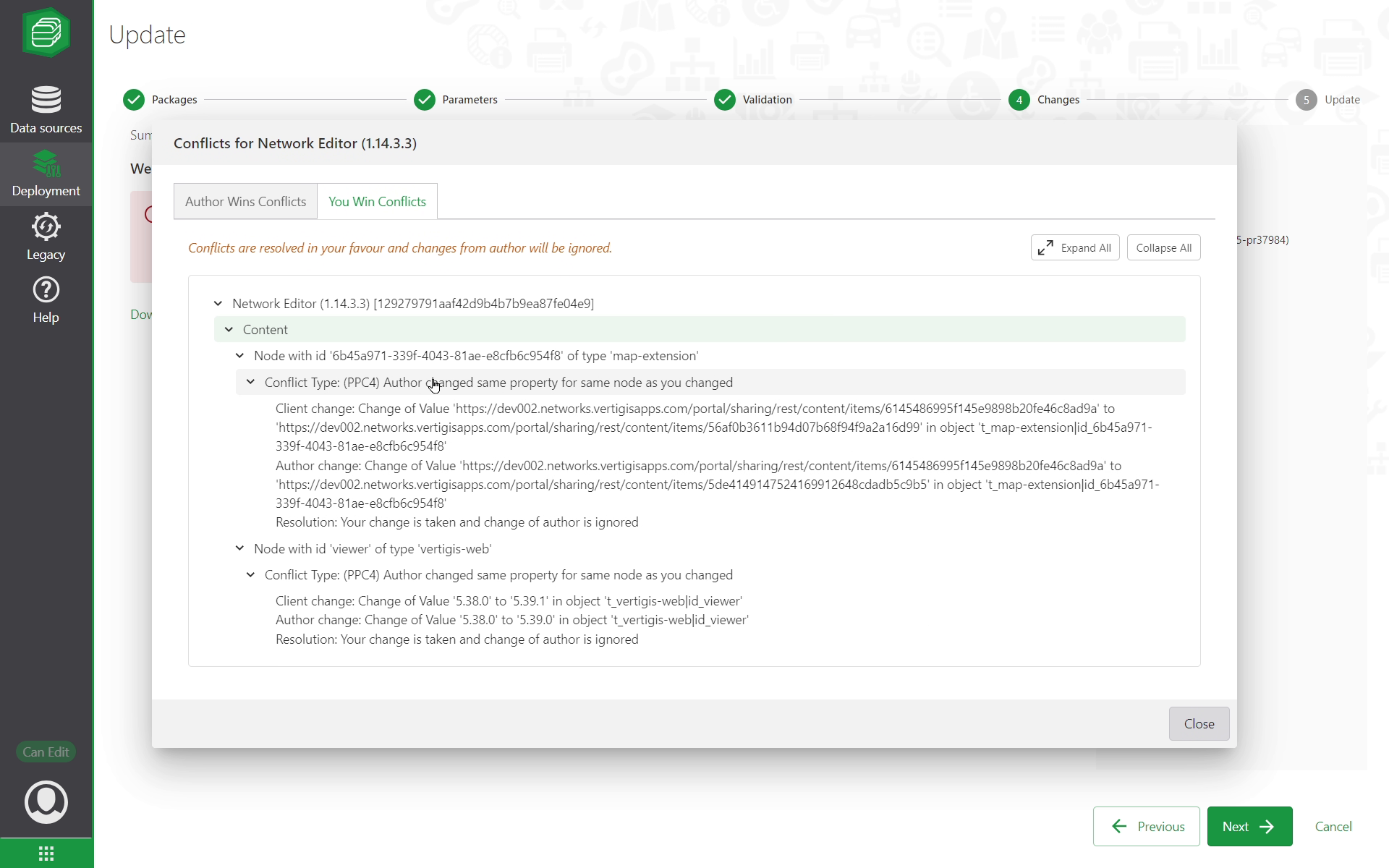
It is advised to download the conflict report by clicking Download Complete Conflict List to export a text file containing all conflict information from both tabs. This is useful for documentation and review purposes.
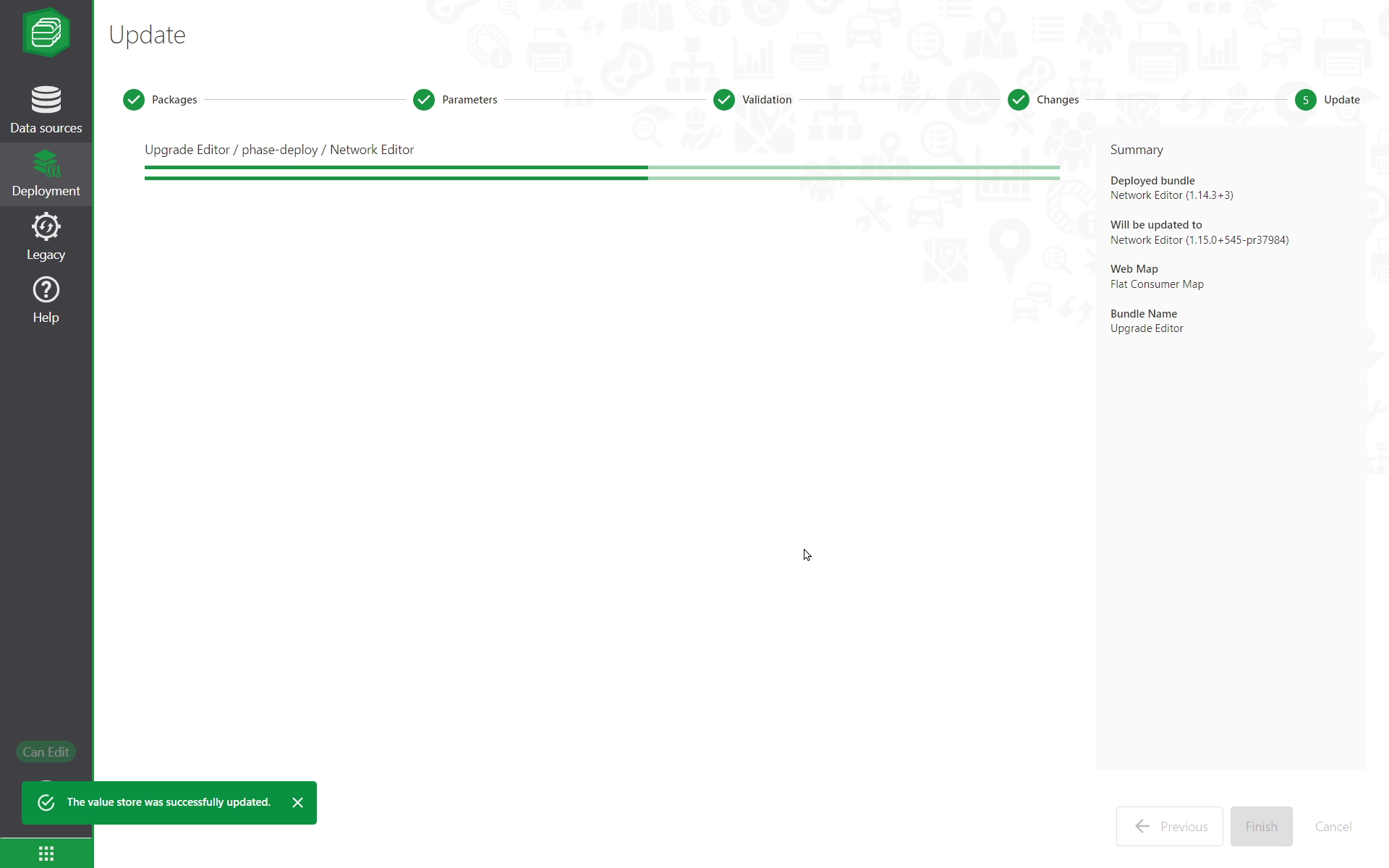
8.Apply the update to your app by clicking Next.
The system proceeds with applying the updates to your deployment, and a notification of success pops up: Values Store was successfully updated.
9.Verify the update's success and review the list of updated packages by clicking on them. Verify that the application version has been updated (e.g., from v1.14 to v1.15).
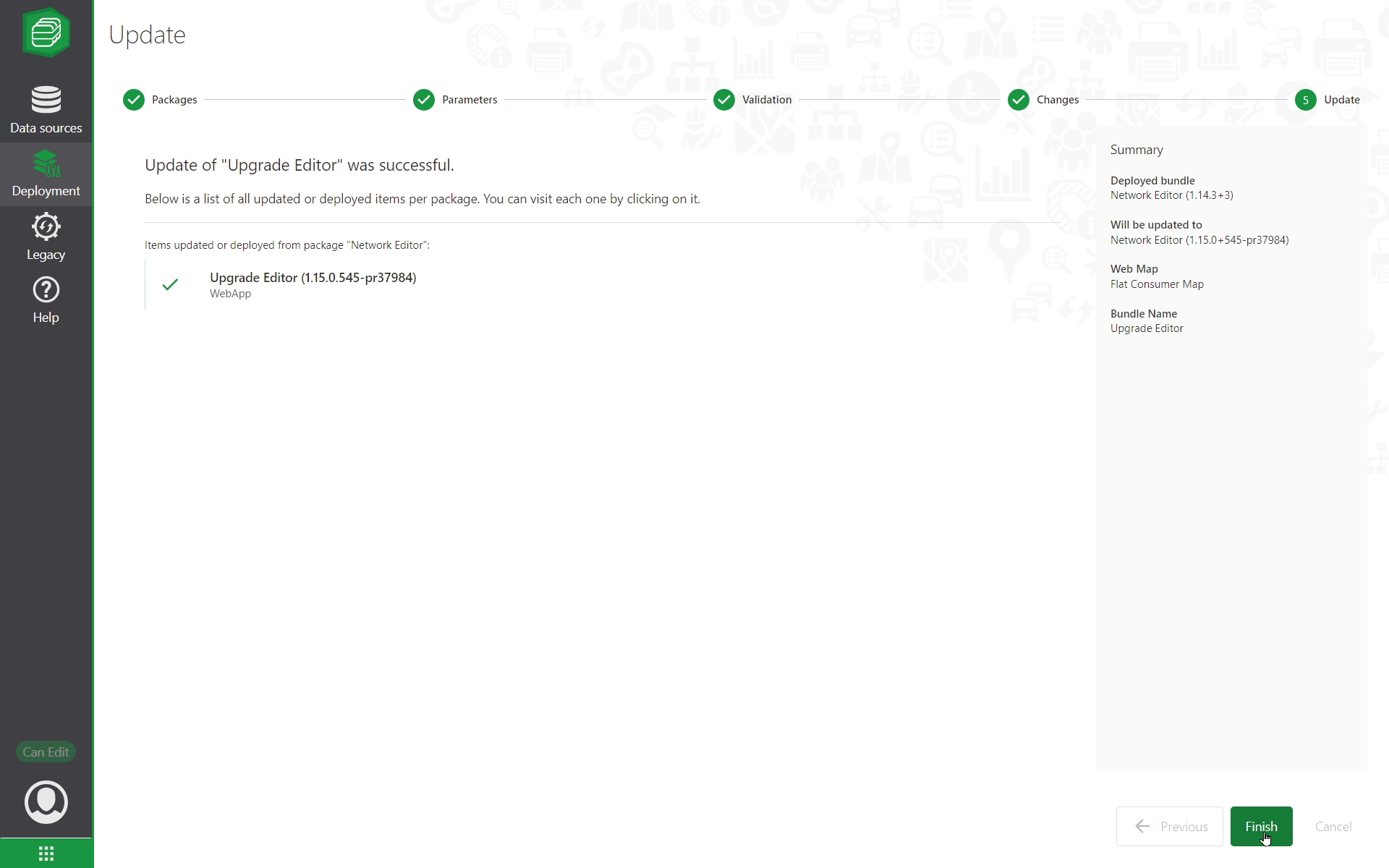
10. Click Finish to return to the deployment dashboard.
Contact Support
If you encounter issues during the update process:
1.Download and review the complete conflict list.
2.Check the validation error messages.
3.Contact VertiGIS support with:
oPackage versions (current and target).
oConflict report.
oError messages.
oSteps to reproduce the issue.