You can use this function to add and edit attachments in the form of images or documents to structures. For example, add architectural plans to a service line as a reference document.
For non-Esri compatible attachments, an external document manager is used. To know more about the Esri compatible attachment types, visit ArcGIS Online documentation.
You can only add attachments to the structures and features that are configured to have attachments, to know more about attachment configuration, please visit the ArcGIS Pro documentation.
To edit attachments:
1.Go to Edit > Attachments. In the left side panel, the Attachments tab opens.
2.Select the features or structures you want to edit.
3.Create a new attachment by clicking on the Add button at the bottom of the Attachments tab. An upload window pops up where you can upload either a local attachment or an external attachment of an image or a document to the selected structure. Click on OK to finish uploading.
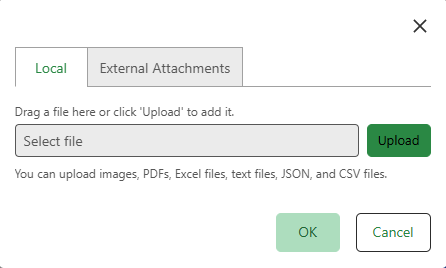
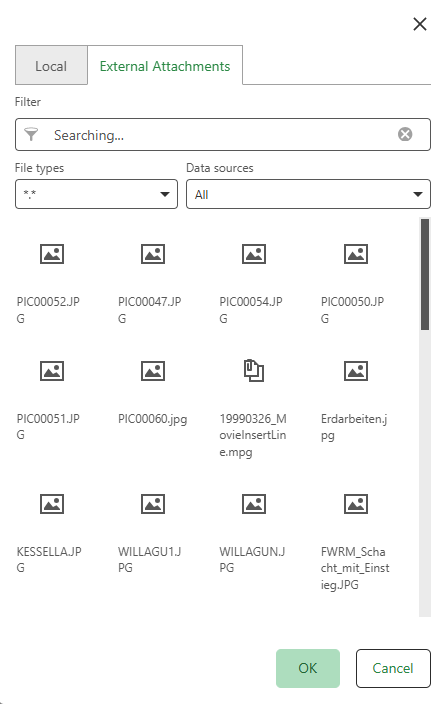
When uploading locally, you can link only one file as a relationship per upload. To upload multiple files, repeat the same steps for each file. While in the external attachments tab, you can select multiple files at once by holding Ctrl while clicking, or by dragging to select a range of files.
You can view all added image attachments in list form or grid form, these controls are present next to the title Images.
4.You can perform some edit actions on your created images by clicking on the action menu, the following functions appear:
Button |
Description |
|---|---|
|
Preview the added image in the Attachments tab. You can also double-click the image to preview it in the Attachments tab. |
|
View the image in a new tab on your browser. |
|
Download the image locally to your machine. |
|
Delete the attachment from the current active structure line or feature. |


5.You can perform some edit actions on your created attachments by clicking on the action menu, the following functions appear:
Button |
Description |
|---|---|
|
Download the attached file locally to your machine. |
|
Delete the attachment from the current active structure line or feature. |
Previously added external documents are shown at the bottom of the panel where you can preview, open in a new tab, download and remove the relationship with their features.